
Update Paper, Purpur and plugins safely
Update during a planned maintenance window when you can watch the first startup and test the result. Separate a build update within the same Minecraft release from an upgrade to a new Minecraft version. The latter can change world formats and plugin compatibility.
Prepare a recovery point
- Record the current Minecraft release, Paper or Purpur build, Java runtime and plugin versions. Save the startup settings and the expected server JAR filename.
- Check each plugin's supported Minecraft versions and required dependencies. Download updates from the developer's official release page. Avoid mixing experimental builds into a routine maintenance update.
- Tell players about the pause. Stop the server through Console and wait until it finishes saving.
- Create and verify a full file backup. Include worlds, plugin JARs, plugin data and configuration. Export external plugin databases as matching recovery points.
- Keep a downloaded copy outside the server. Make sure you have space for the upload, current files and any temporary extraction.
Update the server JAR
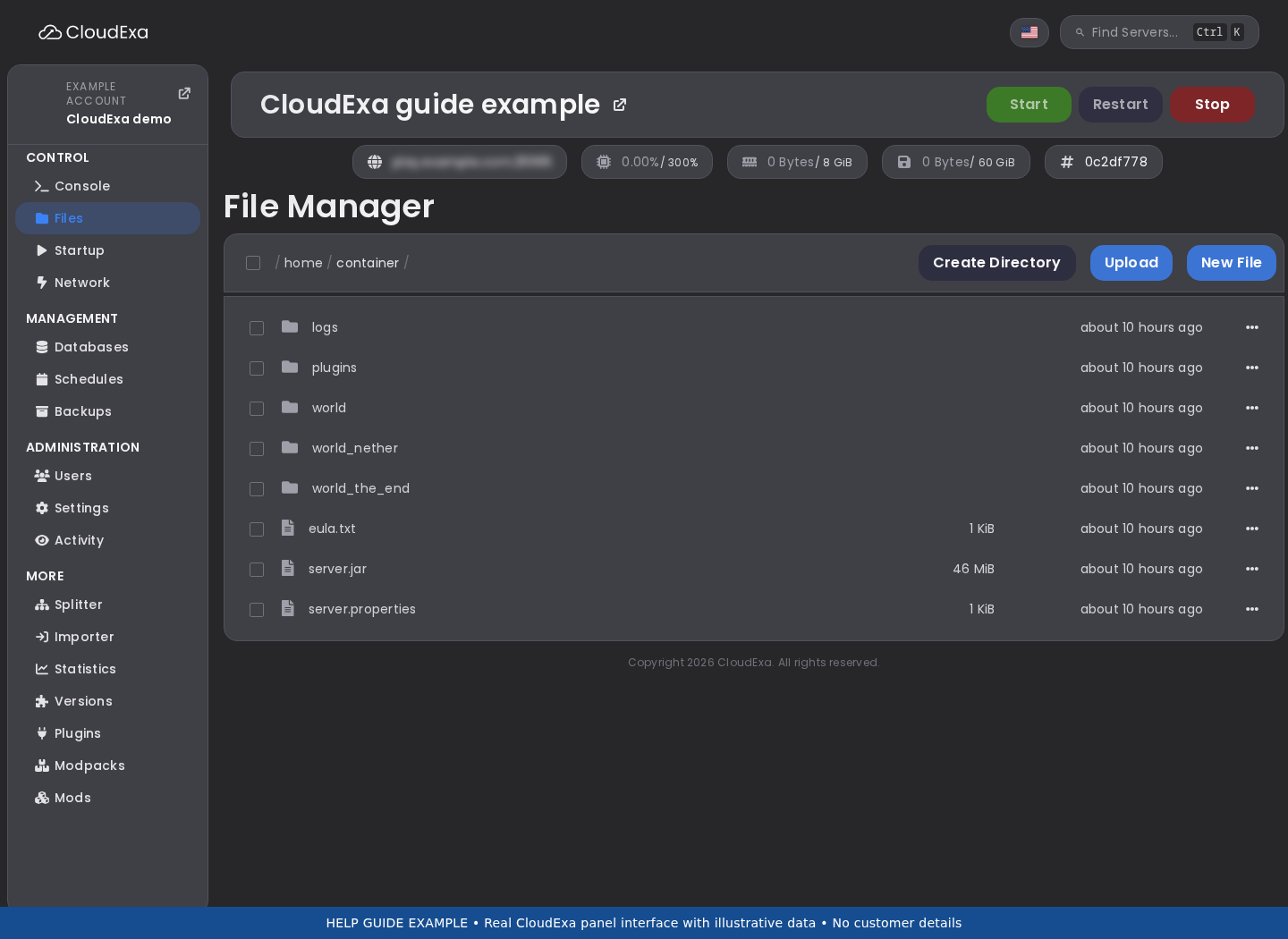
For a file-based update, obtain the correct build from Paper's downloads or Purpur's downloads. Upload it while the server is stopped. Keep the previous JAR in your off-server recovery copy.
Match the new JAR filename to the server's Startup configuration, such as server.jar, where that setting is available. Do not rename world folders or remove configuration to make an update start. If your plan controls the JAR through a version tool rather than an editable startup field, ask support to confirm the update method and whether it retains files. A reinstall is not a routine JAR update.
Update plugins and runtime
Replace plugin JARs with compatible versions while the server remains stopped. Keep one active version of each plugin and preserve its configuration and data folders. Read migration notes before changing a plugin that stores a database schema.
Check the Java runtime guide for the target Minecraft release. Do not assume the newest runtime works with an older server. Change only the settings needed for the update so you can trace a failure.
Test before reopening
- Start the server and read the complete startup output. Look for missing dependencies, failed plugins and world-conversion errors.
- Join with a test player. Check the expected world, inventory, permissions, claims, shops and database-backed features you use.
- Check the console after a short session. Save the new build/version details and any warnings.
- Reopen the server once the checks pass. Keep the pre-update recovery point through the first normal play session.
If you need to roll back
Stop the server and preserve the failed startup log. Restore the matching pre-update files, settings and external database exports when required. Replacing only the JAR may leave converted worlds or plugin data incompatible with the older build.
Do not force an older Minecraft version to open a world saved by a newer version. Contact support before restoring if you cannot identify a complete matching recovery point. Include the versions before and after the update and the first relevant error.
References: Paper updates; Purpur compatibility.
No comments to display
No comments to display