
Choose the Java runtime for your Minecraft server
Applies to: CloudExa game panel desktop interface on 9 November 2026; labels, permissions and available options may change.
Documentation checked .
Use a Java runtime that matches your server software and Minecraft version. Changing Java does not update Minecraft, install plugins or convert a world.
Check the requirement first
Read the release instructions for the exact server or modpack you run. Paper's current guidance recommends Java 21 for Paper 1.20–1.21.11 and Java 25 for Paper 26.1 and newer. Older releases and modpacks can need other versions. Check the Paper Java compatibility table rather than assuming the highest number suits every server.
Plugins can have their own Java requirements. If a plugin requires a newer runtime than your server supports, choose a compatible plugin release or plan a server upgrade before proceeding.
Change the runtime in CloudExa
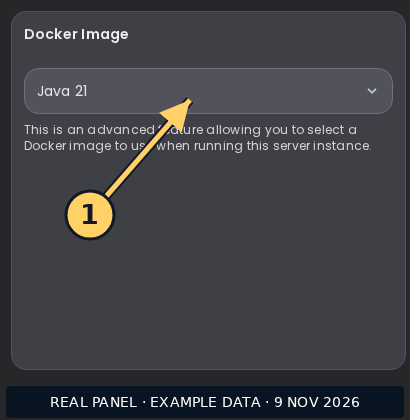
- Open your server at the game panel. Record the current runtime option so you can return to it if needed.
- Create a backup, then stop the server and wait for it to shut down.
- Open Startup and find Docker Image. The named options select the runtime environment for the server.
- Select the available Java option that matches your software requirements. Wait for the change to save before leaving the page.
- Start the server and read the opening console lines. Check the Java version and wait for Minecraft to finish loading.
- Join and test your important plugins or mods before inviting everyone back.
If you cannot select an option
A subuser can need permission to change the startup image. The field can also be read-only when an administrator has set a custom image or when the service offers only one image. Contact support with your server ID, Minecraft version and required Java version. Do not change unrelated startup variables to work around a locked selector.
If the server fails to start
An UnsupportedClassVersionError can indicate that a JAR needs a newer Java version. Check which JAR the log names. Other boot errors can involve incompatible flags or dependencies. Keep the error text, restore the previous runtime if appropriate, and use the log collection guide when asking for help. Changing the runtime alone does not require a reinstall.
No comments to display
No comments to display