
Set up Geyser and Floodgate for Java and Bedrock crossplay
Geyser lets Bedrock players connect to a Java server. Floodgate lets authenticated Bedrock players join without owning a separate Java account. These steps cover one Paper or Purpur server. A Velocity network needs its proxy-specific setup and forwarding settings; ask support before adapting these steps to a network.
Prepare your server and ports
Back up your server and record your current Minecraft and Java versions. Check Geyser's supported versions before downloading it. Some Minecraft Java server versions require ViaVersion to support the protocol expected by the current Geyser release.
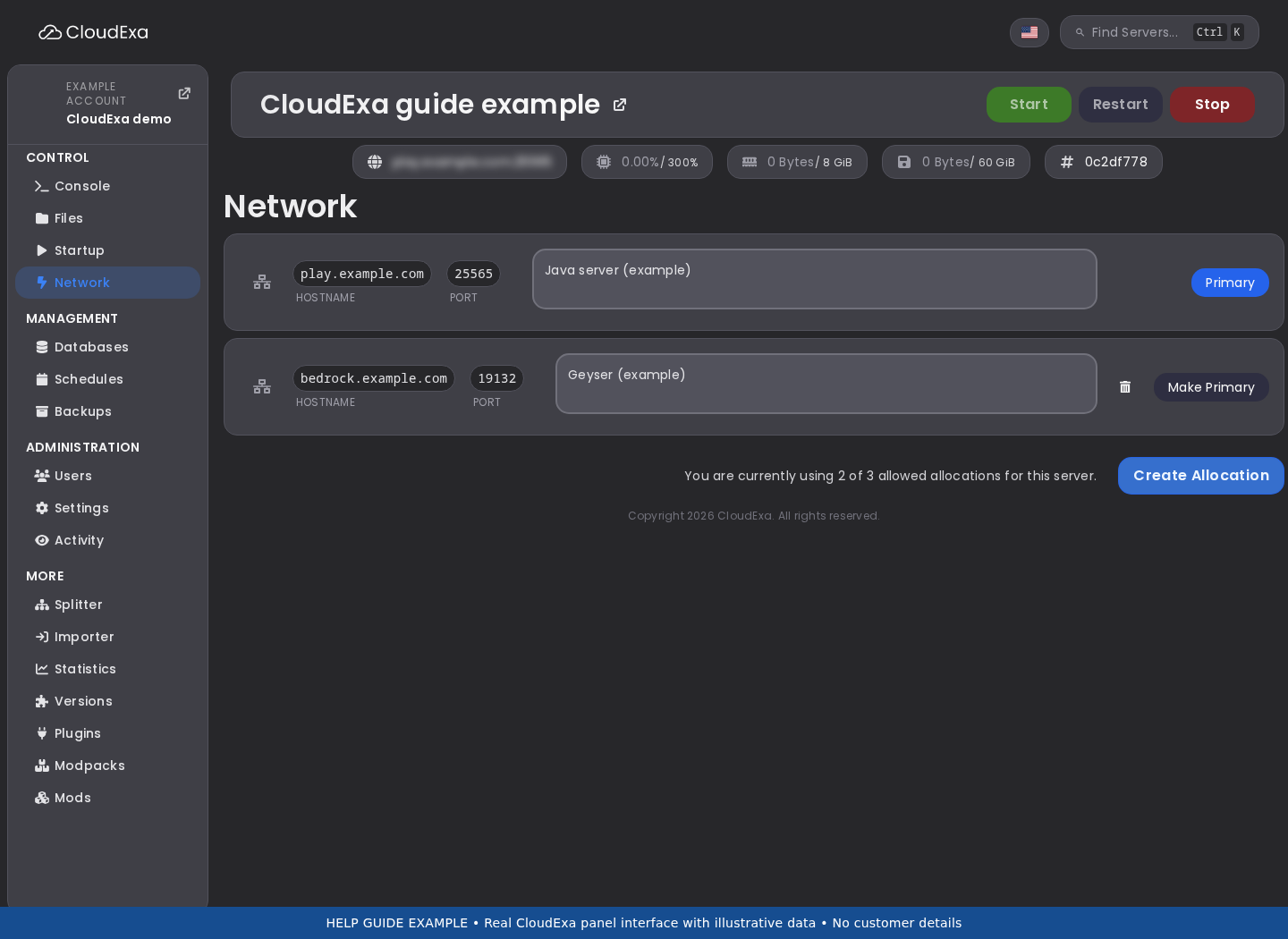
Open Network in the game panel. Geyser's current NetherNet transport needs its assigned port reachable over TCP and UDP. It cannot share the Java listening port because NetherNet also uses TCP. Older RakNet-only instructions that mention just UDP do not cover NetherNet.
Use a separate allocation for Geyser. If you do not have one, ask support to assign and verify it. Do not pick an unused-looking port or change the server's primary allocation. The usual example port is 19132, but your assigned port may differ.
Install the Paper-compatible plugins
- Stop your server from Console. Download Geyser and Floodgate from the official download page, selecting the Spigot/Paper builds.
- Open Files, enter
pluginsand upload both JAR files. Keep one version of each plugin; retain a backup before replacing an older JAR. - Start the server once to generate configuration, then stop it before editing.
- Open
plugins/Geyser-Spigot/config.yml. Underbedrock, setportto your assigned Geyser port. Follow the comments generated by your installed build for the transport setting. Current NetherNet configurations usetransport: nethernet. - Find
auth-typeand set it tofloodgatewhen you have installed Floodgate. Follow the Floodgate instructions for your build if the configuration layout differs. - Save and start the server. Read the startup output for both plugins and confirm the Geyser listening port.
Keep your Java server's authentication protection in place. Do not disable online mode as a shortcut for failed Bedrock logins. Protect Floodgate's key file and do not paste it into tickets, screenshots or public configuration examples.
Test both editions
Join from Java with the normal Java address. Then use Bedrock's Add Server screen with the same public IP or hostname and the assigned Geyser port. Test from a separate internet connection if possible. A working Java connection alone does not prove that Geyser's UDP path works.
Check player permissions and account names with a test player before opening crossplay to your community. Keep Floodgate's identity settings consistent with your existing setup so plugins continue to recognise players.
If Bedrock cannot connect
- Java works, Bedrock times out: check the Geyser port, assigned allocation, and TCP/UDP reachability. Ask support to check the container and host route.
- Unsupported version: compare the client, server, Geyser and ViaVersion versions against Geyser's current compatibility guidance.
- Authentication error: confirm Floodgate loaded and Geyser uses the intended authentication mode.
- NetherNet trust prompt: built-in signalling may use HTTP. Ask support about HTTPS signalling rather than assuming a web proxy will carry game traffic.
Send support your server ID, versions, transport, assigned ports and the relevant startup errors. Current references: Geyser setup, TCP/UDP requirements and Floodgate setup.
No comments to display
No comments to display