
Fix common Minecraft connection errors
Start with the exact message your Minecraft client displays. A connection timeout, a whitelist rejection and an incompatible version need different fixes. Record the time, edition and address you used before changing configuration.
Confirm the address and server state
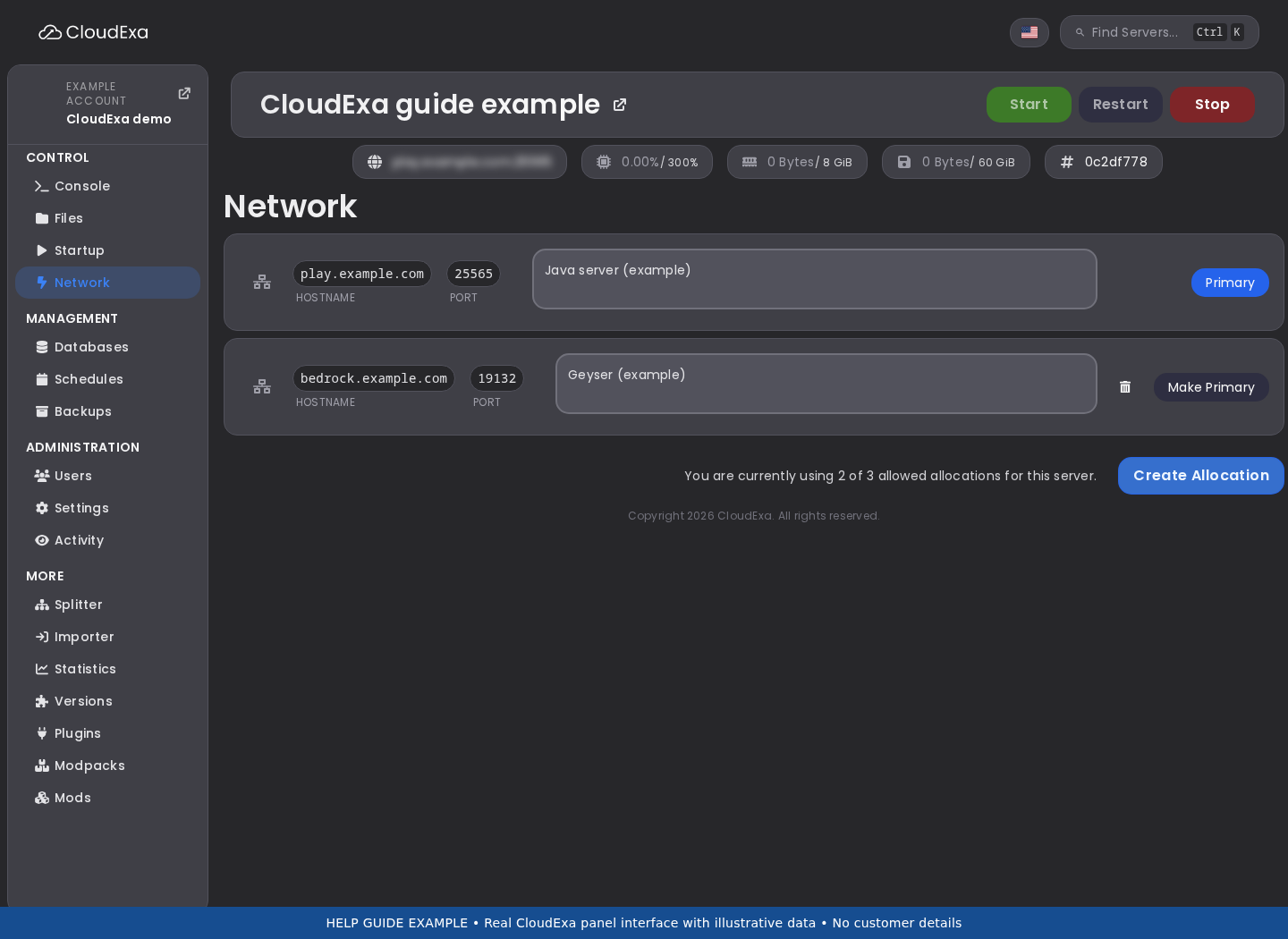
- Open your server's Console in the game panel. Check whether it is running and whether startup completed. Save the first startup error if it stopped.
- Open Network. Use the assigned address and port, without
http://orhttps://. A custom Java port belongs after a colon. - Test the assigned numeric address as well as your domain. If only the domain fails, check your DNS records.
- Confirm Java or Bedrock edition. Bedrock clients need a compatible crossplay setup and its separate port; see Geyser and Floodgate.
Connection refused
This often means that no process accepts connections on the address and port you tried, or that a network device rejected the connection. Check for a stopped server, failed startup or wrong port first. A running panel status does not prove that Minecraft finished loading.
If startup ends with an address-binding error, record it and ask support to check the allocation. Do not select another client's port or change the primary allocation to an unused-looking value.
Connection timed out
A timeout means the connection did not finish within the allowed time. It can involve the network path, filtering, an incorrect address or an unresponsive server. It does not prove that you need more RAM.
Try from another connection, such as a mobile hotspot, and ask one other player to test. Record whether everyone fails or only one network. If the panel console also fails, follow the console connection guide. Avoid reinstalling to troubleshoot a network timeout.
Incompatible or outdated version
Compare the Minecraft version in the server's startup output with the version selected in the player's launcher. A Java runtime version is a separate setting. Match the Minecraft release first, then review any protocol-compatibility plugins you use. Back up before changing the server version.
Whitelist, ban or authentication rejection
If the server says that a player is not whitelisted, confirm the intended username and add it from the server console using whitelist add PlayerName, without a leading slash. Keep the whitelist enabled if you run a private community. Review bans with the owner rather than removing them to test connectivity.
For an invalid-session message, have the player close the game and sign back into the official launcher. Check the provider's current service status if several authenticated players fail. Do not disable online mode on a standalone Java server to bypass an authentication error.
Send useful evidence
Send support the server ID, exact message, timestamp, edition, client/server versions and whether the numeric address works. Include relevant server logs, with tokens and passwords removed. Tell us whether the issue affects one player or everyone.
References: Server properties and Paper troubleshooting.
No comments to display
No comments to display