
Back up game files before making changes
Applies to: CloudExa game panel desktop interface on 9 November 2026; labels, permissions and available options may change.
Documentation checked .
Use the Backups section of the CloudExa game panel to keep a recovery point before changing plugins, worlds or server settings. Keep a downloaded copy somewhere outside your game server as well.
Before you start
- Sign in at game.cloudexa-hosting.com and check that you selected the right server.
- Your service needs an available backup slot. A subuser also needs backup permissions.
- For a consistent Minecraft world backup, tell players about the pause, stop the server through Console and wait for it to finish saving.
A game server file backup does not automatically include an external MySQL database. Export databases used by plugins through the database tools available to you, and keep those exports with the matching file backup. Ask support if you cannot find an export option.
Create a backup
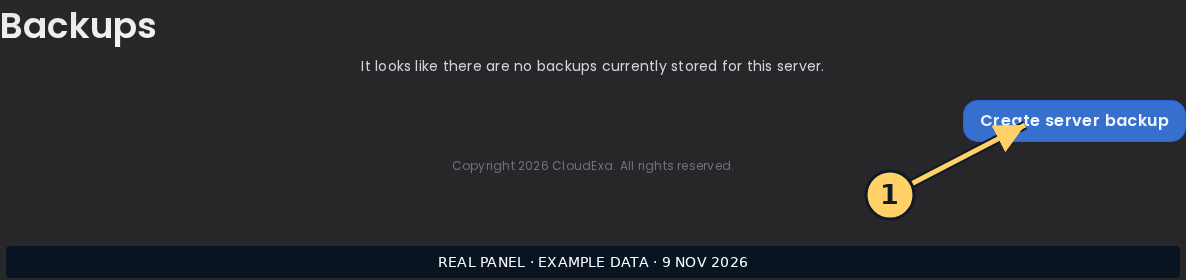
- Open Backups, then choose Create server backup.
- Enter a name that explains the recovery point, such as
before-plugin-update-2026-11-08. - Choose an Archive format. Use
tar.gzorzipto suit your download and extraction tools. - Review Ignored Files & Directories. Leave it empty unless you understand the exclusions. A
.pteroignorefile can still exclude files when this box is empty. - Enable Locked if you want to protect the archive from deletion and your permissions allow it.
- Choose Start backup. Wait for a successful completed entry before treating it as a recovery point.
- Open the backup's three-dot menu and choose Download if you need your own off-server copy. Start the game server again when the backup has completed.
Restore a backup
Restoring replaces files with older versions and can undo player progress. Download or back up the current files first. A restore can stop the server and make its file manager and power controls unavailable until it finishes.
- Confirm the backup name, date and server. Open its three-dot menu and choose Restore.
- Read the confirmation. The option Delete all files before restoring backup. removes the current server files before extraction. Leave it unticked unless you intend a complete replacement and have secured anything you need. Leaving it unticked can retain newer files that are absent from the archive.
- Choose Restore once and wait for the restore state to finish. Do not start another restore or reinstall to clear a spinner.
- Check the console, start the server if it remains stopped, and join to check the expected world and player data.
If a backup fails or a restore appears stuck
Record the backup name, time, server ID and any request ID shown in the error. Check available storage and your backup allowance. A large archive can take longer than a small world; repeated restore attempts can make investigation harder. Contact CloudExa support with those details. Do not delete the last working backup.
Next: upload a Minecraft world or install a plugin.
No comments to display
No comments to display