
Secure a new Linux VPS without losing access
Use these checks after deploying a Linux VPS and before opening it to users. They suit a fresh Debian or Ubuntu installation; an existing hosting panel, VPN or container setup needs its own firewall plan. Keep the credentials and recovery console available throughout.
Confirm access before changing it
- Sign in at cloud.cloudexa-hosting.com. Match the VPS name and IP to your billing service.
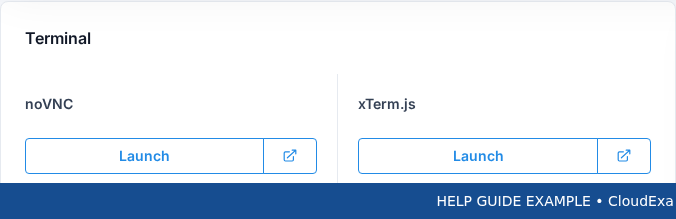
- Open Overview and check that the machine runs. Locate Terminal and the Launch controls for noVNC or xTerm.js.
- Test the browser console before changing SSH or firewall settings. Keep your current SSH connection open, then test changes with a second connection.
- Arrange a backup outside the VPS before making configuration changes. A browser console helps with access recovery but does not replace your data backup.
Use an SSH key
On your own computer, create a key if you do not already have one:
ssh-keygen -t ed25519Choose a passphrase and keep the private key on your computer. Upload only the public key, whose filename normally ends in .pub, through your supported deployment method or into the intended user's authorized_keys. For a compatible SSH client, ssh-copy-id user@your-server-address can install it after authenticating with your existing login.
Open another terminal and confirm that the key logs into the intended account. Test that account's required administrative access. Do not disable password or root login until the replacement account, key and console access work. Check the server's deployment or cloud-init settings before assuming a manual authentication edit will survive later panel changes.
Review updates
Read any pending package changes and keep an application backup. On Debian or Ubuntu, these commands refresh package information and list available upgrades:
sudo apt update
apt list --upgradable
Apply supported updates during a suitable maintenance window. Package updates can restart services, and kernel changes may need a reboot. A distribution upgrade is a separate task. Confirm that unattended security updates match your operating system and application requirements rather than assuming they already run.
Restrict ports in stages
List the ports your applications need, including the actual SSH port. Review existing rules in the VPS panel's Firewall and inside the guest OS before adding another firewall layer. Docker and other container networking can require rules beyond a basic guest firewall.
If you choose UFW on a fresh supported installation, permit your actual SSH port and required application ports before enabling it. Restrict administrative services to trusted addresses where practical. Check IPv6 as well as IPv4. Do not copy a deny-all rule or enable an empty ruleset over your only SSH connection.
After each change, test a fresh SSH session and your public application from another connection. Validate an SSH configuration with sudo sshd -t before reloading the service. Use the VPS recovery guide if access fails; avoid reinstalling to repair a firewall mistake.
References: Ubuntu OpenSSH configuration and Debian authentication and access controls.
No comments to display
No comments to display