
Recover access to a Linux VPS using SSH and the browser console
Use this guide when your Linux VPS will not accept SSH connections or your application has stopped responding. You can inspect the machine through the browser console without reinstalling it. Keep any working SSH or console session open while you investigate.
Check the right service first
- Open the billing portal service list. Match the service IP and location to the VPS you need.
- Open the VPS panel using your panel account. Your panel password and the Linux login password can differ.
- Select the matching machine and check its state. If it is stopped and you intend it to run, choose Start once. Allow the operating system time to boot.
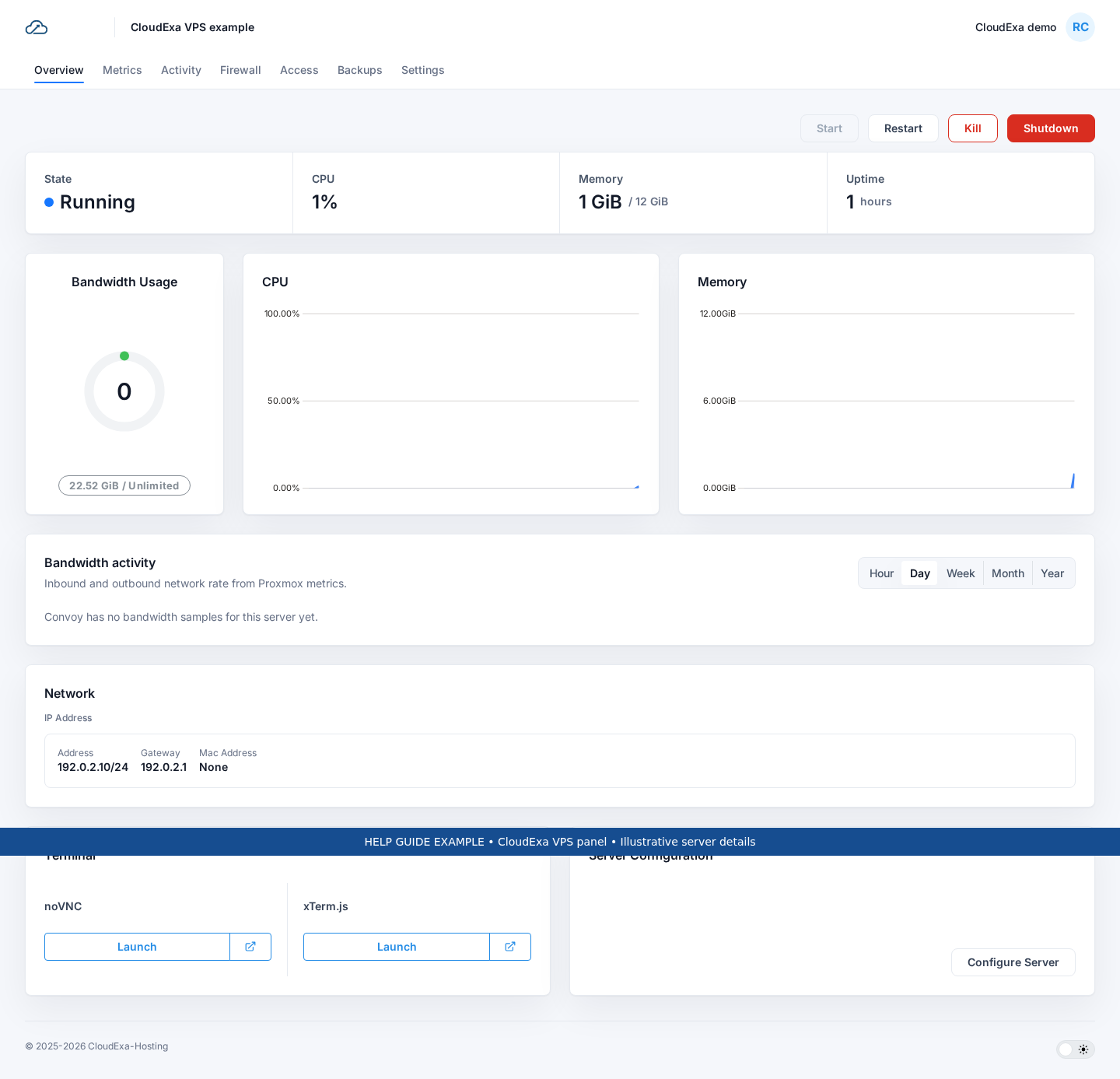
A pending installation, suspended service or panel connection error needs a different response from an SSH login failure. Contact support if the displayed state looks wrong. Do not request a reinstall to clear a loading screen.
Test SSH from your computer
Use the username and port from your welcome email. Replace the example address below with your own VPS IP. This documentation address does not connect to a CloudExa server.
ssh [email protected]
# If you configured a different SSH port:
ssh -p 2222 [email protected]- Permission denied: the server answered, but rejected the username, password or key. Check which login method you configured. Follow the Linux password recovery guide if needed.
- Connection refused: check the port and SSH service through the browser console.
- Connection timed out: inspect the network and firewall. A failed ping alone does not prove the VPS is offline.
- Host key changed: stop and check the expected fingerprint with support. Do not remove the warning just to connect.
Open the browser console
On the machine overview, find the terminal controls. Choose Launch under noVNC for a screen console. You can also try xTerm.js when the guest supports a serial console. Allow the panel popup if your browser blocks it. A blank serial console alone does not prove a boot failure.
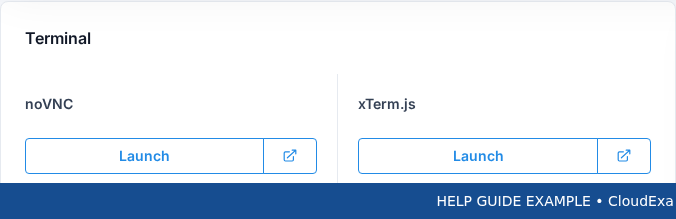
Log in with your Linux credentials. Run these read-only checks; use sudo where your account requires it:
uptime
free -h
df -h /
ip -br address
ip route
systemctl status ssh --no-pager
ss -lnt
journalctl -u ssh -n 50 --no-pager
Confirm that the guest has its assigned address, a default route and an SSH listener on the expected port. Do not paste replacement network settings from another machine or disable the firewall across the server. A full root filesystem can also prevent normal application behaviour.
Check recovery and get help
Once you correct the cause, open a second SSH connection before closing your working console. Check your application from outside the VPS. Use a graceful Shutdown only when you intend downtime; a forced power action can interrupt writes.
If access still fails, send support the service ID, IP, exact error, time with timezone and a cropped console screenshot. Include whether noVNC and SSH both fail. Hide passwords, keys and tokens. Support can check the host connection without you erasing the guest.
Reference: OpenSSH client options.