
Fix a game console that will not connect or shows a 504 error
If the console says it cannot connect, rejects websocket credentials or shows a 504 error, first check whether players can still join. The browser console and Minecraft use different connections. A failed console does not, by itself, prove that your game process has stopped.
Check without interrupting players
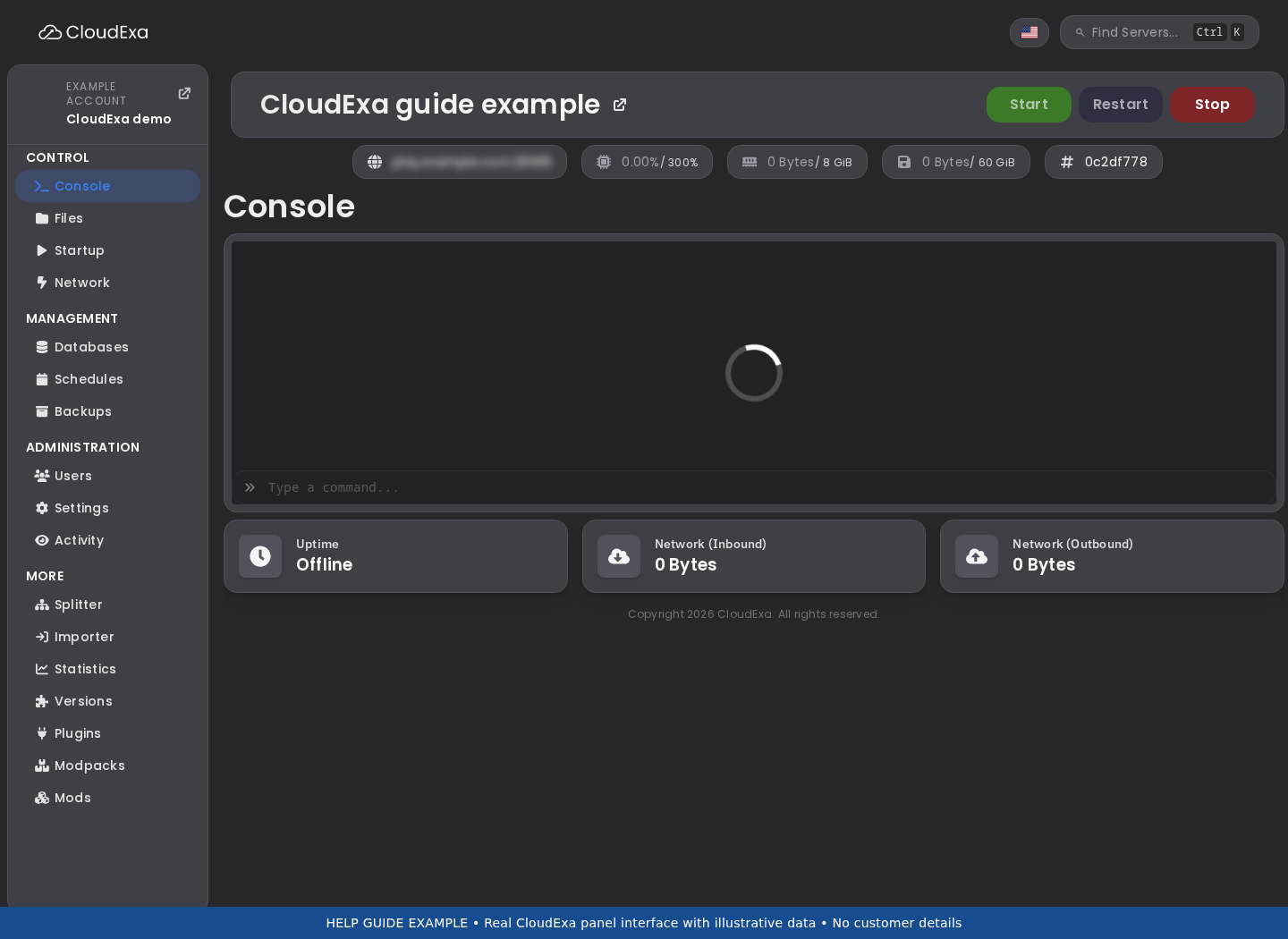
- Keep the error message and note the time, including your time zone. Copy any request ID shown by the panel.
- Ask a player already online whether the game still responds. Try joining using the IP and port from your server's Network page.
- Open the game panel in a new tab and select the same server. Check whether other sections, such as Files, load.
- If your server is transferring, installing, backing up or restoring, read its current status before pressing any power buttons. Contact support if progress has stopped; do not start another restore or reinstall.
A blank graph or an Offline label during a lost connection can be stale. Avoid repeated Start, Restart or Kill clicks while the panel cannot confirm the current state. A restart interrupts players and may hide the evidence needed to diagnose the problem.
Refresh your browser session
- Refresh the affected page once. A websocket credential can expire while a tab remains open.
- If the error remains, sign out and sign back in through your usual CloudExa
helpaccount.guide.Save any unsaved file edits before signing out. - Try a private window or a second browser. This helps identify a cached page or extension issue.
- Temporarily test without a browser extension that filters requests, if you use one. Re-enable it afterwards. Do not disable your computer's security software or ignore certificate warnings.
- If practical, test on another connection, such as mobile data. Some workplace networks, VPNs or proxies restrict websockets.
Use the panel's normal HTTPS address. Do not edit a browser websocket URL, paste a token into another site or use a raw node address supplied by an unknown person.
Read the result
| What you see | Useful next check |
|---|---|
| Players online, only one browser fails | Session, cache, browser extensions or that network. |
| Players online, console fails in different browsers | Send support the console error. The panel-to-node connection may need attention. |
| Files and console both fail | Report both symptoms and whether other servers on your account work. |
| 504 Gateway Timeout | A gateway did not receive a timely upstream response. Support needs to check the affected request and node. |
| Console connects and prints a Minecraft error | Use the game log to diagnose that separate startup problem. |
Send support the details we need
Include the server name and ID, the exact message, request ID if shown, first observed time and whether players can join. Mention which browsers and networks you tried. If three servers show the same problem, list their IDs rather than opening three unrelated reports.
Crop a screenshot to the error area. Hide email addresses, database details and tokens. Browser network exports can contain session credentials, so do not post an unredacted HAR file publicly. If Files still works, use this guide to find the relevant game logs.
Do not reinstall, delete server files, remove plugins or reset passwords to treat a websocket or gateway error. Those actions do not repair a host connection fault and can introduce a second problem. Reference: HTTP 504 explained by MDN.