
Connect a Minecraft plugin to a MySQL database
CloudExaPlugins helpsuch guide.as permissions, login and player-data tools may store their data in MySQL or MariaDB. Copy the database details from your server's game-panel Databases page. Your billing password, game-panel password and database password are separate credentials.
Find the correct connection details
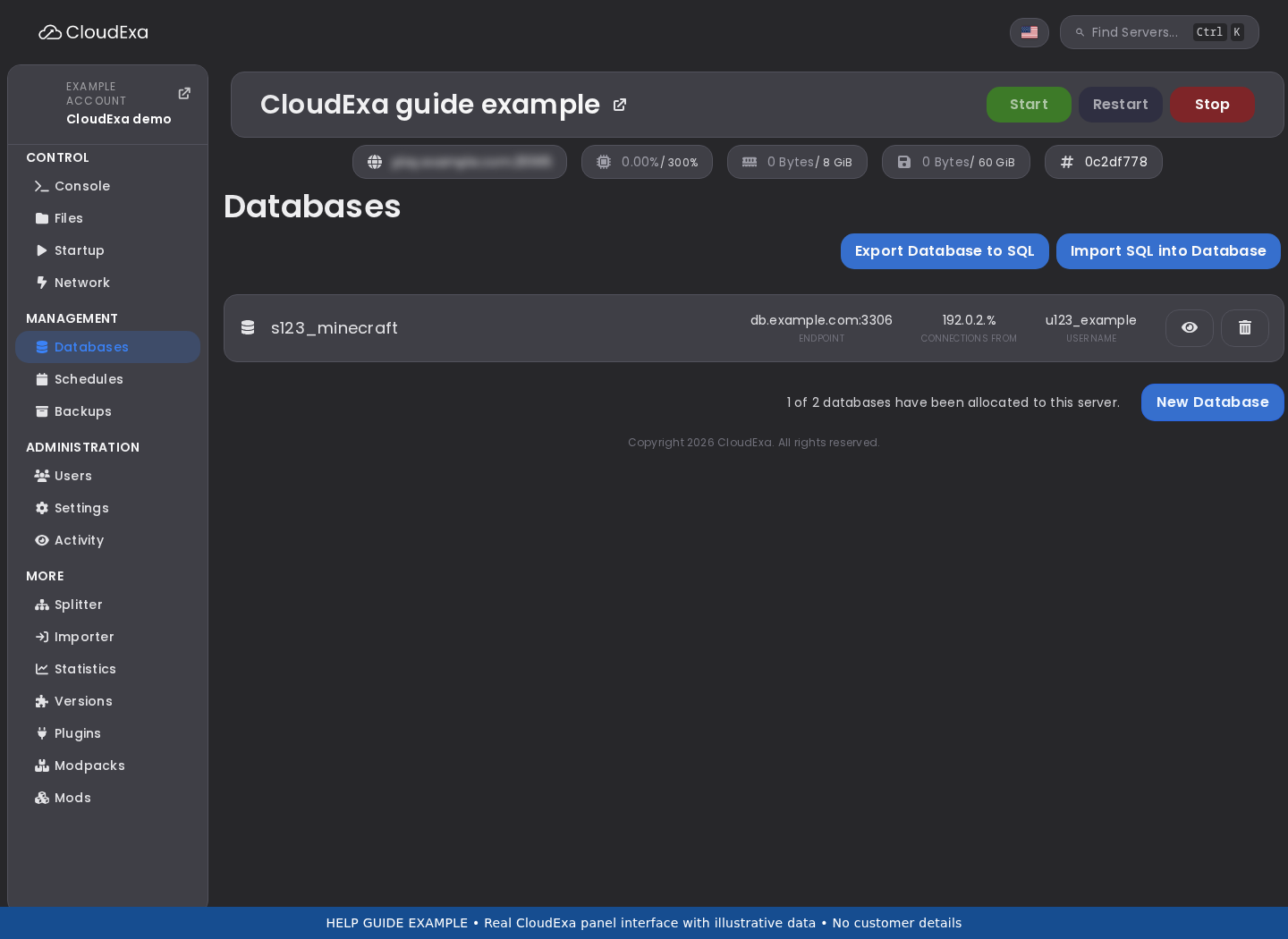
- Open your server in the game panel and select Databases. You need database permissions on the server to see or manage these details.
- Open the connection details for the database you intend to use. Record its host, port, full database name and username. Keep any prefix in the name.
- Reveal or copy the password only when you need to enter it. Keep screenshots and shared logs free of credentials. If a password has leaked, rotate it and update each application that uses it.
- If your plan permits databases but none exists, create one for this application. Ask support if your database allowance or required access is unclear.
Copy the endpoint the panel shows. Do not substitute the panel website address, Minecraft port or a different node's IP. The database port is often 3306, but you must use the displayed value.
Configure the plugin
Read the plugin author's configuration instructions, because field names and supported storage drivers differ. Stop the game server before editing its configuration unless the author documents a safe alternative.
Under Files, open the plugin's configuration in its own folder under plugins. Select MySQL/MariaDB storage if required. Enter the host, port, database name, username and password into their separate fields, then save.
# Illustrative fields only; use your plugin's actual configuration schema.
host: database.example.com
port: 3306
database: your_full_database_name
username: your_database_username
password: 'your_database_password'
Quote passwords according to the file format and the plugin's examples, especially when they contain punctuation. If a plugin accepts only a JDBC URL, follow its documented URL format and escaping rules. Keep credentials out of a URL when the plugin offers separate credential fields.
Do not use localhost or 127.0.0.1 unless support has told you to. Inside a game container, those addresses refer to that container. Two services on the same physical host can still require the displayed network endpoint.
Start and verify
- Start the server and watch Console for the plugin's database connection result.
- Test one normal plugin action that saves data, then check that it still exists after a planned restart.
- For a migration, import your old database into the correct destination before allowing the plugin to create fresh live data. Back up both databases before importing.
Match the error to the next step
- Access denied: recheck username, password and permitted client host. The network reached a database service, but authentication or permissions failed.
- Unknown database: check the full prefixed database name and endpoint.
- Connection timed out: send support the source server ID, endpoint and timestamp. A firewall, routing or listener problem needs a check from the affected container.
- Connection refused: check the endpoint and port. The database service may not be listening there.
- TLS or certificate error: use the plugin's supported TLS settings. Ask support for the intended connection policy; do not disable certificate checks as a default fix.
Increasing a timeout will not fix a blocked connection. Do not delete the database or expose it to every internet address to troubleshoot. Share the error with passwords removed. Reference: MariaDB connection troubleshooting.