Rotate a DiscordSRV bot token after an accidental disclosure
A bot token is a credential, not a channel identifier. If it appeared in a public paste or screenshot, replacing the message alone does not invalidate it; rotate the token in Discord’s developer portal.
Prepare the test
Use a private test channel and two test identities before changing the public bridge. Keep bot tokens, linking codes and staff console output out of screenshots and public support messages.
Make the change
- Identify the correct bot application and the Minecraft instance that uses it. Record the configured channel IDs and working bridge behaviour without copying the old token into notes or a diagnostic screenshot.
- Use the application’s official token-reset control in Discord’s developer portal. Store the replacement privately and avoid including it in chat, an issue report, a shared configuration example or a shell command that others can read.
- Update
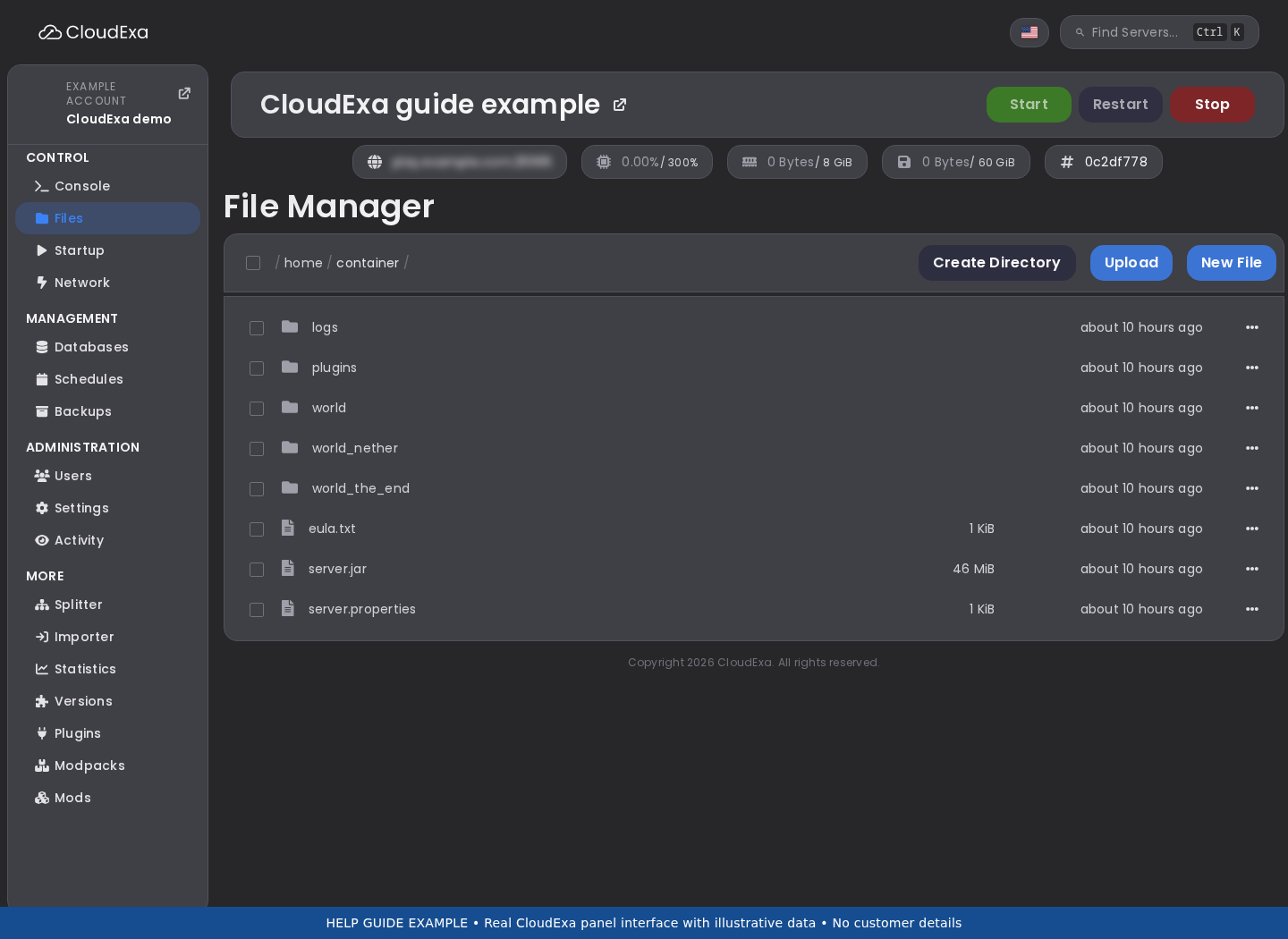
BotTokenin the correct DiscordSRVconfig.ymlusing the game panel file editor or another authorised private method. Follow the installed release’s restart requirements so a previous in-memory connection is not mistaken for success. - Watch startup for the bot connection result, then send harmless test chat in both directions. If group synchronisation is enabled, verify one existing non-staff linked account without rebuilding its link.
Check the result
The bot should reconnect using the replacement credential and resume the intended bridge. The retired token must stay invalid; remove it from shared drafts and review who could have accessed the original disclosure.
If the test fails
If authentication fails, check for whitespace, quoting errors and the wrong application before resetting the token repeatedly. Keep the bot offline while resolving a known disclosure rather than restoring the exposed token as a workaround.
Review channel permissions separately after rotation. Replacing a token does not correct a bot role that was given unnecessary privileges, and a successful login does not prove every bridge route is appropriate.
References and related help
Check the official DiscordSRV documentation against your installed release before using a command or setting from another version.