Collect a focused TAB diagnostic report for one affected player
A useful TAB report identifies the feature, rendering instance and affected player context. A full collection of configuration files can reveal unrelated addresses, private labels or integration information.
Prepare the test
Record which server owns TAB before changing its files. A proxy deployment can use different permission checks and command names from a backend deployment; edit the instance players actually see.
Make the change
- Record the TAB version, server or proxy build and relevant permission or placeholder provider. Describe whether the fault concerns order, text, visibility, refresh or an error during startup.
- Use the installed command help for the supported player diagnostics and feature information. Record the resolved group or server context that explains the failure rather than only sending a cropped list screenshot.
- Reproduce the issue with an ordinary test account and capture the smallest configuration section involved. Include a second unaffected account when the difference appears to follow rank or personal overrides.
- Review generated output before sharing it and remove secrets or uninvolved player data. Use the private CloudExa support route for service-specific evidence and the maintainer’s issue route for a reproducible plugin fault.
Check the result
The report should show what input TAB received, what appeared to the test account and what you expected instead. Keep timestamps when another plugin or a transfer triggers the change.
If the test fails
If the test configuration worsens the display, restore the saved section and attach the comparison rather than leaving a broken trial active. Do not grant broad permissions just to make the diagnostic command available to customers.
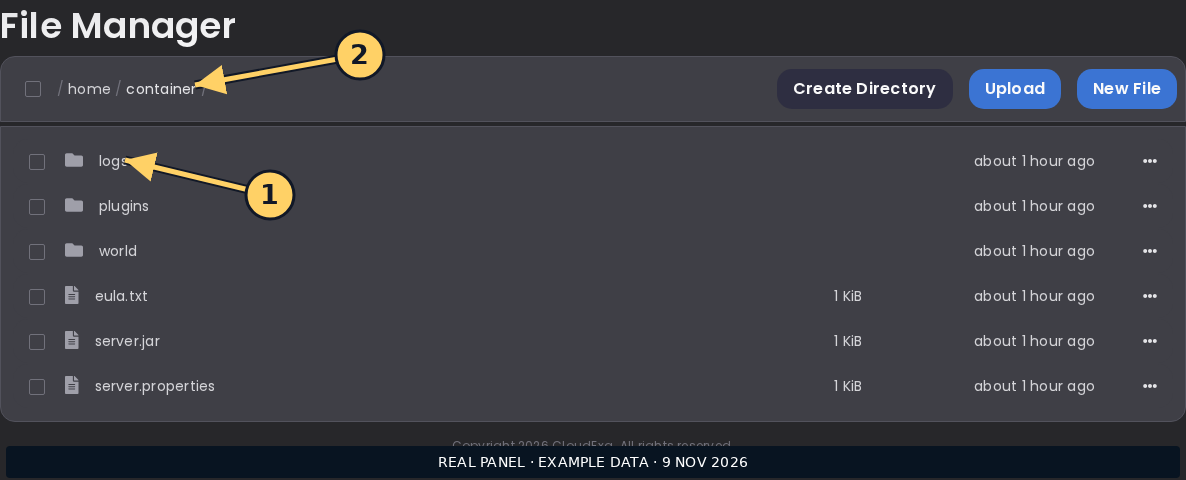
A console screenshot can show where to collect logs; it does not replace the redacted text and exact reproduction steps needed by a maintainer.
References and related help
Check the official TAB documentation against your installed release before using a command or setting from another version.