TAB tasks
Task guides and troubleshooting for TAB. Check the installed release before changing configuration or data.
- Find which TAB instance controls a player’s visible list
- Correct a TAB player group without changing all rank permissions
- Fix TAB sorting without changing player name prefixes
- Diagnose TAB nametag flicker from competing team plugins
- Check a TAB scoreboard placeholder before changing its refresh rate
- Limit a TAB display to the intended backend server
- Test a TAB header with an empty and a long player value
- Collect a focused TAB diagnostic report for one affected player
Find which TAB instance controls a player’s visible list
A backend edit can appear ineffective when the proxy owns the visible tab list. Identify the renderer first so you do not introduce competing configurations while chasing an unchanged display.
Prepare the test
Record which server owns TAB before changing its files. A proxy deployment can use different permission checks and command names from a backend deployment; edit the instance players actually see.
Make the change
- Record where TAB is installed across the proxy and backends. Use the documented command family on each instance; the TAB command reference distinguishes proxy
btabfrom backend tab commands. - Choose one connected test player and inspect the renderer’s diagnostic information through its installed help. Record which configuration and permission system that instance uses for the player.
- Change one harmless test label on the suspected owner during a quiet window. Compare the visible result after the supported refresh and a reconnect without changing the other instances.
- Restore the test label and map any remaining backend integration needed for player data. Avoid removing duplicate installations until you know whether an integration intentionally uses them.
Check the result
You should have one clear record of which instance controls the visible feature and where its permissions come from. Confirm the same ownership after moving the test player between backends.
If the test fails
If two instances overwrite each other, return to the saved configurations and plan a supported single-owner deployment. Keep backend access protected; changing TAB ownership does not require exposing backend game ports.
Operator status on a backend does not automatically supply proxy command permissions. Keep the test identity and execution instance together in your notes.
References and related help
Check the official TAB documentation against your installed release before using a command or setting from another version.
Correct a TAB player group without changing all rank permissions
A player’s tab prefix can come from a resolved group that differs from the rank you expected. Check the selection path before editing inheritance or copying staff permissions to the player.
Prepare the test
Record which server owns TAB before changing its files. A proxy deployment can use different permission checks and command names from a backend deployment; edit the instance players actually see.
Make the change
- Record the affected account’s intended groups and TAB’s reported group through the installed diagnostics. Compare the permission provider’s own data, including primary group and inherited membership.
- Check TAB’s documented group resolution settings on the rendering instance. Determine whether it reads groups through a supported permissions integration or through configured permission checks.
- On a test account, change only the documented group assignment or resolution priority that explains the mismatch. Keep the original value and avoid a wildcard permission intended merely to alter a label.
- Compare the test player with another account in the same rank and one account in a different rank. Check reconnect and proxy transfer behaviour before applying the correction to a public role.
Check the result
TAB should resolve the intended group and display the matching format without granting unrelated commands. Verify the permission provider still reports the desired membership after the visual result changes.
If the test fails
Restore the previous group selection setting if another rank changes unexpectedly. Keep per-player overrides and inherited groups in the report so the maintainer can distinguish resolution from formatting.
A label is evidence of the display path, not proof of the player’s effective command permissions. Test those separately with an ordinary account.
References and related help
Check the official TAB documentation against your installed release before using a command or setting from another version.
Fix TAB sorting without changing player name prefixes
A staff prefix can look correct while the list order remains wrong. Sorting and formatting use related data but deserve separate tests before you rewrite group names or duplicate ranks.
Prepare the test
Record which server owns TAB before changing its files. A proxy deployment can use different permission checks and command names from a backend deployment; edit the instance players actually see.
Make the change
- Choose test accounts representing each intended sort group. Write the desired order and record the current order with the same players online to avoid confusing roster changes with a configuration fix.
- Check the renderer’s sorting guide and group resolution results. Confirm that the configured group names match what TAB resolves, including case and any fallback group.
- Change one documented sorting rule on a copied configuration while retaining the existing prefix and suffix text. Test accounts with the same rank as well as accounts in different ranks.
- Observe the list after reconnecting and switching backends if applicable. Compare alphabetical or placeholder tie-break behaviour only after the primary rank order matches the written plan.
Check the result
Players should appear in the planned order while their visible text remains unchanged. Include a pair with equal rank so the final tie-break behaviour is deliberate and repeatable.
If the test fails
Restore the previous sorting rule if unrelated players move into the wrong category. Diagnose the group input or conflicting team owner before changing the permission hierarchy itself.
Only one scoreboard team can own a player’s team properties at a time. Check for another team-management plugin when order or nametags flicker.
References and related help
Check the official TAB documentation against your installed release before using a command or setting from another version.
- Configure a Minecraft TAB list and scoreboard
- Find Minecraft logs and send useful troubleshooting details
Diagnose TAB nametag flicker from competing team plugins
A flickering nametag can result from two plugins assigning different scoreboard teams. Reducing refresh intervals may only make their competition less visible without resolving ownership.
Prepare the test
Record which server owns TAB before changing its files. A proxy deployment can use different permission checks and command names from a backend deployment; edit the instance players actually see.
Make the change
- Record which plugins manage nametags, glow, collision or team-based sorting. Check whether TAB’s scoreboard-team feature is enabled and note the other plugin’s documented integration options.
- Choose a test account in a quiet area and observe prefix, colour and collision state. Capture when the state changes, including after a reconnect or another plugin’s visible action.
- On a staging copy, disable one competing team feature through its own documented setting while leaving the plugin installed. Keep TAB’s other display features unchanged during the comparison.
- Repeat the exact event sequence and compare the team-related output. If the flicker stops, choose a supported single owner or placeholder integration instead of running both features against each other.
Check the result
The nametag and related team properties should remain stable through the recorded events. Verify that the chosen integration still gives players the intended sorting and collision behaviour.
If the test fails
Restore the previous feature settings if the test identifies a different cause. Do not remove all scoreboard objectives or player data to clear a presentation conflict; preserve the event timeline for support.
TAB’s nametag guide explains that one team owner controls several properties together. Plan the whole feature interaction before changing only the visible prefix.
References and related help
Check the official TAB documentation against your installed release before using a command or setting from another version.
- Configure a Minecraft TAB list and scoreboard
- Find Minecraft logs and send useful troubleshooting details
Check a TAB scoreboard placeholder before changing its refresh rate
A scoreboard value can appear stale because its provider has not changed, its parser lacks context or its display refresh is delayed. Test those layers in order instead of lowering every interval.
Prepare the test
Record which server owns TAB before changing its files. A proxy deployment can use different permission checks and command names from a backend deployment; edit the instance players actually see.
Make the change
- Copy the affected line and identify the provider for each expression. Record the expected value for a connected test account and the existing display refresh setting.
- Parse the expression through its documented provider diagnostic route. If it already returns an old or empty value, investigate the provider rather than editing TAB’s refresh settings.
- Use one copied scoreboard line with fixed surrounding text and the same player context. Change a harmless test value and measure the time until the visible line updates.
- Adjust only the documented interval for that type of value and repeat under similar player activity. Keep an eye on provider errors and a performance profile while comparing faster updates.
Check the result
The scoreboard should show the correct value within the chosen delay without excessive repeated provider work. Record the accepted interval and the type of value it serves.
If the test fails
Restore the previous interval if the change increases load or leaves the value wrong. Keep the direct parse and visible timing evidence for the relevant integration author instead of resetting the player’s data.
A rank name and a countdown have different freshness needs. Avoid using the most demanding value as the default interval for the entire display.
References and related help
Check the official TAB documentation against your installed release before using a command or setting from another version.
- Configure a Minecraft TAB list and scoreboard
- Find Minecraft logs and send useful troubleshooting details
Limit a TAB display to the intended backend server
A proxy can retain a display while the player changes backends. Define where the feature belongs before changing player permissions or installing another copy of TAB on the destination.
Prepare the test
Record which server owns TAB before changing its files. A proxy deployment can use different permission checks and command names from a backend deployment; edit the instance players actually see.
Make the change
- Record the exact backend identifiers from the proxy and the display’s intended scope. Keep the current display configuration and note what the test player sees before and after a transfer.
- Check the installed TAB feature guide for documented server-specific configuration or disabling conditions. Use the proxy’s real server identifier rather than a public display label.
- Apply the restriction to one copied feature and test the player moving in both directions. Leave unrelated list and nametag features unchanged so you can identify which condition worked.
- Include a direct join, a reconnect and a normal proxy transfer in the trial. Check that the correct feature returns when the player re-enters the allowed server.
Check the result
The display should appear only in its intended context and recover without staff intervention after a return transfer. Test an ordinary account with no personal display overrides.
If the test fails
Restore the previous condition if the display vanishes on the allowed backend. Compare resolved server names and condition evaluation before changing permission groups or duplicating feature owners.
Feature conditions belong to the rendering instance. Backend configuration changes may have no effect when the proxy supplies the visible scoreboard.
References and related help
Check the official TAB documentation against your installed release before using a command or setting from another version.
- Configure a Minecraft TAB list and scoreboard
- Find Minecraft logs and send useful troubleshooting details
Test a TAB header with an empty and a long player value
A header that looks clean for one account can wrap badly for a long rank or show an awkward gap for an empty value. Test realistic boundary values before adjusting the whole layout.
Prepare the test
Record which server owns TAB before changing its files. A proxy deployment can use different permission checks and command names from a backend deployment; edit the instance players actually see.
Make the change
- Copy the header and list its dynamic fields. Choose harmless test accounts that represent a short value, a long value and a missing optional value without altering production player records.
- Check each expression through its supported parser and record the actual returned text. Distinguish missing data from a raw unresolved token before deciding how the header should handle it.
- Open the copied header on ordinary clients with different screen or interface sizes. Check both header and footer spacing while keeping colour and animation changes out of the first comparison.
- Use the documented conditional or formatting features when the design needs an optional line. Test a reconnect and a later data change so the empty-state handling does not depend only on login.
Check the result
All test accounts should see a readable header without raw tokens, clipped essentials or accidental disclosure of private metadata. Keep a screenshot of the longest accepted value for future edits.
If the test fails
Restore the previous layout if the new header breaks at a boundary. Shorten the field or use a supported conditional design rather than editing the provider’s stored player names to fit a label.
Collect a direct parse result beside each visual example. It helps separate text-layout problems from a provider that returned unexpected content.
References and related help
Check the official TAB documentation against your installed release before using a command or setting from another version.
- Configure a Minecraft TAB list and scoreboard
- Find Minecraft logs and send useful troubleshooting details
Collect a focused TAB diagnostic report for one affected player
A useful TAB report identifies the feature, rendering instance and affected player context. A full collection of configuration files can reveal unrelated addresses, private labels or integration information.
Prepare the test
Record which server owns TAB before changing its files. A proxy deployment can use different permission checks and command names from a backend deployment; edit the instance players actually see.
Make the change
- Record the TAB version, server or proxy build and relevant permission or placeholder provider. Describe whether the fault concerns order, text, visibility, refresh or an error during startup.
- Use the installed command help for the supported player diagnostics and feature information. Record the resolved group or server context that explains the failure rather than only sending a cropped list screenshot.
- Reproduce the issue with an ordinary test account and capture the smallest configuration section involved. Include a second unaffected account when the difference appears to follow rank or personal overrides.
- Review generated output before sharing it and remove secrets or uninvolved player data. Use the private CloudExa support route for service-specific evidence and the maintainer’s issue route for a reproducible plugin fault.
Check the result
The report should show what input TAB received, what appeared to the test account and what you expected instead. Keep timestamps when another plugin or a transfer triggers the change.
If the test fails
If the test configuration worsens the display, restore the saved section and attach the comparison rather than leaving a broken trial active. Do not grant broad permissions just to make the diagnostic command available to customers.
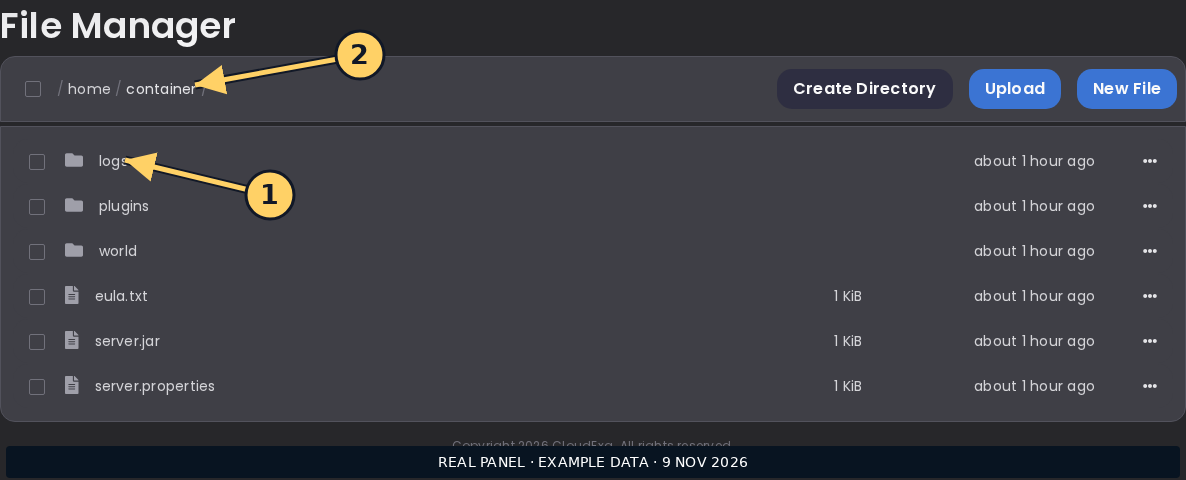
A console screenshot can show where to collect logs; it does not replace the redacted text and exact reproduction steps needed by a maintainer.
References and related help
Check the official TAB documentation against your installed release before using a command or setting from another version.