# Simple Voice Chat tasks
Task guides and troubleshooting for Simple Voice Chat. Check the installed release before changing configuration or data.
# Separate Simple Voice Chat listening and speaking permissions
A connected voice icon does not guarantee that both speaking and listening are allowed. Compare those permissions separately when one rank can hear others but cannot reply, or appears muted only on this server.
## Prepare the test
Identify the client mod, server implementation and allocated voice endpoint before changing audio settings. Keep Minecraft joining and voice transport as separate tests; success on one does not prove the other.
## Make the change
1. Choose two ordinary connected players with compatible client mods. Confirm neither has locally muted the other and both have selected a working input and output device before changing server-side permission inheritance.
2. On a supported plugin server, inspect the effective `voicechat.listen` and `voicechat.speak` permissions for the affected player. Check explicit denies, inherited groups and contexts rather than assuming the primary rank is the whole result.
3. Correct only the permission that contradicts your policy. These capabilities are normally granted to everyone, so investigate an unexpected deny before adding a wildcard or making the player an operator.
4. Have the affected player reconnect if your permission integration requires it. Test a short spoken phrase in each direction while the players stand within proximity range, then repeat with an unaffected account for comparison.
## Check the result
The test should establish separately that the affected player hears speech and transmits speech. Preserve intentional mute or moderation restrictions; repairing one accidental deny should not grant voice administration or access to unrelated groups.
## If the test fails
Restore the previous permission change if it does not alter the failing direction. Next inspect the local microphone, mute state and voice connection rather than assigning broad privileges to a client with an audio-device problem.
Permission-system support depends on the server implementation. The project does not support hybrid plugin-and-mod servers, so do not assume a Bukkit permission result controls a mixed implementation in the same way.
## References and related help
Check the [official Simple Voice Chat documentation](https://modrepo.de/minecraft/voicechat/wiki/permissions) against your installed release before using a command or setting from another version.
- [Set up Simple Voice Chat with an allocated UDP port](https://help.cloudexa-hosting.com/books/minecraft-plugins/page/set-up-simple-voice-chat-with-an-allocated-udp-port)
- [Create Minecraft ranks and inheritance with LuckPerms](https://help.cloudexa-hosting.com/books/game-hosting/page/create-minecraft-ranks-and-inheritance-with-luckperms)
# Disable Simple Voice Chat groups while keeping proximity audio
A proximity-only community may not want persistent group conversations. Disable the group feature deliberately, then test ordinary proximity speech so the policy change does not get mistaken for a broken voice connection.
## Prepare the test
Identify the client mod, server implementation and allocated voice endpoint before changing audio settings. Keep Minecraft joining and voice transport as separate tests; success on one does not prove the other.
## Make the change
1. Notify your test players that existing group behaviour is changing. Record whether the intended rule applies to everyone or only selected ranks; a global feature switch and a permission-based restriction solve different problems.
2. Stop the server normally before editing its generated `voicechat-server.properties`. On Paper the file is under `plugins/voicechat`; mod-loader installations use a different documented location, so choose the file for the installed implementation.
3. Set `enable_groups` to false for a global proximity-only policy, preserving the previous file. If you instead need a rank-specific policy, inspect the documented `voicechat.groups` permission through your supported permission system.
4. Start the server, wait for voice initialisation and reconnect the two test players. Inspect the group interface, attempt the previously available group action and test proximity speech at a short distance outside a group.
## Check the result
Players should no longer be able to use the disabled group feature while nearby speech remains usable. Check an ordinary rank and an operator separately, and explain the deliberate change so users do not troubleshoot their microphones unnecessarily.
## If the test fails
Restore `enable_groups` and restart normally if you chose the wrong policy scope. If proximity audio also fails, compare startup and endpoint settings with the saved file; do not open unrelated ports to repair a group-interface change.
A server-side group policy does not change microphone permissions in the operating system. Keep the audio-device test separate from whether the interface permits joining or creating a voice group.
## References and related help
Check the [official Simple Voice Chat documentation](https://modrepo.de/minecraft/voicechat/wiki/server_config) against your installed release before using a command or setting from another version.
- [Set up Simple Voice Chat with an allocated UDP port](https://help.cloudexa-hosting.com/books/minecraft-plugins/page/set-up-simple-voice-chat-with-an-allocated-udp-port)
- [Create Minecraft ranks and inheritance with LuckPerms](https://help.cloudexa-hosting.com/books/game-hosting/page/create-minecraft-ranks-and-inheritance-with-luckperms)
# Tune Simple Voice Chat normal and whisper distances separately
Whispering and normal proximity speech have separate range settings. Measure both before changing them so a request for quieter local conversation does not accidentally make all voice inaudible beyond a few blocks.
## Prepare the test
Identify the client mod, server implementation and allocated voice endpoint before changing audio settings. Keep Minecraft joining and voice transport as separate tests; success on one does not prove the other.
## Make the change
1. Choose a flat quiet area and place two test players at known distances. Record the existing normal and whisper behaviour with the same volume settings, avoiding background music or a group call during the comparison.
2. Stop the server and preserve `voicechat-server.properties`. Read `max_voice_distance` and `whisper_distance` in the installed file and current official reference; record any explicitly configured `broadcast_range` because it also affects which audio is distributed.
3. Change one distance at a time to match the intended play area. Keep endpoint, packet-size and codec settings unchanged so a later failure can be attributed to the distance change rather than several simultaneous adjustments.
4. Start the server and test inside, near and outside the intended normal range. Repeat the same positions with whisper activated, then swap the speakers so one client’s microphone level is not mistaken for a range boundary.
## Check the result
The two modes should follow the intended separation and remain usable close by. Write down the accepted values and listening positions; a repeatable spatial test is more useful than describing the voice as merely louder or quieter.
## If the test fails
Restore the previous distances if the result cuts off expected conversation. If no speech works even at close range, inspect the voice connection and audio device before increasing the range further or changing the server firewall.
Use modest changes and test the actual spawn or roleplay area afterwards. A large theoretical range can include conversations across areas that players reasonably expected to remain separate.
## References and related help
Check the [official Simple Voice Chat documentation](https://modrepo.de/minecraft/voicechat/wiki/server_config) against your installed release before using a command or setting from another version.
- [Set up Simple Voice Chat with an allocated UDP port](https://help.cloudexa-hosting.com/books/minecraft-plugins/page/set-up-simple-voice-chat-with-an-allocated-udp-port)
- [Find Minecraft logs and send useful troubleshooting details](https://help.cloudexa-hosting.com/books/game-hosting/page/find-minecraft-logs-and-send-useful-troubleshooting-details)
# Choose a Simple Voice Chat spectator speaking policy
Spectator speech can reveal information from places ordinary players cannot visit. Decide when spectators should speak to active players, then verify the policy with separate spectator and survival accounts.
## Prepare the test
Identify the client mod, server implementation and allocated voice endpoint before changing audio settings. Keep Minecraft joining and voice transport as separate tests; success on one does not prove the other.
## Make the change
1. Write down the intended behaviour for a free-flying spectator and for a spectator viewing through another player. Choose a harmless test scene rather than checking the policy during a competitive event.
2. Stop the server and preserve the voice configuration. Read `spectator_interaction` and `spectator_player_possession` in `voicechat-server.properties`, matching their descriptions to the installed Simple Voice Chat release before choosing values.
3. Change only the spectator options required by your rule and restart normally. Reconnect compatible clients, keep their mute and volume settings constant, and ensure the listening player remains outside any private group call.
4. Test speech while the spectator is free-flying, then while spectating the listening player. Swap roles where possible and compare what each person hears with the written policy rather than relying only on an interface icon.
## Check the result
Living players should hear spectator speech only in the situations you deliberately permitted. Test ordinary proximity speech between two survival players afterwards to show that the policy did not disable general voice communication.
## If the test fails
Restore the saved spectator settings if the experiment exposes unintended speech. If a role still behaves differently, inspect additional voice add-ons and permission rules instead of giving every spectator broad administrative access.
Tell moderators how the chosen behaviour works before using spectator mode for investigations. Voice interaction is not a substitute for the server’s rules about staff observation, privacy or fair play.
## References and related help
Check the [official Simple Voice Chat documentation](https://modrepo.de/minecraft/voicechat/wiki/server_config) against your installed release before using a command or setting from another version.
- [Set up Simple Voice Chat with an allocated UDP port](https://help.cloudexa-hosting.com/books/minecraft-plugins/page/set-up-simple-voice-chat-with-an-allocated-udp-port)
- [Find Minecraft logs and send useful troubleshooting details](https://help.cloudexa-hosting.com/books/game-hosting/page/find-minecraft-logs-and-send-useful-troubleshooting-details)
# Set a Simple Voice Chat recording policy without promising privacy guarantees
The recording option controls a supported voice feature; it cannot stop a player recording system audio with unrelated software. Set the server policy clearly and avoid presenting the configuration as a complete privacy guarantee.
## Prepare the test
Identify the client mod, server implementation and allocated voice endpoint before changing audio settings. Keep Minecraft joining and voice transport as separate tests; success on one does not prove the other.
## Make the change
1. Decide whether the built-in recording feature should be available, then communicate that rule to your community. Get the consent required by your community policy before making any test recording with another person’s voice.
2. Stop the server, preserve the generated voice configuration and review `allow_recording` in `voicechat-server.properties`. Change only that setting, leaving port and audio-distance values untouched so the test has one clear purpose.
3. Start the server and reconnect a compatible test client. Inspect the supported recording control and its response, using a short agreed test if recording is allowed rather than capturing ordinary players’ conversations without warning.
4. Check that proximity speech and existing mute controls still work for both test accounts. Delete the agreed sample when it is no longer needed and document whether the supported recording feature is available or deliberately blocked.
## Check the result
The built-in feature should follow the server setting, while ordinary voice remains usable. Publish a plain-language rule that distinguishes a disabled feature from the broader expectation that players must respect others’ conversations.
## If the test fails
Restore the previous setting if the installed client does not handle the change as expected, then compare client and server compatibility. Do not claim a server fault merely because an external recorder can still capture computer audio.
If a dispute involves recorded conversations, handle the evidence through a private moderation route. Changing this setting later does not revoke files that someone already recorded or shared.
## References and related help
Check the [official Simple Voice Chat documentation](https://modrepo.de/minecraft/voicechat/wiki/server_config) against your installed release before using a command or setting from another version.
- [Set up Simple Voice Chat with an allocated UDP port](https://help.cloudexa-hosting.com/books/minecraft-plugins/page/set-up-simple-voice-chat-with-an-allocated-udp-port)
- [Find Minecraft logs and send useful troubleshooting details](https://help.cloudexa-hosting.com/books/game-hosting/page/find-minecraft-logs-and-send-useful-troubleshooting-details)
# Stage a Simple Voice Chat client-required admission rule
Requiring the voice client changes Minecraft admission, not just audio. Test both permitted and rejected joins before enforcing the setting on players who may use a different launcher or a modpack without voice support.
## Prepare the test
Identify the client mod, server implementation and allocated voice endpoint before changing audio settings. Keep Minecraft joining and voice transport as separate tests; success on one does not prove the other.
## Make the change
1. Prepare one client with the compatible Simple Voice Chat mod and a separate client without it. Confirm both can currently join, and keep panel console access available in case the new rule rejects an in-game administrator.
2. Stop the server and preserve `voicechat-server.properties`. Review `force_voice_chat` and the documented millisecond unit for `login_timeout` before editing; do not confuse the admission timeout with a network or microphone timeout.
3. Enable the rule for a controlled test window and restart normally. Join with the unmodified client and record the rejection timing and message, then join with the compatible client without granting operator status.
4. Test the compatible client on an ordinary connection and after a fresh launch. Confirm it remains admitted and can establish voice; passing the mod-presence check alone does not prove that the separate UDP audio path works.
## Check the result
The unmodified client should receive the intended rejection while the compatible client joins reliably. Check your published joining instructions so players know which client mod and Minecraft version they need before the rule becomes permanent.
## If the test fails
Disable the requirement through the panel and restart if legitimate compatible clients are blocked. Investigate their handshake and version details before extending the timeout blindly or telling everyone to reinstall an unrelated modpack.
Allow a preparation period for existing players. A voice-required policy can exclude people who cannot install the mod, so make that community decision explicitly instead of enabling it as a connection troubleshooting shortcut.
## References and related help
Check the [official Simple Voice Chat documentation](https://modrepo.de/minecraft/voicechat/wiki/server_config) against your installed release before using a command or setting from another version.
- [Set up Simple Voice Chat with an allocated UDP port](https://help.cloudexa-hosting.com/books/minecraft-plugins/page/set-up-simple-voice-chat-with-an-allocated-udp-port)
- [Find Minecraft logs and send useful troubleshooting details](https://help.cloudexa-hosting.com/books/game-hosting/page/find-minecraft-logs-and-send-useful-troubleshooting-details)
# Keep a Simple Voice Chat configuration edit from being overwritten
A setting that reverts may have been edited in the wrong file or overwritten during shutdown. Establish which implementation owns the configuration before changing permissions, reinstalling the plugin or repeatedly saving a live file.
## Prepare the test
Identify the client mod, server implementation and allocated voice endpoint before changing audio settings. Keep Minecraft joining and voice transport as separate tests; success on one does not prove the other.
## Make the change
1. Record whether the server uses the Paper plugin or a supported mod-loader build. Check the official file locations: Paper uses `plugins/voicechat/voicechat-server.properties`, while mod-loader deployments use the documented `config/voicechat` path.
2. Stop the server normally and wait for the panel to show it fully offline. Download a copy of the target file, then change one harmless intended setting without renaming the file or altering unrelated generated values.
3. Save and reopen the file in the panel before starting the server. Confirm the chosen value is present, then start and inspect the initialisation log for a parse error or a plugin loading from a different directory.
4. After startup, reopen the file and test the setting through its visible behaviour. Perform a later normal stop and start, checking whether the value persists across both boundaries rather than only immediately after Save.
## Check the result
The on-disk value and observed behaviour should agree after the complete lifecycle. Keep the saved original and the startup timestamp so a repeat reset can be compared with scheduled tasks, templates or add-ons that also manage configuration.
## If the test fails
Restore the original file while stopped if parsing fails. If the value changes again, identify the process writing it; do not delete the entire configuration directory or reinstall the server to repair an unknown file owner.
The file editor screenshot shows where to inspect a saved configuration. Match the visible path to your installation instead of assuming every voice implementation uses the same directory.
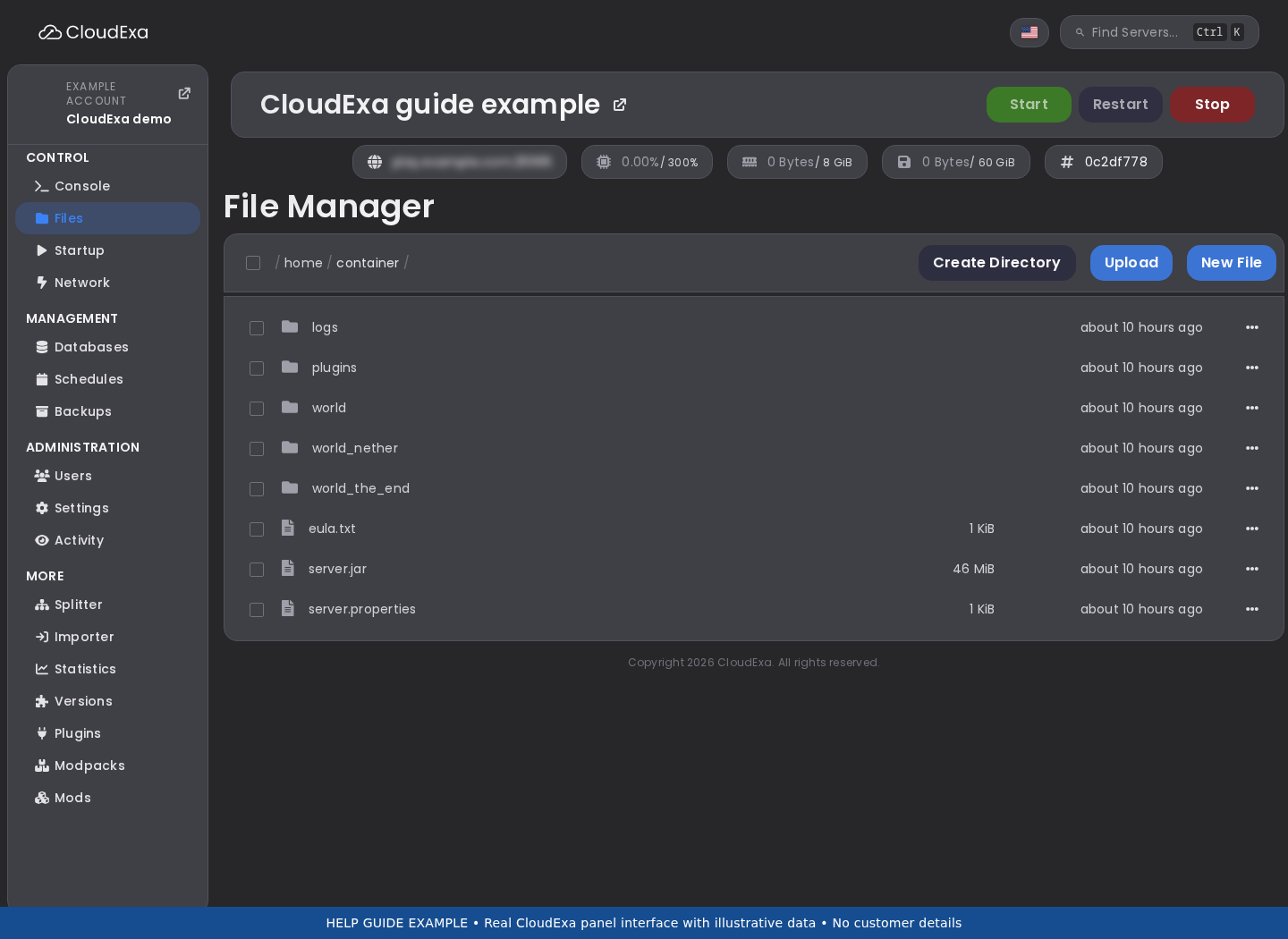Use Files to locate your installed plugin’s own configuration. This panel example does not show the plugin-specific settings.## References and related help
Check the [official Simple Voice Chat documentation](https://modrepo.de/minecraft/voicechat/wiki/server_config) against your installed release before using a command or setting from another version.
- [Set up Simple Voice Chat with an allocated UDP port](https://help.cloudexa-hosting.com/books/minecraft-plugins/page/set-up-simple-voice-chat-with-an-allocated-udp-port)
- [Find Minecraft logs and send useful troubleshooting details](https://help.cloudexa-hosting.com/books/game-hosting/page/find-minecraft-logs-and-send-useful-troubleshooting-details)
# Distinguish a Simple Voice Chat UDP port conflict from a game connection fault
Minecraft joining and voice audio use different tests. Simple Voice Chat sends audio over UDP, so a successful TCP connection to the game port cannot prove that its allocated voice port is reachable or unused.
## Prepare the test
Identify the client mod, server implementation and allocated voice endpoint before changing audio settings. Keep Minecraft joining and voice transport as separate tests; success on one does not prove the other.
## Make the change
1. Copy the service’s assigned voice allocation from the panel Network page and compare it with the configured voice port. Do not choose a new public port at random or assume the default number belongs to your container.
2. Inspect startup for a bind or address-in-use error. Check whether another UDP feature, such as server query or another voice plugin, is configured on the same endpoint before changing the network or removing a plugin.
3. Stop the server and preserve the voice configuration before correcting an allocation mismatch. Avoid `port=-1` as an unexamined shortcut: the project warns that reusing the game port can conflict with its UDP query service.
4. Start normally and test from a compatible external client. Confirm ordinary Minecraft joining, voice initialisation and two-way nearby speech separately; record the endpoint and relevant timestamps if audio still times out.
## Check the result
Startup should have no voice bind conflict, and two test players should hear each other through the assigned UDP endpoint. A TCP port checker or an online server-list status is not evidence that the voice transport passed.
## If the test fails
Restore the prior setting if you changed the wrong service allocation. Ask CloudExa support to verify the assigned UDP mapping when the configured value matches but packets still fail, rather than opening unrelated public ports yourself.
Control actions such as group changes also use Minecraft networking. Keep that distinction in your report so a working group interface does not get confused with working UDP audio.
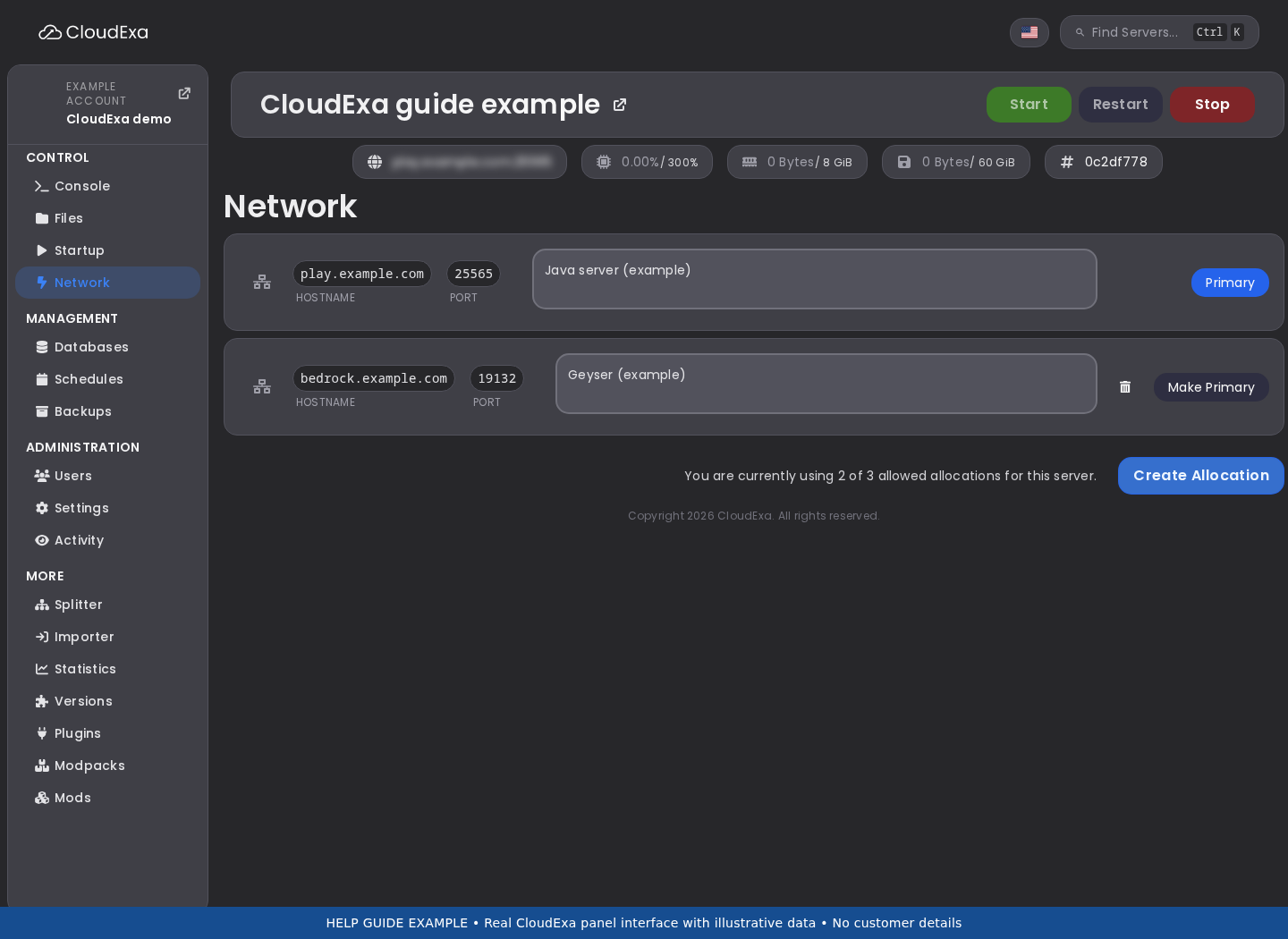Compare the service’s assigned allocation with the plugin’s documented endpoint settings; the values depend on your service.## References and related help
Check the [official Simple Voice Chat documentation](https://modrepo.de/minecraft/voicechat/wiki/server_config) against your installed release before using a command or setting from another version.
- [Set up Simple Voice Chat with an allocated UDP port](https://help.cloudexa-hosting.com/books/minecraft-plugins/page/set-up-simple-voice-chat-with-an-allocated-udp-port)
- [Find Minecraft logs and send useful troubleshooting details](https://help.cloudexa-hosting.com/books/game-hosting/page/find-minecraft-logs-and-send-useful-troubleshooting-details)