Plasmo Voice tasks
Task guides and troubleshooting for Plasmo Voice. Check the installed release before changing configuration or data.
- Investigate a Plasmo Voice not-installed message before changing ports
- Apply and reverse a targeted Plasmo Voice moderation mute
- Check Plasmo Voice proximity activation permissions for one rank
- Trace Plasmo Voice audio after moving between proxy backends
- Compare a Plasmo Voice bind error with an unreachable advertised endpoint
- Capture a short Plasmo Voice client-and-server debug session
Investigate a Plasmo Voice not-installed message before changing ports
The client’s not-installed message indicates failed detection between client and server. Plasmo Voice documents this separately from UDP reachability, so start with versions and plugin channels instead of changing a working allocation.
Prepare the test
Record client and server major versions before comparing results. Keep the Minecraft connection, voice handshake and UDP audio path separate when deciding which setting or log to inspect next.
Make the change
- Record the exact client mod version, server plugin version and Minecraft implementation. Compare their major versions first: the project documents that the 1.x and 2.x voice protocols cannot detect each other correctly.
- Confirm the server actually loaded the intended build by inspecting startup. On the client, verify the mod is present in the launched profile rather than merely downloaded into another instance or launcher directory.
- Test with a minimal compatible client profile if your pack includes a mod that hides its mod or plugin-channel list. Keep the original profile intact and change only that variable before reconnecting to the same server.
- If detection still fails, capture matching client and server logs around one fresh join. Enable the documented debug mode only for that short reproduction, then turn it off and redact personal data before sharing the evidence.
Check the result
The client should recognise that Plasmo Voice is installed before you proceed to an audio-path test. Then check nearby two-way speech; successful detection alone does not prove the separate UDP endpoint carries audio.
If the test fails
Return to the original client profile if the minimal profile changes nothing. Provide the exact versions and handshake evidence to support instead of opening extra ports, replacing the world or deleting the voice configuration.
Consult the current troubleshooting page for release-specific handshake fixes. Avoid promising that an old version’s workaround applies unchanged to every later client and server combination.
References and related help
Check the official Plasmo Voice documentation against your installed release before using a command or setting from another version.
- Install Plasmo Voice and diagnose voice connection errors
- Find Minecraft logs and send useful troubleshooting details
Apply and reverse a targeted Plasmo Voice moderation mute
A moderation mute should affect the intended player and remain reversible. Separate that action from a broken microphone or a server-wide audio fault so the player and other moderators understand why speech stopped.
Prepare the test
Record client and server major versions before comparing results. Keep the Minecraft connection, voice handshake and UDP audio path separate when deciding which setting or log to inspect next.
Make the change
- Confirm the player’s exact current Minecraft identity through your normal moderation process. Record the reason and intended duration privately, and establish whether the player can currently receive voice even though transmission is being restricted.
- Check the installed help for
/vmuteand its accepted duration format. The documented command accepts a player with optional duration and reason, but do not invent a shorthand duration that the installed release may parse differently. - Allow the moderator only the required
pv.muteand, where appropriate,pv.unmutepermissions. Apply the agreed targeted mute and ask a cooperating test account to verify what the affected player can and cannot transmit. - Use
/vunmutefor the agreed test reversal or confirm expiry when a supported timed mute was used. Retest transmission with the same listener and keep the moderation record clear about when the restriction ended.
Check the result
The affected player’s transmission should follow the moderation decision without interrupting other nearby players. Verify the reversal explicitly; the absence of an error message is not enough to establish that voice was restored.
If the test fails
If the wrong account was selected, reverse that mute immediately and record the correction. If unmuting does not restore speech, inspect client mute and microphone state before removing unrelated moderation records or restarting every voice instance.
Use a consenting test player while learning the command. Do not practise moderation on uninvolved players, and keep reasons and disciplinary details out of public console screenshots.
References and related help
Check the official Plasmo Voice documentation against your installed release before using a command or setting from another version.
- Install Plasmo Voice and diagnose voice connection errors
- Create Minecraft ranks and inheritance with LuckPerms
Check Plasmo Voice proximity activation permissions for one rank
A player can have a working voice connection while being forbidden to activate proximity speech. Compare the activation permission with the actual rank policy before treating the issue as a UDP or microphone failure.
Prepare the test
Record client and server major versions before comparing results. Keep the Minecraft connection, voice handshake and UDP audio path separate when deciding which setting or log to inspect next.
Make the change
- Choose an affected ordinary player and an unaffected comparison player on the same backend. Confirm their clients detect Plasmo Voice and use the same intended activation mode, with neither player locally muted.
- Inspect the effective
pv.activation.proximitypermission for each account through your supported permission manager. Check group inheritance, explicit false values and server contexts rather than looking only at the primary group’s visible name. - Correct the narrow permission that contradicts your policy. The default proximity activation is normally available, so identify why a deny was added before replacing it with a broad activation wildcard or an operator grant.
- Reconnect if the integration requires it and test a short nearby conversation. If the server uses additional activation add-ons, test their documented permissions separately instead of assuming proximity permission controls every voice mode.
Check the result
The chosen rank should be able to activate the intended mode and exchange speech with the comparison account. Moderation, reload and administration permissions should remain limited to the staff roles that actually need them.
If the test fails
Restore an ineffective permission edit and investigate the client’s selected activation, local mute state or connection result. Do not expand privileges repeatedly when both accounts already have the same effective proximity permission.
Keep deliberate moderation restrictions visible in your investigation. A correct permission deny is an access-policy outcome; it should not be silently removed because the player describes it as an audio connection problem.
References and related help
Check the official Plasmo Voice documentation against your installed release before using a command or setting from another version.
- Install Plasmo Voice and diagnose voice connection errors
- Create Minecraft ranks and inheritance with LuckPerms
Trace Plasmo Voice audio after moving between proxy backends
Voice that works before a transfer but fails afterwards often needs a route-specific comparison. Establish whether each backend exposes its own voice service or the network uses the supported Plasmo Voice proxy integration.
Prepare the test
Record client and server major versions before comparing results. Keep the Minecraft connection, voice handshake and UDP audio path separate when deciding which setting or log to inspect next.
Make the change
- Record the working source backend, failing destination and their plugin versions. Compare the network design with the official proxy guide; installing a proxy component does not remove the need for the documented backend components.
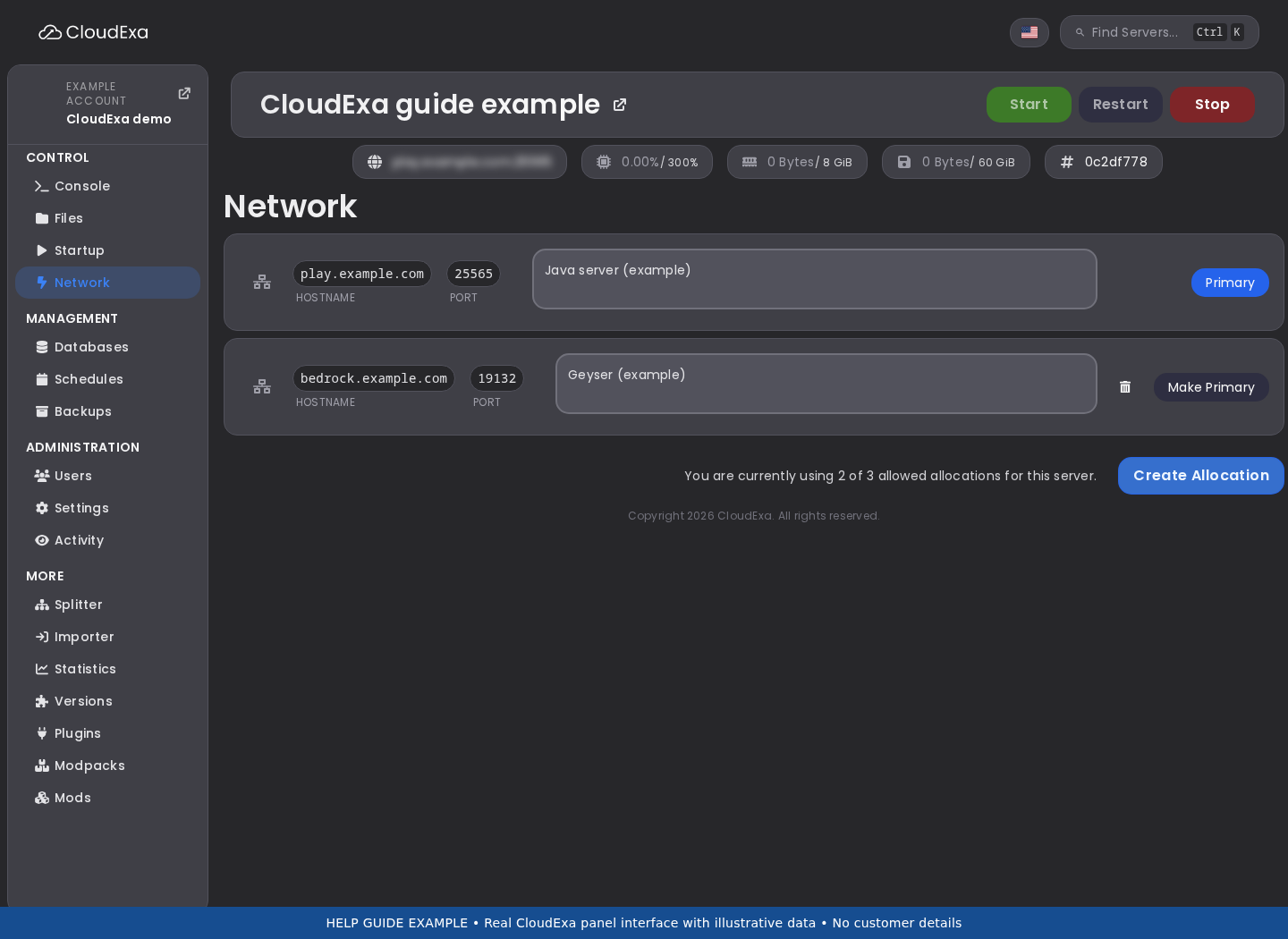
- For independent backend voice services, verify that each uses its own assigned UDP endpoint and advertises the correct public destination. Do not point two services at the same allocation merely because they share one Minecraft proxy.
- For a proxy-owned route, inspect the documented backend names, voice destinations and forwarding-secret configuration privately. Match server names to the proxy’s real configuration and do not paste the shared secret into a support screenshot.
- Test a fresh connection to each backend and a transfer in both directions. Record when detection succeeds and when audio stops, keeping the Minecraft connection, handshake and UDP transport as separate observations.
Check the result
Players should keep or re-establish voice on each intended backend through the chosen architecture. Verify the destination after a second transfer, since a first successful login does not prove that cross-server switching is correct.
If the test fails
Restore the previous working route for the trial backend if the edit breaks it. Ask support to verify the assigned mappings when endpoints match but transport fails; do not expose private backend voice ports globally without reviewing the design.
The official proxy design can use one public UDP port while backend traffic remains between proxy and servers. Preserve that distinction instead of opening every backend port as a troubleshooting shortcut.
References and related help
Check the official Plasmo Voice documentation against your installed release before using a command or setting from another version.
- Install Plasmo Voice and diagnose voice connection errors
- Find Minecraft logs and send useful troubleshooting details
Compare a Plasmo Voice bind error with an unreachable advertised endpoint
A bind failure occurs before a client can use the voice listener. An advertised-endpoint problem can occur even when that listener started correctly. Identify which stage failed before changing both host and public settings.
Prepare the test
Record client and server major versions before comparing results. Keep the Minecraft connection, voice handshake and UDP audio path separate when deciding which setting or log to inspect next.
Make the change
- Record the service’s allocated UDP address and port from the panel. Inspect the current Plasmo Voice host configuration and public endpoint configuration against the official installation guide for the deployed server or proxy component.
- Read startup for an address-in-use or cannot-bind error. Check for another voice service or UDP query feature using the same assigned endpoint; a successful Minecraft TCP listener does not exclude a UDP conflict.
- If the listener starts, compare the address clients are told to reach with the real public allocation. A private container address or a public endpoint from a previous host may be valid locally but unusable for an external player.
- Make one documented correction with the server stopped and preserve the original configuration. Restart, confirm the listener result and test from a compatible external client with a nearby cooperating listener.
Check the result
The voice listener should start without a bind error, and the client should reach the intended public UDP destination. Capture the specific remaining stage if it fails instead of describing every symptom as a port being closed.
If the test fails
Restore the original setting if you changed the wrong component’s configuration. When the allocation and advertised destination agree, send the relevant startup and client error to support rather than allocating an unapproved port or disabling the firewall.
A game-port TCP check cannot validate this UDP path. On a proxy network, identify the component that owns the public voice endpoint before interpreting a backend listener test.
References and related help
Check the official Plasmo Voice documentation against your installed release before using a command or setting from another version.
- Install Plasmo Voice and diagnose voice connection errors
- Find Minecraft logs and send useful troubleshooting details
Capture a short Plasmo Voice client-and-server debug session
Voice faults are easier to diagnose when both sides describe the same connection attempt. A short coordinated capture is more useful than hours of debug output from different clients and unrelated server transfers.
Prepare the test
Record client and server major versions before comparing results. Keep the Minecraft connection, voice handshake and UDP audio path separate when deciding which setting or log to inspect next.
Make the change
- Write down the precise symptom and the client, server and proxy versions involved. Decide whether the failure occurs during detection, connection or speech, and choose one cooperating account for a fresh reproduction.
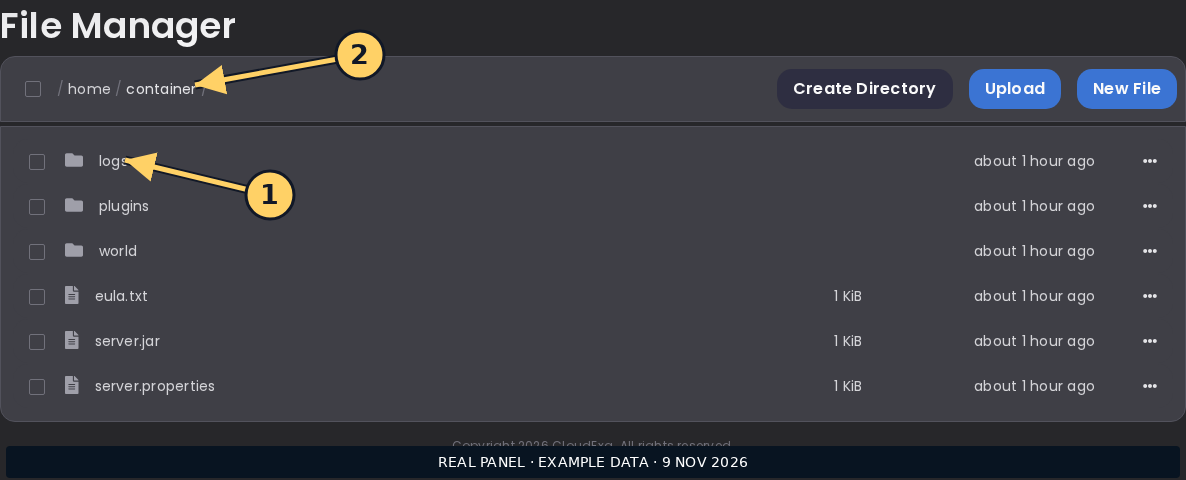
- Follow the current troubleshooting page to enable debug for the installed client and server implementation. Confirm the actual generated file location rather than copying a Paper path into a mod-loader installation or editing an inactive profile.
- Reconnect once, note the exact time and reproduce only the failing action. Keep a second account nearby if speech is the fault, and record what each participant sees without collecting private conversations.
- Disable debug on both sides after the capture using the documented apply method. Extract the matching time window and redact player addresses, forwarding secrets and unrelated personal data before sending the report privately.
Check the result
The report should contain matching evidence for one connection attempt, exact versions and a clear expected result. It should also state whether a minimal compatible client profile changes the symptom, if you performed that separate comparison.
If the test fails
If debug prevents a normal start or creates excessive output, restore the saved configuration and reproduce with ordinary logs first. Do not leave verbose logging enabled indefinitely or share an entire server directory to avoid selecting the relevant lines.
The official troubleshooting page describes a specific handshake retry history. Report the installed version accurately rather than assuming every apparent not-installed warning is the same known issue.
References and related help
Check the official Plasmo Voice documentation against your installed release before using a command or setting from another version.