# Plan tasks
Task guides and troubleshooting for Plan. Check the installed release before changing configuration or data.
# Give a staff member a limited Plan web group
Plan's website has its own permission groups. A staff member who can view session summaries does not automatically need player-address information or full web administration. Configure the intended web access instead of granting a broad Minecraft permission wildcard.
## Record the starting point
Read the web-permissions documentation for your installed Plan release. Decide exactly which pages the role should see and whether they contain player-identifying data. Ensure the web interface uses the documented HTTPS arrangement before enabling authenticated access.
## Work through the change
1. Use Plan's documented web permission editor to inspect or create the intended group. Select permissions that match the staff task rather than copying the administrator group wholesale.
2. Follow the release's registration instructions and documented group assignment mechanism. Plan documents the `plan.webgroup.{name}` permission for registration-related group selection; confirm how it applies to an existing account before expecting a retroactive change.
3. Sign in with a dedicated test web account and open an allowed page. Then attempt one page or action the role should not access.
4. Remove any temporary broad permission used during testing and repeat the login. Keep a record of the final role and the person responsible for reviewing it.
## Check the result
The account should see the intended analytics and be denied unrelated administration or private information. Test the actual web session, not only the player's Minecraft group. A menu link being hidden is insufficient if a direct URL remains accessible.
## If the result differs
If access differs, compare registration-time group assignment, current web-account membership and the generated permission configuration. Do not disable web authentication to work around a group mistake. Check the installed release documentation before editing account records directly.
Restore the previous group permissions and revoke the trial account if the boundary is unclear. Keep the analytics database intact. Role testing does not require deleting player sessions or exposing the web port publicly without its existing access controls.
## References and related help
- [Plan maintainer reference 1](https://github.com/plan-player-analytics/Plan/wiki/Web-permissions)
- [Plan maintainer reference 2](https://github.com/plan-player-analytics/Plan/wiki/Bukkit-Configuration)
- [Set up Plan analytics without exposing private player data](https://help.cloudexa-hosting.com/books/minecraft-plugins/page/set-up-plan-analytics-without-exposing-private-player-data)
- [Create Minecraft ranks and inheritance with LuckPerms](https://help.cloudexa-hosting.com/books/game-hosting/page/create-minecraft-ranks-and-inheritance-with-luckperms)
# Resolve a Plan web-port conflict without moving gameplay
Plan's web interface is a separate listener from Minecraft gameplay. A conflicting map, Geyser signalling service or another web plugin may occupy the same address and port. Diagnose the listener conflict before changing the server's main connection endpoint.
## Record the starting point
Record Plan's startup error, configured listener and public web address. List other web listeners in this service and check the panel's assigned allocations. Keep the existing Plan configuration and HTTPS or proxy arrangement before editing either the internal port or public URL.
## Work through the change
1. Match the bind error to the Plan configuration actually loaded. Compare address, port and protocol with each other listener, not just the number shown in a browser bookmark.
2. Choose a separately assigned supported port where a change is required. Ask support to confirm an allocation rather than using an arbitrary neighbouring port.
3. Change the listener and any documented external-address or reverse-proxy mapping together as appropriate for your setup. Preserve authentication and HTTPS requirements.
4. Restart normally and test the Plan interface from the intended access route. Check Minecraft gameplay and the previously conflicting web feature as separate tests.
## Check the result
Plan should bind without an address-in-use error and serve the expected interface at its documented URL. Sign in with a limited account if authentication is enabled. Record the final allocation so a future plugin installation does not reuse it.
## If the result differs
If a page loads but belongs to another service, inspect the public proxy mapping and hostname rather than changing Plan's database. If Plan binds but a browser cannot connect, report the public endpoint and timestamp to support for the relevant network path.
Restore the recorded listener and proxy values if the trial creates a new failure. Leave the conflicting optional listener stopped until its allocation is confirmed. Do not delete analytics data or disable all host firewall rules to resolve one port collision.
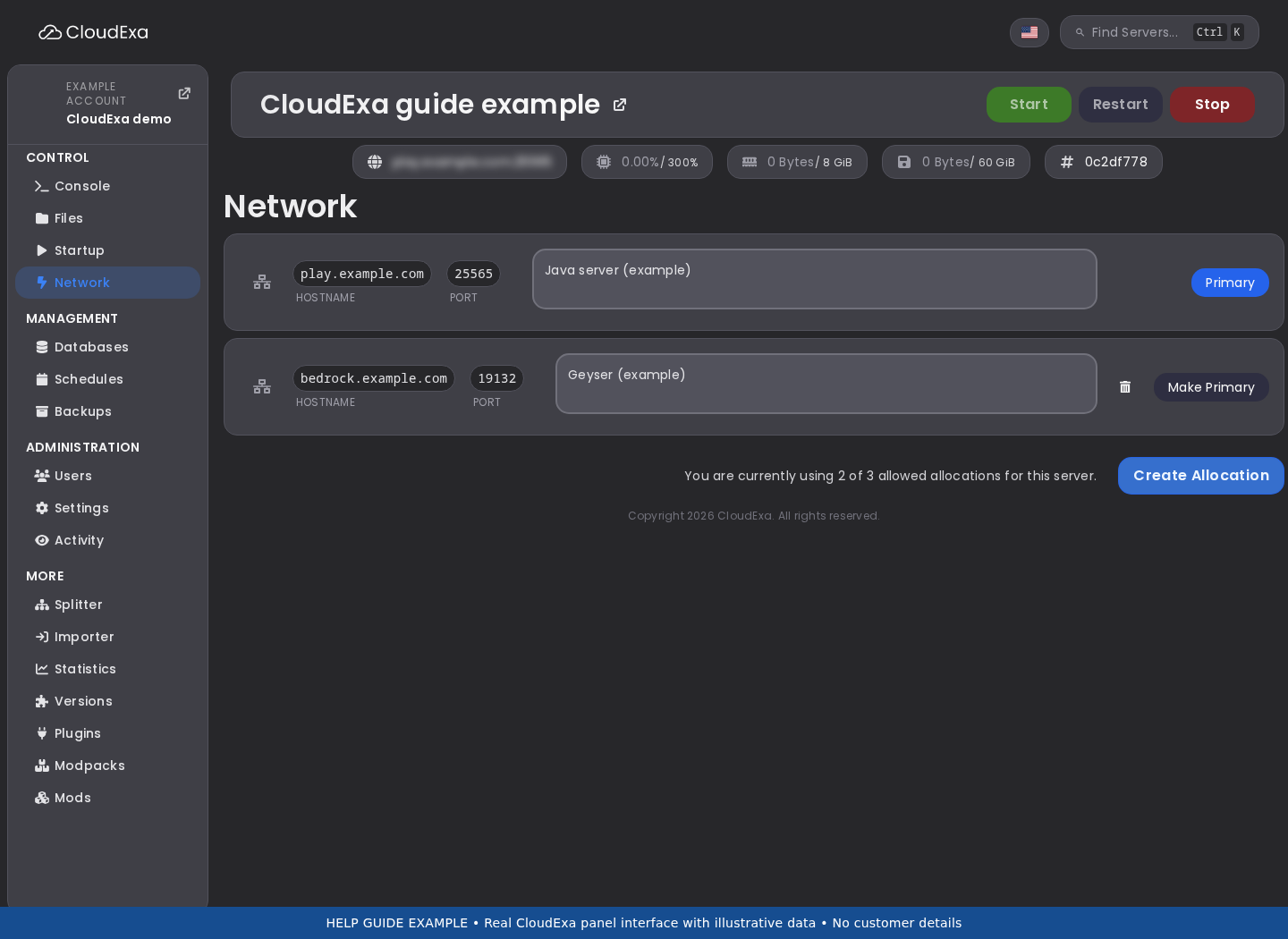The CloudExa Network page lists assigned allocations; configure the relevant listener separately in the plugin.## References and related help
- [Plan maintainer reference 1](https://github.com/plan-player-analytics/Plan/wiki/Bukkit-Configuration)
- [Set up Plan analytics without exposing private player data](https://help.cloudexa-hosting.com/books/minecraft-plugins/page/set-up-plan-analytics-without-exposing-private-player-data)
- [Find Minecraft logs and send useful troubleshooting details](https://help.cloudexa-hosting.com/books/game-hosting/page/find-minecraft-logs-and-send-useful-troubleshooting-details)
# Investigate missing recent sessions in a Plan dashboard
A dashboard with no recent sessions can reflect collection failure, a database issue or a filter that excludes the activity. Work through those layers before importing old records or resetting Plan. A browser showing yesterday's graph does not identify which layer failed.
## Record the starting point
Record the server and Plan versions, expected player session time and dashboard date range. Note whether the dashboard covers one backend or a network. Use a consenting test account and keep player names or addresses out of public screenshots.
## Work through the change
1. Confirm Plan loaded successfully and inspect logs around the expected session. Look for storage or connection errors before assuming the player was not recorded.
2. Join the intended backend with the test account, stay long enough to create an observable session, and leave normally. Record both timestamps.
3. Refresh the correct server or network view and check its date, timezone and player filters. Allow the documented processing interval for your installed release rather than repeatedly restarting Plan.
4. If the session remains absent, compare the configured storage destination with the dashboard's data source. On a network, ensure the backend you tested is the one being inspected.
## Check the result
The controlled session should appear under the intended server and time range. Its duration may not match a wall clock to the second, but it should be recognisable. Keep the test timestamps with any storage error so support can connect the observation to the collection path.
## If the result differs
If old data appears but no new sessions do, inspect collection and writes. If the session appears under another view, correct the dashboard scope or server identity. Do not merge databases until the actual storage destinations are understood.
Restore any trial display filter or configuration change if it obscures existing data. Preserve the current database before a later migration. Deleting Plan's database to force a fresh graph sacrifices evidence and is not an appropriate first repair.
## References and related help
- [Plan maintainer reference 1](https://github.com/plan-player-analytics/Plan/wiki/Database-management)
- [Plan maintainer reference 2](https://github.com/plan-player-analytics/Plan/wiki/Bukkit-Configuration)
- [Set up Plan analytics without exposing private player data](https://help.cloudexa-hosting.com/books/minecraft-plugins/page/set-up-plan-analytics-without-exposing-private-player-data)
- [Find Minecraft logs and send useful troubleshooting details](https://help.cloudexa-hosting.com/books/game-hosting/page/find-minecraft-logs-and-send-useful-troubleshooting-details)
# Prepare a recoverable Plan database migration
Changing Plan's database destination can produce an apparently empty dashboard if historical records were not migrated. Treat the change as a data migration rather than a hostname edit. Keep collection consistent while following the database-management procedure for the installed release.
## Record the starting point
Record the current storage type, destination and Plan version on every component that writes to it. Identify a few old sessions and one recent session for later comparison. Make a restricted database checkpoint and save configuration without publishing credentials.
## Work through the change
1. Read the current Plan database-management instructions and select the documented path for your source and destination. Confirm the destination is accessible using the intended service account.
2. Plan a maintenance window for writers so data does not continue changing unnoticed during transfer. Follow the documented migration controls instead of copying live database files blindly.
3. Update only the required storage configuration and complete the supported migration. Keep the original database available privately until validation is finished.
4. Start the intended writers and check the saved historical sessions, aggregate view and a new controlled test session. Review logs for failed reads or writes.
## Check the result
Historical and new records should appear in the same intended dashboard without duplicate server identities. Compare selected session dates and durations with the pre-change notes. A successful database connection proves access, but does not establish that the old analytics were transferred.
## If the result differs
If history is absent, stop further migration attempts and inspect which source was transferred and which destination the interface reads. If only new sessions appear, do not overwrite the original database with the empty destination. Keep credentials out of support excerpts.
Return writers to the recorded original configuration if validation fails, taking care not to lose sessions created during the trial. Preserve both checkpoints for a deliberate reconciliation. Do not delete the old database or rebuild analytics merely to hide a migration mismatch.
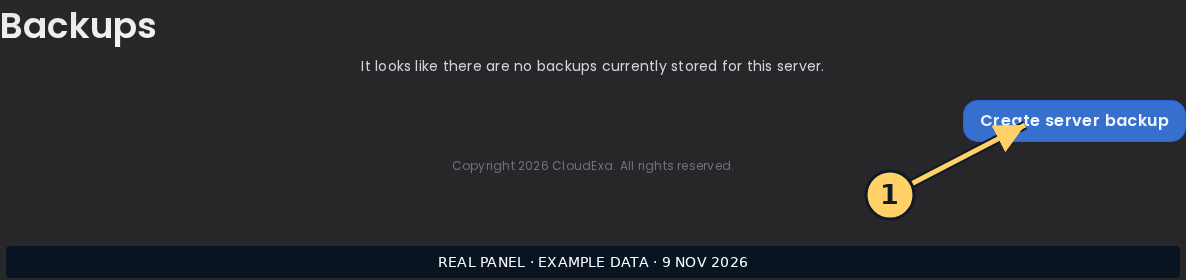A panel backup is separate from the plugin-specific record or remote archive discussed here.## References and related help
- [Plan maintainer reference 1](https://github.com/plan-player-analytics/Plan/wiki/Database-management)
- [Plan maintainer reference 2](https://github.com/plan-player-analytics/Plan/wiki/Bukkit-Configuration)
- [Set up Plan analytics without exposing private player data](https://help.cloudexa-hosting.com/books/minecraft-plugins/page/set-up-plan-analytics-without-exposing-private-player-data)
- [Back up game files before making changes](https://help.cloudexa-hosting.com/books/game-hosting/page/back-up-game-files-before-making-changes)
# Compare Plan statistics using consistent dates and timezones
Two Plan screenshots can disagree because they cover different dates, timezones or server scopes. Before treating a graph difference as missing data, make the comparison explicit. A network total and one backend's session list do not necessarily measure the same population.
## Record the starting point
Choose the question first, such as how many sessions occurred during one scheduled event. Record the event's start and end with its timezone. Note which server or network view each staff member opened and whether a player or date filter remains active.
## Work through the change
1. Open the intended Plan view and set the same date range on both comparisons. Check the displayed timezone and the release's documented time settings before changing server configuration.
2. Select the same server scope and player filters. Keep network-wide movement separate from a single backend's activity when players transfer during the event.
3. Inspect a known test session near the time boundary. Compare its timestamp with the server log to determine whether the apparent shift is a display-time difference.
4. Save the final comparison with the date range, timezone and scope visible or written in its caption. Explain what metric is being compared rather than reporting an unlabelled percentage.
## Check the result
The two views should refer to the same period and population. Differences that remain after alignment are worth investigating through collection and storage logs. Keep the original screenshots privately so staff can explain the initial discrepancy without changing historical records.
## If the result differs
If a boundary session moves between days as the timezone changes, that is a grouping difference rather than evidence of deletion. If the same session is absent from every relevant range, investigate collection separately. Avoid changing the machine clock to make a graph match a screenshot.
Restore the previous display preference if a trial setting confuses other staff. Record any intentional timezone change in reporting notes. Keep analytics records intact; comparison work does not require database edits or deletion of sessions outside the selected period.
## References and related help
- [Plan maintainer reference 1](https://github.com/plan-player-analytics/Plan/wiki/Bukkit-Configuration)
- [Plan maintainer reference 2](https://github.com/plan-player-analytics/Plan/wiki/Database-management)
- [Set up Plan analytics without exposing private player data](https://help.cloudexa-hosting.com/books/minecraft-plugins/page/set-up-plan-analytics-without-exposing-private-player-data)
- [Find Minecraft logs and send useful troubleshooting details](https://help.cloudexa-hosting.com/books/game-hosting/page/find-minecraft-logs-and-send-useful-troubleshooting-details)
# Review privacy before publishing a static Plan export
Plan's static HTML export is not protected by the live web interface's login system. Publishing exported files can therefore expose data that a limited web group could not normally see. Review the export as a separate publication, even when the live dashboard already has authentication.
## Record the starting point
Read the export and web-permissions documentation for the installed release. Decide which statistics may be public and whether player-identifying details should be included. Prepare a private destination for inspection rather than exporting directly into a publicly served website folder.
## Work through the change
1. Generate a small trial export using the documented controls. Keep the files in restricted storage and inspect the available pages before sharing a URL.
2. Check player details, links and embedded data, not only the landing page. A hidden navigation item is not an access-control boundary for a static file.
3. Choose an export scope suitable for publication or keep the export private. If a website access-control layer is needed, arrange it deliberately with support; Plan web groups do not automatically protect copied files.
4. Test the intended destination from a signed-out browser. Confirm that public users receive only the approved material and that private files are not reachable by a direct URL.
## Check the result
The publication should contain only the information you intended to disclose. Record the export date and scope because a static snapshot will not update like the live dashboard. Keep a list of published files so they can be removed consistently later.
## If the result differs
If private details appear, pause publication and remove the trial files from the public destination. Review caches and any other copies before declaring exposure resolved. Do not turn off authentication on the live interface to make its behaviour match an export.
Return to the private authenticated dashboard if a suitable public export cannot be prepared. Preserve the analytics database and remove only the generated publication files. Notify the responsible administrator if player-identifying information was exposed.
## References and related help
- [Plan maintainer reference 1](https://github.com/plan-player-analytics/Plan/wiki/Web-permissions)
- [Plan maintainer reference 2](https://github.com/plan-player-analytics/Plan/wiki/Bukkit-Configuration)
- [Set up Plan analytics without exposing private player data](https://help.cloudexa-hosting.com/books/minecraft-plugins/page/set-up-plan-analytics-without-exposing-private-player-data)
- [Back up game files before making changes](https://help.cloudexa-hosting.com/books/game-hosting/page/back-up-game-files-before-making-changes)