LuckPerms tasks
Task guides and troubleshooting for LuckPerms. Check the installed release before changing configuration or data.
- Give a LuckPerms permission an expiry without leaving permanent access
- Make a LuckPerms event rank expire while preserving other ranks
- Limit a LuckPerms command permission to one Minecraft world
- Keep a LuckPerms permission local to one network backend
- Move a player along a LuckPerms track without replacing unrelated groups
- Fix a LuckPerms prefix priority without changing chat formatting
- Remove a direct LuckPerms exception without weakening its parent rank
- Apply a small LuckPerms web-editor session to the correct server
- Export LuckPerms data before changing its storage configuration
- Find an inheritance cycle before it complicates a rank change
- Keep default-player permissions separate from staff inheritance
- Diagnose LuckPerms edits that reach one backend but not another
- Check a player UUID before changing LuckPerms account data
- Remove a staff member from one LuckPerms track without clearing their account
Give a LuckPerms permission an expiry without leaving permanent access
A temporary event permission should expire even if the player forgets to contact staff. Use a time-bound node and test the expiry with a short trial before issuing the real grant.
Follow the procedure
- Record the player UUID, exact permission node and intended end time. Confirm that no inherited rank already supplies the same permission permanently.
- Inspect the user with
/lp user PLAYER permission info. Check both direct entries and the relevant group membership before adding another value. - On a test player, run
/lp user PLAYER permission settemp example.event true 5m. Replace the example node with the feature’s documented permission. - Check the effective result with
/lp user PLAYER permission check example.event. Exercise the actual feature as that player without operator rights. - Wait beyond the trial duration and repeat the permission check and feature action. Record whether another parent still grants access after the temporary entry disappears.
- For the real player, use the approved duration and context. Avoid replacing several existing temporary grants until you understand the installed release’s duplicate-node modifier behaviour.
Check the result
The temporary entry should disappear at expiry and the ordinary player should lose only the selected feature. A failed feature test after expiry proves the intended outcome more clearly than an entry disappearing from an editor. Keep a record of the grant, duration and account so another administrator can review it.
If the result is wrong
If access continues, inspect inherited groups, another context and cached application behaviour before issuing a negative permission. Remove only the new temporary node with the documented unsettemp command when ending the trial early. Do not clear the user’s permission data or shorten an unrelated paid entitlement.
References and related help
- LuckPerms maintainer reference
- LuckPerms maintainer reference
- Create Minecraft ranks and inheritance with LuckPerms
- Trace a denied Minecraft command with LuckPerms verbose
Make a LuckPerms event rank expire while preserving other ranks
An event rank can coexist with a player’s usual groups. Add it temporarily so the end of the event removes its benefits without replacing the player’s permanent memberships.
Follow the procedure
- Choose an existing event group with only the required event permissions. Inspect its parents to ensure it does not inherit general staff or administrative access.
- Run
/lp user PLAYER parent infoand save the current parent list. This gives you a precise comparison after the trial. - Use
/lp user PLAYER parent addtemp event 5mon a consenting test account. Do not use parent set, which can replace other memberships. - Inspect the user’s groups and test an event-only action. Also test a normal rank feature such as an existing home allowance to detect unintended inheritance changes.
- After expiry, verify that the event group has gone while the original parent list remains. Rejoin if the affected plugin caches rank-dependent state.
- Apply the approved real duration only after the trial. Keep an explicit expiry in the staff record rather than relying on someone to remember a manual demotion.
Check the result
The user should receive the event group for the stated duration and retain their original groups throughout. Test both the event benefit and a normal entitlement. After expiry, confirm that the event membership disappears and the rest of the membership list matches the saved baseline.
If the result is wrong
If the user retains event benefits, look for a permanent event membership or permission inherited elsewhere. Remove only the trial’s temporary parent with the matching removetemp syntax for your release. Restore a mistakenly replaced membership from the recorded baseline; avoid clearing the whole user to rebuild one rank.
References and related help
- LuckPerms maintainer reference
- LuckPerms maintainer reference
- Create Minecraft ranks and inheritance with LuckPerms
- Trace a denied Minecraft command with LuckPerms verbose
Limit a LuckPerms command permission to one Minecraft world
A build-world permission should not leak into survival. Add a world context to the exact node and verify the boundary with the same ordinary account in both worlds.
Follow the procedure
- Write down the internal world folder names, not the display names shown in a menu. Confirm the target world exists and the player can reach it.
- Inspect the group or user’s current node entries for an unconditional grant. A contextual permission does not cancel a separate global grant.
- For a test account, set the intended node with a world context, such as
/lp user PLAYER permission set example.build true world=buildworld. - Enter the target world and use the feature. Repeat from survival and the Nether, noting the world name and result for each attempt.
- If the node still applies everywhere, inspect direct and inherited global entries. Remove a global entry only after checking who else depends on it.
- Copy the verified rule to the intended group, then remove the test account’s direct exception. Re-test group members and a player outside that group.
Check the result
The feature should succeed in the named world and fail elsewhere for an ordinary player. A command permission check alone does not prove the action behaves correctly across worlds, because another plugin may enforce its own world list. Test a complete action in each relevant destination.
If the result is wrong
If the wrong world loses access, check spelling, world aliases and any global node left behind. Revert only the contextual entry you introduced. Avoid changing the default group or disabling protection across every world to work around a single incorrectly scoped permission.
References and related help
- LuckPerms maintainer reference
- LuckPerms maintainer reference
- Create Minecraft ranks and inheritance with LuckPerms
- Trace a denied Minecraft command with LuckPerms verbose
Keep a LuckPerms permission local to one network backend
A lobby convenience command may be inappropriate on a survival backend. Give each backend a deliberate server context before applying a permission that should stay local.
Follow the procedure
- Identify the LuckPerms instance that owns the permission check: backend, BungeeCord or Velocity. A proxy command and a backend command can use different stores and contexts.
- Inspect the relevant instance’s server identifier in its LuckPerms configuration. Keep distinct names for distinct backends and record the current value before editing.
- With shared storage already working, create a small test node scoped to the intended server context. Use the matching
/lp,/lpbor/lpvcommand. - Join the target backend as an ordinary account and test the actual command. Switch to another backend and repeat without changing the user’s groups.
- Check for unconditional copies of the same node and for proxy-side aliases. Both can make a backend-specific rule appear broader than intended.
- Apply the final contextual rule to the smallest relevant group and remove the temporary test entry. Keep a record of the backend names used in the policy.
Check the result
The feature should work only where the server context matches the rule. Verify a reconnect and a backend switch, not just two commands in the same session. Confirm that unrelated shared ranks continue working across the network and that the proxy still has its own intended permissions.
If the result is wrong
If every backend reports the same context, correct duplicated server identifiers during a controlled change. If the check belongs to the proxy, move the rule to that permission scope instead of adding broad grants everywhere. Restore the previous configuration if storage or messaging stops working.
References and related help
- LuckPerms maintainer reference
- LuckPerms maintainer reference
- LuckPerms maintainer reference
- Create Minecraft ranks and inheritance with LuckPerms
- Trace a denied Minecraft command with LuckPerms verbose
Move a player along a LuckPerms track without replacing unrelated groups
A promotion track describes a sequence of ranks; it does not create inheritance. Check the track and current parents before promoting a real player through it.
Follow the procedure
- Inspect the track using
/lp track staff info. Write down the expected order and ensure each named group already exists with appropriate permissions. - Check the candidate’s current parents and their position on the track. Look for memberships in multiple track groups before trying a promotion.
- Use a test account at the first intended rank, then run
/lp user PLAYER promote staff. Read the response instead of repeating the command blindly. - Compare the test account’s parent list before and after the promotion. Check that an unrelated donor, builder or event group remains present.
- Exercise the new rank’s allowed feature and a feature reserved for the next rank. Tracks do not automatically provide the permissions of earlier groups.
- Promote the real account once, record the old and new track position, and verify that its unrelated memberships survived the change.
Check the result
The player should move one intended position on the chosen track and keep memberships outside it. Confirm effective permissions rather than assuming the track order implies inheritance. A successful staff command and a denied higher-level command provide a useful acceptance test for the promotion.
If the result is wrong
If promotion fails because the user belongs to several track groups, inspect that ambiguity before changing anything else. Demote only through the same reviewed track when reversing the trial. Do not use parent set or clear to force the result; those operations can remove unrelated entitlements.
References and related help
- LuckPerms maintainer reference
- LuckPerms maintainer reference
- LuckPerms maintainer reference
- Create Minecraft ranks and inheritance with LuckPerms
- Trace a denied Minecraft command with LuckPerms verbose
Fix a LuckPerms prefix priority without changing chat formatting
Two ranks can provide competing prefixes even when permissions work. Inspect the metadata priorities first so you can fix the selected prefix without rewriting your chat plugin.
Follow the procedure
- Confirm that the affected chat or TAB integration already displays some LuckPerms metadata. A raw placeholder points to a separate integration problem.
- Run
/lp user PLAYER meta infoand inspect inherited group prefixes. Record the text, numeric priority, source group and applicable contexts. - Decide which existing prefix should win for the player. Do not delete a donor or staff group merely to change its displayed label.
- Use a scoped editor session for the relevant group to adjust that prefix’s priority. Save the session and apply the generated command to the correct server instance.
- Test the same ordinary player with their real combination of ranks. Compare chat, player list and any scoreboard because each integration may choose metadata differently.
- Check a player who has only the edited group as well. This detects a priority adjustment that accidentally hides a label used outside the original report.
Check the result
The intended prefix should appear while the account keeps all its groups and permissions. Confirm the text in every integration you support. If LuckPerms reports the right prefix but one display remains wrong, investigate that display’s cache or placeholder settings instead of changing more metadata.
If the result is wrong
If a different group label disappears, restore the recorded priority in the same context. Avoid adding several direct user prefixes as a permanent workaround; they can hide later rank changes. Keep the original prefix text and priority in the change record so another administrator can reverse the test.
References and related help
- LuckPerms maintainer reference
- LuckPerms maintainer reference
- Create Minecraft ranks and inheritance with LuckPerms
- Trace a denied Minecraft command with LuckPerms verbose
Remove a direct LuckPerms exception without weakening its parent rank
A one-off user permission can outlive the incident that created it. Remove that exception alone and confirm the account falls back to the intended group policy.
Follow the procedure
- Ask which feature should change and confirm the player UUID. A renamed account or similar username can lead you to inspect the wrong entry.
- Open
/lp user PLAYER permission infoand identify the direct node, its value, expiry and contexts. Save that exact entry before changing it. - Compare the effective permission with the user’s group policy. Decide whether removing the exception should grant or deny the feature through inheritance.
- Use
/lp user PLAYER permission unset NODEwith the matching contexts for a permanent entry, or the documented unsettemp form for a temporary entry. - Re-check the effective value and exercise the feature as that account. Also test another member of the parent group to confirm its policy has not changed.
- Record why the exception ended and leave the user’s unrelated direct nodes untouched. A full user clear is unnecessary for a single stale permission.
Check the result
The account should follow its existing parent group policy after the exception disappears. That outcome might be either access or denial, depending on the parent. Compare the recorded expectation with the real action and verify a second group member still behaves as before.
If the result is wrong
If the result differs from the expected fallback, inspect another inherited parent, an explicit false value or a different context. Restore the exact saved exception if the test removes needed access. Do not edit the whole group to compensate for a user-specific error.
References and related help
- LuckPerms maintainer reference
- LuckPerms maintainer reference
- Create Minecraft ranks and inheritance with LuckPerms
- Trace a denied Minecraft command with LuckPerms verbose
Apply a small LuckPerms web-editor session to the correct server
An editor link does not apply changes by itself. Use a narrowly scoped session and review the generated apply command before changing a shared permissions store.
Follow the procedure
- Choose one group or one test user and open its editor using
/lp group GROUP editoror/lp user PLAYER editor. Keep the link private. - Before editing, check the group name, contexts and server instance. On a proxy, use the corresponding LuckPerms command prefix rather than the backend command.
- Change one permission or metadata item and leave unrelated rows untouched. Record the old value so you can reverse this specific edit.
- Save in the web editor and inspect the generated apply command. Run it on the intended LuckPerms instance, then read the change summary it prints.
- Open a fresh editor session or inspect the node list to confirm the server accepted the saved value. A browser tab alone can show an unapplied draft.
- Test the affected action with a normal account and close the old editor tab. Avoid returning to an old session later and applying stale changes over newer work.
Check the result
The server’s node list should match the saved edit, and the target account should demonstrate the expected access. A new editor session is a useful independent check that the change reached storage. Verify the selected context too; the same node can exist with several scopes.
If the result is wrong
If the apply command targets the wrong instance or the change summary is broader than expected, stop and compare the current live entries with your baseline. Reverse only the unintended nodes. Do not share editor URLs in public support channels or apply old sessions after another administrator changes the same group.
References and related help
- LuckPerms maintainer reference
- LuckPerms maintainer reference
- Create Minecraft ranks and inheritance with LuckPerms
- Trace a denied Minecraft command with LuckPerms verbose
Export LuckPerms data before changing its storage configuration
A permissions-storage change needs a usable export and a tested restore plan. Capture the current state before pointing a working server at a different database.
Follow the procedure
- Record the installed LuckPerms version, current storage method, server identifier and messaging configuration. Keep database passwords out of shared notes and screenshots.
- Use the installed release’s
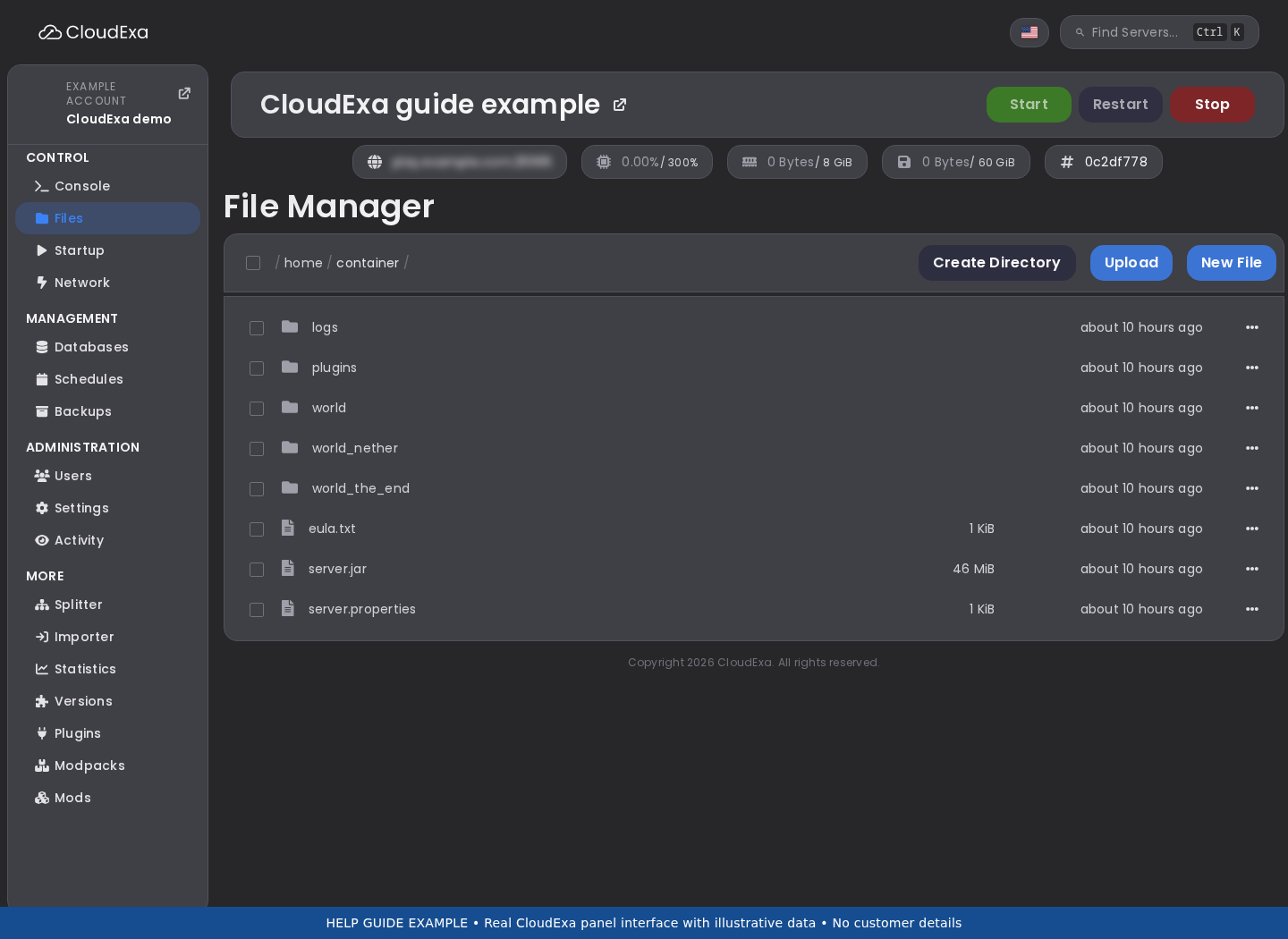
/lp exportcommand with a descriptive export name. Read the completion message and note the resulting file location. - Copy the completed export off the game server through the panel file manager or SFTP. Check its size and keep a protected copy with the change record.
- Prepare a separate test instance with a separate data store. Test importing the export there, using the same relevant LuckPerms version and documented import procedure.
- Compare representative groups, contextual permissions, temporary grants and UUID memberships in the test copy. Check that expired temporary permissions behave as expected.
- Plan the production cutover only after the test succeeds. Keep the old data store untouched and document which store should receive writes during the migration window.
Check the result
The export should exist outside the original server and recreate a representative permissions state in an isolated test. Include a normal player, staff member and contextual rule in the acceptance checks. A file with a plausible name is insufficient evidence that the import process will work.
If the result is wrong
If the export is incomplete or the import differs, retain the working production storage and investigate the version or import error. Do not empty database tables or overwrite the original export to retry. Reverting a storage cutover requires knowing which instance accepted newer edits after the checkpoint.
References and related help
- LuckPerms maintainer reference
- LuckPerms maintainer reference
- Create Minecraft ranks and inheritance with LuckPerms
- Trace a denied Minecraft command with LuckPerms verbose
Find an inheritance cycle before it complicates a rank change
Groups should have a clear inheritance direction. Inspect a suspected cycle before adding another parent that could make permission results difficult to explain.
Follow the procedure
- List the affected groups and write down the intended hierarchy in plain language. Separate staff, donor and event roles when they serve different purposes.
- Inspect each group’s parents through a fresh web-editor session or the parent info command. Follow every inherited edge in the part of the hierarchy you plan to change.
- Look for a route that returns to the starting group. A relationship such as helper inheriting moderator while moderator inherits helper is a design error.
- Choose the one parent edge that contradicts the intended hierarchy and record its exact contexts. Remove that edge alone in a test copy or controlled session.
- Compare effective permissions for a member of each affected group. Pay attention to negative nodes and metadata priorities as well as command access.
- Apply the reviewed edge removal and keep the new hierarchy diagram with the staff record. Adding a track does not repair or replace group inheritance.
Check the result
Each group should inherit from the intended lower-level parents without a path back to itself. Test a representative ordinary account at each affected rank. Confirm that a helper still has basic player features but does not gain the higher rank’s administration commands.
If the result is wrong
If an expected feature disappears after removing the cycle, locate the specific node and put it in the appropriate parent group. Restore the saved edge only as a temporary recovery step if needed. Avoid compensating with a broad wildcard, which can conceal the hierarchy problem while granting unrelated access.
References and related help
- LuckPerms maintainer reference
- LuckPerms maintainer reference
- LuckPerms maintainer reference
- Create Minecraft ranks and inheritance with LuckPerms
- Trace a denied Minecraft command with LuckPerms verbose
Keep default-player permissions separate from staff inheritance
A default group shared by every player should contain only ordinary-player access. Audit it before moving common commands into a convenient but overpowered staff parent.
Follow the procedure
- Choose two test accounts: an ordinary player and a limited staff member. Record their current parent groups and a small list of actions each should perform.
- Inspect the default group’s direct permissions and parents. Look for moderation, bypass, administrative or broad wildcard nodes that ordinary players do not need.
- For each suspicious node, identify the plugin feature it controls and who actually needs it. Do not remove unknown nodes without checking their documented behaviour.
- Move one staff-only grant into the appropriate staff group during a controlled change, preserving its old value and contexts in the change record.
- Test the ordinary account for denial and the staff account for allowed access. Also confirm ordinary commands still work for both accounts through the intended inheritance.
- Continue in small groups of related nodes. Keep an explicit list of the base player features so future administrators can add permissions without using a staff group as a shortcut.
Check the result
Ordinary players should retain useful player commands and lose staff-only features. Staff should receive those features from their reviewed role. Test an actual action such as a harmless read-only staff command, not an operator account whose default permission behaviour can hide mistakes.
If the result is wrong
If a common player action fails, restore only that action’s required node to the base role after checking documentation. Avoid restoring all removed grants at once, because that also restores the unsafe ones. Use the recorded baseline to distinguish an intended denial from an accidental loss of normal access.
References and related help
- LuckPerms maintainer reference
- LuckPerms maintainer reference
- LuckPerms maintainer reference
- Create Minecraft ranks and inheritance with LuckPerms
- Trace a denied Minecraft command with LuckPerms verbose
Diagnose LuckPerms edits that reach one backend but not another
Follow the procedure
- Identify one affected UUID, one node and two backends with different results. Record the exact time and the LuckPerms command prefix used for the original edit.
- Inspect each instance’s configured storage method and database identity without exposing credentials. Check whether both instances are meant to share the same data store.
- Compare server contexts and the saved node’s scopes. Different effective results can be correct when the permission has a server or world context.
- Review LuckPerms startup and messaging errors on the stale backend. A failed database connection and a missing update notification require different repairs.
- After confirming storage is healthy, use the release’s documented synchronization command on the relevant instance. Re-check the exact node and actual player action.
- If the problem recurs, repair the mismatched storage or messaging configuration during a planned window. Keep one authoritative permission policy rather than duplicating direct user grants.
Check the result
Both intended instances should show the same stored node while evaluating their own contexts correctly. Reconnect the player and test a new edit in a controlled role to confirm synchronization continues working. Record whether the issue was storage identity, connectivity, messaging or legitimate contextual behaviour.
If the result is wrong
If synchronization reports an error, preserve the logs and do not switch database settings by guesswork. Restore a recently changed configuration from its recorded baseline. A rank export is useful evidence, but importing it over a live shared database can overwrite newer changes and should not be the first diagnostic step.
References and related help
- LuckPerms maintainer reference
- LuckPerms maintainer reference
- LuckPerms maintainer reference
- Create Minecraft ranks and inheritance with LuckPerms
- Trace a denied Minecraft command with LuckPerms verbose
Check a player UUID before changing LuckPerms account data
A name change or authentication change can make a familiar username point at unexpected permissions. Confirm identity before moving ranks between account records.
Follow the procedure
- Ask the player which authenticated account they use and when the issue started. Keep account evidence private and do not request their login password.
- Use the LuckPerms user information command and server logs to record the UUID associated with the current connection. Compare it with the account record you intend to change.
- Check whether a proxy, Floodgate or a recent online-mode change altered identity handling. Do not change authentication settings merely to make two records look alike.
- Inspect both relevant records read-only and record their groups and direct nodes. A stale username in a data file is not sufficient evidence that the records belong to one person.
- If an identity migration is required, prepare an isolated test and a complete permissions export. Follow the documented account migration procedure for the actual authentication system.
- Apply a minimal approved membership correction only after ownership is established. Keep the old record until the broader player-data migration is understood and verified.
Check the result
The live connection should resolve to the confirmed UUID and receive only that account’s intended permissions. Test a normal reconnect and any proxy or Bedrock route the player uses. Keep inventory, homes, claims and punishment records in mind because those systems can use the same UUID independently.
If the result is wrong
If ownership or forwarding is unclear, stop the rank move and fix the identity path first. Do not copy an administrator’s permissions to an unverified name. Revert a mistaken direct grant by its exact node or parent entry, preserving both original account records for investigation.
References and related help
- LuckPerms maintainer reference
- LuckPerms maintainer reference
- Create Minecraft ranks and inheritance with LuckPerms
- Trace a denied Minecraft command with LuckPerms verbose
Remove a staff member from one LuckPerms track without clearing their account
Ending a staff role should remove staff membership while preserving unrelated player entitlements. Inspect the relevant track and parent list before performing the demotion.
Follow the procedure
- Record the player UUID, current groups and the staff track’s group order. Identify donor, event or builder groups that must remain outside this staff change.
- Inspect the user’s memberships on the staff track. Multiple staff parents or direct administrative nodes need an explicit review rather than a blind demotion.
- Use the documented track-specific parent removal or demotion operation appropriate to the intended destination. Avoid the generic user clear or parent set operations.
- Inspect direct user permissions and temporary staff memberships for remaining access. Remove only entries that belong to the departed staff role, preserving their context and values in the record.
- Ask the account to rejoin and test one former staff command plus one retained player entitlement. Check proxy-side roles if the server runs a network.
- Revoke separate panel, Discord or integration access through the appropriate system when it belongs to the same departure. LuckPerms alone does not control those accounts.
Check the result
The account should lose the reviewed staff commands and retain its normal player roles. Confirm denial on every relevant backend and on the proxy where applicable. A changed chat prefix does not prove administrative access has gone; direct permissions and a second group can still grant it.
If the result is wrong
If a retained feature disappears, restore the specific unrelated membership from the baseline. If staff access remains, inspect direct nodes and external permission systems before changing the entire default group. Keep the departure record private because it can contain account identifiers and information about staff access.