Geyser tasks
Task guides and troubleshooting for Geyser. Check the installed release before changing configuration or data.
- Separate a Geyser signalling failure from a gameplay timeout
- Resolve a Geyser port collision with Query or a web map
- Check the public address Geyser advertises behind container networking
- Investigate the first-connection trust prompt in Geyser NetherNet
- Check a Bedrock resource pack without replacing the Java pack
- Compare static and passthrough server descriptions in Geyser
- Build a Geyser compatibility check before a Bedrock client update
- Test Bedrock forms and inventory menus with a non-staff account
Separate a Geyser signalling failure from a gameplay timeout
A Bedrock server entry that never appears and a visible entry that times out during joining point to different checks. Current Geyser NetherNet uses TCP for signalling and UDP for gameplay. A successful Java connection proves neither Bedrock path.
Record the starting point
Write down the Geyser build, Bedrock client version, assigned public address and advertised Bedrock port. Keep one failed attempt's timestamp. Use a remote client outside the server network so a local shortcut cannot hide a public routing problem.
Work through the change
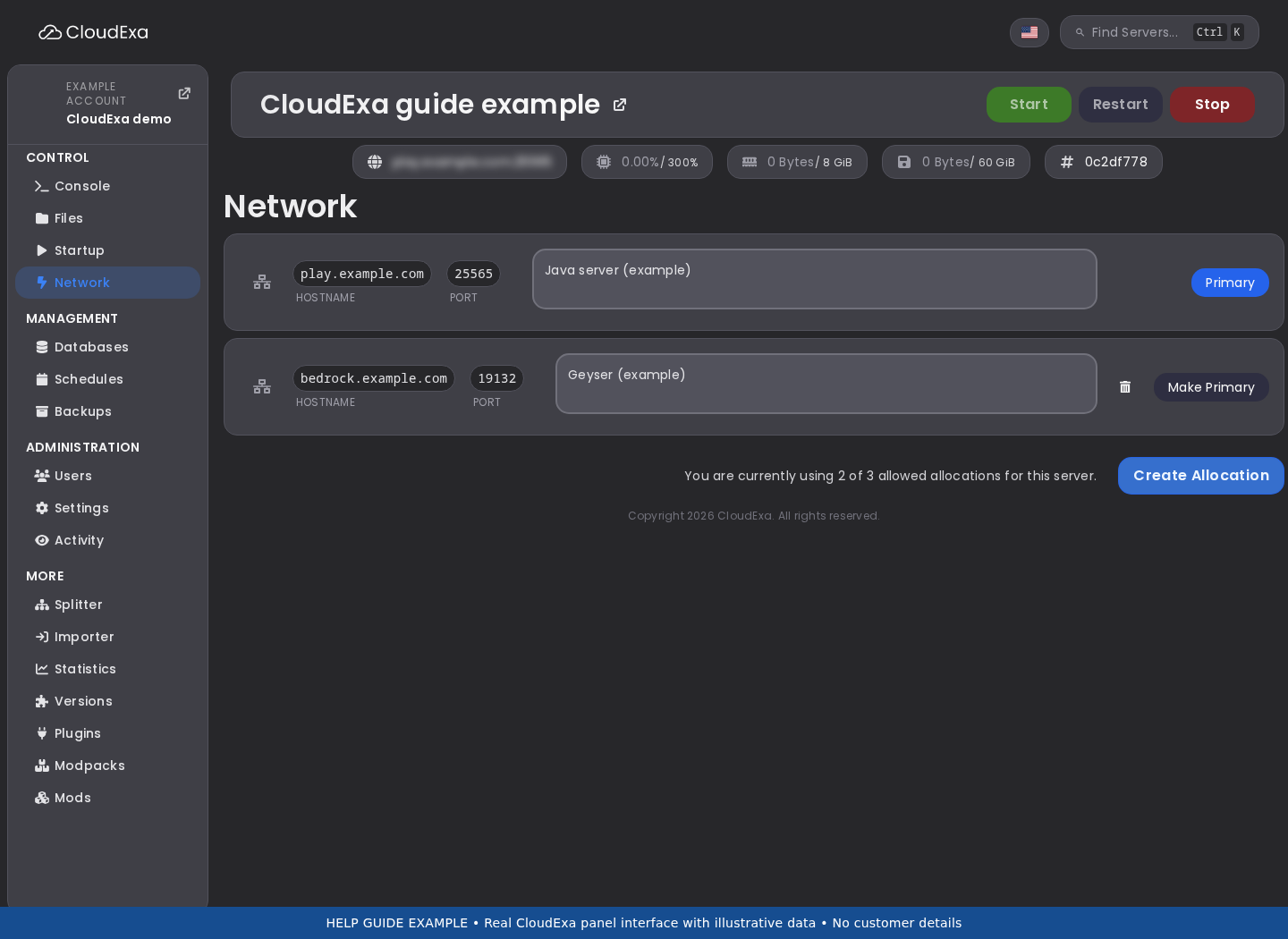
- Open the service Network page and match the configured listener to an allocation that supports the protocols your Geyser setup requires. Ask support about protocol availability rather than inventing a second port.
- From the remote Bedrock client, refresh the server entry and record whether its description and player count appear. Keep this result separate from the later join attempt.
- Attempt one join and compare the timestamp with the Geyser console. Note whether signalling starts, gameplay negotiation begins, or no request reaches Geyser.
- Check any configured external signalling provider as a separate component. The address players save may differ from the Java address and from the address inside the container.
Check the result
Success means a remote player can discover the entry, complete joining and move in the world. Ask the tester to disconnect and reconnect once; cached discovery information can conceal a broken new address. Record the public endpoint they actually used.
If the result differs
An empty console during discovery suggests the wrong endpoint, listener or TCP path. A visible entry followed by a negotiation timeout makes the UDP advertisement and gameplay path worth checking. Authentication errors after negotiation belong to the identity configuration, not a blanket firewall reset.
Restore only the listener or advertisement setting you changed if the previous endpoint worked. Preserve the failed attempt log for support; do not disable Java authentication or reinstall Floodgate to diagnose a missing network path.
References and related help
- Geyser maintainer reference 1
- Geyser maintainer reference 2
- Set up Geyser and Floodgate for Java and Bedrock crossplay
- Find Minecraft logs and send useful troubleshooting details
Resolve a Geyser port collision with Query or a web map
A bind failure can appear after enabling a web map, Minecraft Query or another listener on the same service. With current NetherNet, Geyser's normal built-in signalling arrangement needs TCP as well as UDP; a number that looked unused under one protocol may already have an owner.
Record the starting point
Record the exact bind error and the port named beside it. List Geyser, Java gameplay, Query, voice chat and map listeners from their active configuration files. An allocation belongs to this service only when the panel or support confirms it.
Work through the change
- Stop the affected server during a planned window. Save copies of the listener configurations so a port change does not become an untracked change across several plugins.
- Compare each service by address, number and protocol. Do not assume Java gameplay can share a TCP listener with Geyser signalling just because older Bedrock guidance mentioned UDP only.
- Select a separately assigned endpoint for the conflicting component. Change that component alone, including its public URL or player instructions if users connect to it directly.
- Start the server and read startup output for both components. Test the web map, Query or voice service as well as a real Bedrock join from another network.
Check the result
Both listeners should start without address-in-use errors, and both services should remain reachable. Keep the final allocation list with the server notes. This prevents a later plugin installation from choosing the same number again.
If the result differs
A second bind error may come from another server process or from editing an inactive configuration. Check the filename Geyser loaded and whether the server actually stopped before restarting. Support can inspect host listeners; a game-panel account should not kill unknown host processes.
Return the changed component to its recorded endpoint if the new allocation does not work, then leave it stopped until support confirms the allocation. Keep the other working service running instead of deleting plugin data or opening every port.
References and related help
- Geyser maintainer reference 1
- Set up Geyser and Floodgate for Java and Bedrock crossplay
- Connect a domain to your Minecraft server
Check the public address Geyser advertises behind container networking
The address a game process sees inside its container can differ from the address a player can reach. A correct listening port does not help if signalling sends the client a private, loopback or obsolete public address for gameplay.
Record the starting point
Collect the assigned endpoint from your service details, the Geyser build and the current signalling arrangement. Save the relevant Geyser configuration and any startup properties. Treat a support-provided public address as authoritative over an address guessed from an interface inside the container.
Work through the change
- Reproduce a failed Bedrock join from a remote connection and note the address used in the saved entry. Check whether a domain still resolves to a previous service.
- Compare the advertised gameplay endpoint described by your installed Geyser release with the public allocation. Read the current NetherNet setup guidance before using startup overrides from an older tutorial.
- If an advertisement override is necessary, ask support to confirm the public mapping and supported startup control. Change the advertisement without moving the Java listener or changing the world.
- Restart through the panel, refresh the Bedrock server entry, and repeat the remote join. Keep the old and new endpoint values in your change record.
Check the result
The test should reach the same server ID, world and player identity as before while completing negotiation through the assigned public endpoint. Check a second remote client if the first has cached the previous discovery response.
If the result differs
If only one network fails, compare that client's saved endpoint and connection route before changing the server again. If all remote clients receive an unreachable address, send support the advertised endpoint, timestamp and build number with private configuration values removed.
Undo the single advertisement change if it makes discovery fail. Do not replace the allocation with another customer's IP, expose container management ports or copy an unrelated host's startup properties. Preserve the working Java endpoint throughout the investigation.
References and related help
- Geyser maintainer reference 1
- Geyser maintainer reference 2
- Set up Geyser and Floodgate for Java and Bedrock crossplay
- Find Minecraft logs and send useful troubleshooting details
Investigate the first-connection trust prompt in Geyser NetherNet
Current Geyser can serve NetherNet signalling over plain HTTP. Bedrock clients may ask whether to trust the endpoint on first use. This prompt concerns signalling transport; it does not show that the Minecraft world or Floodgate account data has changed.
Record the starting point
Record the address players enter, whether it is a domain or an IP, and how signalling reaches Geyser. Check who controls the domain and certificate before planning HTTPS. A hosting-panel allocation alone does not provide a domain certificate or an HTTPS reverse proxy.
Work through the change
- Read the HTTPS section linked from the current Geyser setup guide and identify whether the installed release supports your proposed built-in or external signalling arrangement.
- Check the certificate name against the exact domain players will use. Keep the existing endpoint available while the certificate and signalling route undergo a separate test.
- Have support configure or approve any host-level proxy and certificate path. Do not upload private certificate keys to a public web root or paste them into a ticket.
- Test discovery and joining from a fresh client entry. Check both the first connection and a reconnect, and confirm UDP gameplay still reaches the assigned server.
Check the result
With a valid documented HTTPS arrangement, clients should reach signalling under the intended domain without a certificate warning. A successful HTTPS page in a browser does not replace the Bedrock join test, because gameplay uses a different transport path.
If the result differs
A name mismatch, expired certificate or proxy route error needs fixing at that layer. Do not tell clients to ignore TLS errors as a permanent solution. A remaining gameplay timeout may be unrelated to the original trust prompt.
If the HTTPS trial fails, restore the previously recorded signalling route and tell testers which entry to use. Keep ownership of the certificate and domain documented so the same issue does not return at renewal.
References and related help
- Geyser maintainer reference 1
- Geyser maintainer reference 2
- Set up Geyser and Floodgate for Java and Bedrock crossplay
- Connect a domain to your Minecraft server
Check a Bedrock resource pack without replacing the Java pack
A Java resource pack is not automatically a Bedrock resource pack. If Java players see the correct items while Bedrock players see missing textures, separate the two pack formats and test Geyser's Bedrock delivery path before changing item identifiers.
Record the starting point
Keep the currently working Java pack and item definitions untouched. Record the Bedrock pack filename, its origin and the Geyser build. Use a small licensed test pack rather than a new archive containing your entire custom-item collection.
Work through the change
- Follow the installed Geyser release's pack documentation for the supported Bedrock archive format and pack folder. Check that the archive contains the expected manifest and resources rather than an extra enclosing download folder.
- Add only the test Bedrock pack to the documented location while the service is stopped. Preserve the previous packs and their names in a separate recovery copy.
- Start Geyser, inspect pack-loading errors, and join with a Bedrock tester who accepts the pack prompt. Ask them to report download failure separately from an incorrect texture after joining.
- Test an existing known item and the new test asset. Then reconnect with the same client to see whether the result depends on an old cached pack.
Check the result
The client should accept and load the intended Bedrock pack while Java players retain their working pack. Record which pack version the tester received. Check a second Bedrock device before treating one client's cache as a server-wide failure.
If the result differs
A malformed archive or manifest needs correction before item mappings can work. If downloading succeeds but the asset remains wrong, inspect the Bedrock mapping and supported custom-item workflow for the installed versions. Do not regenerate every item ID to fix a delivery problem.
Remove the trial pack and return to the saved pack set if clients cannot join. Keep the original Java definitions and player items intact; changing a pack file should not trigger a world reset or an inventory rewrite.
References and related help
- Geyser maintainer reference 1
- Set up Geyser and Floodgate for Java and Bedrock crossplay
- Add a Java server resource pack and fix download errors
Compare static and passthrough server descriptions in Geyser
A Bedrock description can come from Geyser's configured text, a Java-server passthrough response or an external signalling service. Editing the Java MOTD may therefore leave the Bedrock entry unchanged even though Java players see the new wording.
Record the starting point
Take a screenshot of each client entry and record the address and client edition. Identify whether the current setup uses built-in or external signalling. Keep a copy of the previous description so a cosmetic trial cannot leave players unsure which server they are joining.
Work through the change
- Locate the MOTD and passthrough controls in the configuration generated by the installed Geyser build. Read their comments instead of copying keys from a different release.
- Choose one source of truth for this test. Change either the explicit Bedrock description or the Java description that the selected passthrough mode reads, not both at once.
- If external signalling handles discovery, read its refresh behaviour. Current Geyser guidance notes that external signalling can update descriptions periodically rather than forwarding every ping live.
- Restart or apply the documented setting change, then refresh a remote Bedrock entry. Compare the full address so an old saved server is not mistaken for the edited one.
Check the result
The displayed wording should match the chosen source after the relevant refresh interval. Test the actual join as well; the server description should identify the world or community players reach, not merely provide a reassuring green entry.
If the result differs
If the Java entry updates and Bedrock does not, inspect passthrough selection and discovery caching. If neither updates, confirm you edited the active server files. A translation plugin does not make every Java formatting or display feature identical on Bedrock.
Restore the recorded text and passthrough setting if the trial produces a misleading description. Leave networking and authentication unchanged during this cosmetic investigation, and document any external service refresh delay for the next administrator.
References and related help
- Geyser maintainer reference 1
- Geyser maintainer reference 2
- Set up Geyser and Floodgate for Java and Bedrock crossplay
- Change the built-in Minecraft server-list MOTD
Build a Geyser compatibility check before a Bedrock client update
Bedrock clients can update before a server administrator changes anything. Geyser support also changes between builds. Keep a dated compatibility check for the client versions your community uses instead of promising that an old build will support every future release.
Record the starting point
Record the current Geyser build, Java server version, proxy version if present and any ViaVersion components. Save the current plugin files and configuration together. Choose one Java tester and one Bedrock tester with accounts that do not carry valuable trial items.
Work through the change
- Read the current Geyser supported-version page and the release or download notes. Confirm the target build supports the actual client and backend combination you plan to test.
- Use a separate copy of the service for the upgrade rehearsal. Keep its ports, external integrations and databases separate so the trial cannot admit production players or change their records.
- Exercise login, chat, inventory use, a container, a teleport and any required resource pack. Check Java joining too, because a dependency update can affect the shared backend.
- Record the exact build and client versions that pass. Plan a short maintenance window for the same tested file set rather than downloading an unrecorded build during the live restart.
Check the result
A useful check produces a repeatable list of working actions and a known recovery set. Include a disconnect and reconnect, because first login alone may miss identity or inventory problems that appear when a session resumes.
If the result differs
If the client version is unsupported, preserve the error and follow the project's release guidance. Adding ViaVersion does not guarantee support for every Bedrock transport or feature. Avoid changing online mode to bypass a protocol-version failure.
Return the staging copy to its saved plugin set if the trial fails. If a live upgrade changes data formats, use the complete matching recovery checkpoint rather than assuming an older JAR can read newer data.
References and related help
- Geyser maintainer reference 1
- Geyser maintainer reference 2
- Set up Geyser and Floodgate for Java and Bedrock crossplay
- Update Paper, Purpur and plugins safely
Test Bedrock forms and inventory menus with a non-staff account
A Bedrock player can join successfully yet struggle with a Java plugin's inventory menu, custom item or interaction. Protocol translation does not guarantee identical client interfaces. Reproduce the exact click and permission context before changing Geyser networking.
Record the starting point
Choose a disposable test account with the same rank as the affected player. Record the menu plugin version, Geyser build and client device. Save a small description of the expected menu action, such as opening a category or buying one harmless test item.
Work through the change
- Join with a Java account at the same permission level and complete the action. This establishes whether the backend menu works before adding the Bedrock translation path.
- Join with the Bedrock tester and repeat the same path, slot and interaction type. Keep the inventory contents simple so accidental clicks cannot consume valuable items.
- Check both plugin and Geyser logs at the attempt time. Record whether the backend received the command, denied a permission, or accepted an action the client displayed incorrectly.
- Consult the menu plugin and Geyser compatibility guidance before choosing a fallback command or a simpler menu. Change one display feature on a staging copy and repeat both client tests.
Check the result
The tester should reach the intended action without staff privileges and without receiving duplicate items or charges. Check the resulting backend state, not just whether the menu closed. A successful Java action remains useful evidence even if the Bedrock interface needs another design.
If the result differs
If both editions fail, investigate the menu configuration first. If only Bedrock fails, provide the maintainers with the reduced menu, versions and exact interaction. Avoid giving wildcard permissions to make an interface appear functional.
Restore the previous menu file if the trial changes purchase or command behaviour. Offer the documented ordinary command as a temporary route where one exists, and keep the unsupported interface disabled until a tested design works.