FancyHolograms tasks
Task guides and troubleshooting for FancyHolograms. Check the installed release before changing configuration or data.
- Change FancyHolograms visibility without granting editing access
- Tune a FancyHolograms viewing distance on one display
- Rotate a FancyHolograms text display for its viewing area
- Resize a FancyHolograms display without blocking nearby signs
- Copy a FancyHolograms display before editing its public version
- Collect a FancyHolograms display report after a Minecraft update
Change FancyHolograms visibility without granting editing access
A private display needs a viewer rule rather than an administrator permission. Test with example text before placing staff-only information in a hologram that players can approach.
Prepare the test
Use a uniquely named test display away from busy player paths. Keep an administrator available, but make visibility and readability decisions from a separate ordinary player account.
Make the change
- Copy the object into a test location and record its current visibility mode. Choose one ordinary allowed account and one denied account with no operator or editing privileges.
- Check the installed hologram command help and select the documented permission-based visibility mode. Use the display-specific viewer permission described by FancyHolograms rather than its broad administrator node.
- Grant only that viewer permission to the test role. Compare both accounts at the same distance, then reconnect them so initial visibility and subsequent updates receive a separate check.
- Remove the temporary viewer grant and confirm the display disappears for that account. Review any integration that uses manual visibility before applying the setting to the public object.
Check the result
The intended role should read the example text without gaining commands that edit or remove holograms. A denied account should remain unable to see the display after reconnecting.
If the test fails
If the denied account sees private content, replace it with harmless text and return to the previous visibility state. Investigate inherited permissions or an integration controlling visibility before adding the real value back.
Visibility modes are separate from rendering distance. Check both when an authorised reader cannot see the object.
References and related help
Check the official FancyHolograms documentation against your installed release before using a command or setting from another version.
Tune a FancyHolograms viewing distance on one display
A display can appear too late on a walkway or remain visible across an entire spawn. Choose its distance from the places players need the information rather than copying one value to every object.
Prepare the test
Use a uniquely named test display away from busy player paths. Keep an administrator available, but make visibility and readability decisions from a separate ordinary player account.
Make the change
- Record the object name, coordinates and existing visibility distance. Identify the approach path and any elevated route that players use to reach the information.
- On a copied object, use the documented
visibilitydistanceedit operation for the installed release. Begin with a distance that covers the route and preserve the original setting for comparison. - Walk across the boundary with an ordinary player in both directions. Check whether the display appears before its text becomes useful, and observe the result after reconnecting nearby.
- Compare other nearby displays and the client view from the same position. Keep the test limited to this object so a large spawn redesign does not obscure the effect of one distance change.
Check the result
The display should become visible before visitors need its directions and disappear outside its intended area. Record the accepted approach points and selected distance in the object’s maintenance note.
If the test fails
Restore the original distance if the label vanishes along an important route. Check the object’s separate visibility mode and world before increasing distance to compensate for a permission or location problem.
A missing display can result from several independent conditions. Distance changes should follow a visible boundary test, not a guess made from the editor account.
References and related help
Check the official FancyHolograms documentation against your installed release before using a command or setting from another version.
- Set up a FancyHolograms text display on Paper
- Find Minecraft logs and send useful troubleshooting details
Rotate a FancyHolograms text display for its viewing area
A text display can face the wrong wall or rotate in a way that looks awkward from a staircase. Test orientation separately from position so the change does not displace the public object.
Prepare the test
Use a uniquely named test display away from busy player paths. Keep an administrator available, but make visibility and readability decisions from a separate ordinary player account.
Make the change
- Record the display’s current rotation, location and billboard setting through the installed information and edit controls. Note which direction the main visitor route approaches from.
- Create a test copy and adjust its documented rotation control by a small amount. Check a fixed orientation from the intended path before changing any behaviour that faces the viewer.
- Compare supported billboard choices using the command help for the installed version. Observe the copy from the side, above and below; a setting that helps one path may reduce readability on another.
- Keep text and scale unchanged during the orientation trial. Ask a second ordinary player to view the copy from a different approach while you record the accepted angle and mode.
Check the result
Readers on the intended paths should see a stable, legible label without needing to stand at the editor’s exact position. Verify a reconnect and retain the previous orientation values for recovery.
If the test fails
Restore the saved rotation and billboard setting if the result clips into scenery or behaves poorly for another viewer. Move the object only in a separate test so the cause of the visual change stays clear.
Changing direction does not correct a missing world or visibility permission. Check those independently when a player sees no object at all.
References and related help
Check the official FancyHolograms documentation against your installed release before using a command or setting from another version.
- Set up a FancyHolograms text display on Paper
- Find Minecraft logs and send useful troubleshooting details
Resize a FancyHolograms display without blocking nearby signs
A larger label can cover another sign or intersect a wall even when it looks attractive from the editor’s position. Check the reading area with the full public message before approving a scale change.
Prepare the test
Use a uniquely named test display away from busy player paths. Keep an administrator available, but make visibility and readability decisions from a separate ordinary player account.
Make the change
- Record the current scale and position, then copy the object into the same type of space away from the public route. Keep the exact text so the longest line remains part of the test.
- Use the documented scale edit control with a small change. Keep location, orientation and billboard behaviour unchanged so you can judge the scale alone.
- View the copy from the nearest and farthest intended reading points. Include a narrow screen or different client interface scale where possible, because the editor’s display setup may not match the player’s.
- Check neighbouring labels, doors and decorative objects for overlap. Test a longer dynamic value if the display includes names or numbers that can grow beyond the current sample.
Check the result
The message should remain readable across the planned area without obscuring essential directions or controls. Record the accepted scale and the longest test value used during review.
If the test fails
Return to the previous scale if the display clips or blocks nearby information. Consider shortening the wording or separating a long message into a different design rather than enlarging every display to solve one crowded label.
A scaling test should use harmless example data when real player information is private. Larger text can make that information readable from unintended viewpoints.
References and related help
Check the official FancyHolograms documentation against your installed release before using a command or setting from another version.
- Set up a FancyHolograms text display on Paper
- Find Minecraft logs and send useful troubleshooting details
Copy a FancyHolograms display before editing its public version
A copied display lets you trial a design without removing the label players rely on. Give the copy a distinct identity and verify its properties before assuming it matches the original.
Prepare the test
Use a uniquely named test display away from busy player paths. Keep an administrator available, but make visibility and readability decisions from a separate ordinary player account.
Make the change
- Record the original object name and inspect its information through the installed command help. Choose a unique test name that scripts, menus and administrators will not confuse with the public object.
- Use the documented copy operation and move the copy to a private test area. Compare text or item content, visibility mode, distance and orientation before changing its appearance.
- Change one design property at a time and ask an ordinary viewer to inspect it. Keep actions or integrations pointed at the public original until the copy passes its own checks.
- Write down the final differences you intend to apply. Update the original through its supported editing controls rather than renaming or swapping object identities without checking external references.
Check the result
The public object should keep its original identity and references while receiving only the approved design changes. Check its view after reconnecting and keep the test copy isolated until the comparison is complete.
If the test fails
If the public result differs from the trial, restore the recorded original properties and inspect the missing difference. Remove the test copy only after confirming its name is not used by another integration.
Copying a visual object is not a backup of all server data. Keep the relevant configuration checkpoint before a wider plugin or server update.
References and related help
Check the official FancyHolograms documentation against your installed release before using a command or setting from another version.
- Set up a FancyHolograms text display on Paper
- Find Minecraft logs and send useful troubleshooting details
Collect a FancyHolograms display report after a Minecraft update
A Minecraft update can expose a plugin compatibility problem that affects one display type or one client. Collect a small reproducible case before rebuilding the existing public displays.
Prepare the test
Use a uniquely named test display away from busy player paths. Keep an administrator available, but make visibility and readability decisions from a separate ordinary player account.
Make the change
- Record the Minecraft build, FancyHolograms version and affected client versions. Capture the first relevant startup error and check the maintainer’s release guidance for the installed combination.
- Inspect one affected object’s type and properties without changing its stored identity. Compare an ordinary player with a staff viewer and note whether the object is missing, malformed or only unreadable.
- Create a harmless simple display through the installed command help in a separate area. Keep its scale and formatting minimal so the test separates basic rendering from a complex design.
- Compare the simple display with the existing object across the same clients. Preserve the original configuration and send a redacted report with the exact difference to the plugin maintainer if needed.
Check the result
Your report should identify the affected display type, client combination and minimal reproduction without exposing private text or customer identifiers. Keep logs from the first failure rather than only repeated follow-up errors.
If the test fails
If a rollback is necessary, follow the server and plugin release compatibility guidance and restore matching configuration from a completed checkpoint. Do not delete every stored hologram to see whether the rendering error disappears.
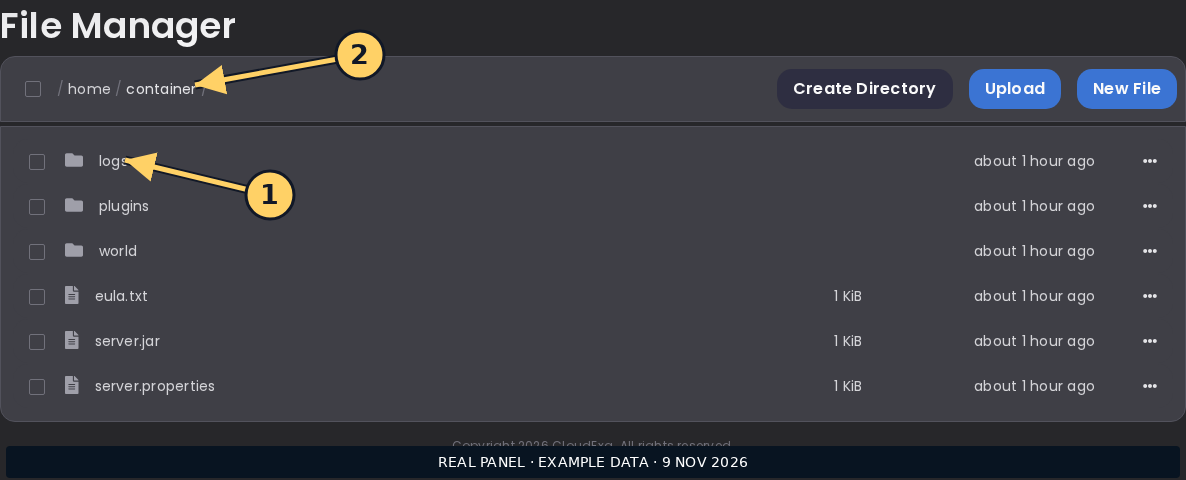
The CloudExa console screenshot is a general log location, not proof that this plugin version has been tested on your particular server.
References and related help
Check the official FancyHolograms documentation against your installed release before using a command or setting from another version.