EssentialsX tasks
Task guides and troubleshooting for EssentialsX. Check the installed release before changing configuration or data.
- Give an EssentialsX rank a fixed home limit
- Restrict one EssentialsX warp to an approved player group
- Test EssentialsX teleport delay and movement cancellation
- Add an EssentialsX cooldown to one utility command
- Resolve an EssentialsX command alias conflict without removing either plugin
- Check EssentialsX AFK kick exemptions for a staff role
- Limit EssentialsX nickname changes without granting formatting control
- Give staff a read-only EssentialsX player-information role
- Recover from an accidental EssentialsX ignore setting
- Restrict EssentialsX repair commands to the intended tool policy
- Review EssentialsX command-disabled entries after a plugin change
- Test an EssentialsX jail location without trapping a real player
- Change the EssentialsX starting balance for new players only
- Set EssentialsX maximum and minimum money limits with a boundary test
- Change the EssentialsX currency symbol without changing stored money
- Test an EssentialsX pay dispute using two controlled accounts
- Review EssentialsX worth prices before enabling item selling
- Explain an EssentialsX balance leaderboard that looks out of date
- Trace an unexpected EssentialsX command charge
- Back up EssentialsX money before a player-data migration
Give an EssentialsX rank a fixed home limit
Home allowances combine configuration and permissions. Define a small named allowance, then test its limit with an ordinary player before assigning it to a real rank.
Follow the procedure
- Record the intended home count and the affected rank. Check whether another homes plugin also handles the same commands before editing EssentialsX.
- Open the generated EssentialsX configuration and find the multiple-home allowance section. Preserve its indentation and add or adjust one named allowance using the installed release’s comments.
- Grant the relevant role
essentials.sethome.multipleand its matching named allowance permission. Do not grant the unlimited-home node to make the test pass. - Check the test player’s inherited permissions for another allowance or an unlimited bypass. Keep the player’s existing home files intact throughout the trial.
- Using a disposable test account, create named homes until it reaches the intended count. Try one additional home and confirm the server refuses it.
- Raise the real rank’s allowance after the trial. When reducing an allowance, tell existing players how surplus homes will behave rather than deleting their saved homes.
Check the result
The role should create the configured number of homes and receive a clear denial at the next attempt. Verify teleporting to existing homes too. Test a member of another rank to confirm that the named allowance changed only the intended role and did not alter the default player limit.
If the result is wrong
If the player exceeds the limit, inspect inherited unlimited or higher-limit permissions and command ownership. If no additional homes are allowed, check the base multiple-home permission and spelling of the allowance name. Revert the configuration entry and its matching grant together; leave saved home data untouched.
References and related help
- EssentialsX maintainer reference
- EssentialsX maintainer reference
- Set up EssentialsX commands and player permissions
- Find Minecraft logs and send useful troubleshooting details
Restrict one EssentialsX warp to an approved player group
A staff or event warp should be usable only by its intended audience. Check per-warp permissions and test the destination without giving the group permission to create or delete warps.
Follow the procedure
- Choose an existing safe warp and record its exact name. Check that the arrival position has solid ground and does not expose a private staff area.
- Inspect the EssentialsX configuration’s per-warp-permission option. Save the previous setting because enabling this policy can affect every existing warp.
- List the public warps that ordinary players must keep using. Prepare the required individual permissions for those destinations before changing a live server’s policy.
- Grant the intended role the base warp permission and the documented node for the selected warp. Keep warp creation, deletion and wildcard destination access separate.
- Test arrival with a group member and denial with a normal player outside the group. Repeat for a previously public warp to detect an accidental loss of normal travel.
- Confirm menu buttons and aliases use the same restricted command path. A menu that runs the teleport as console may bypass the player’s intended permission check.
Check the result
The approved group should reach the selected warp while other ordinary players cannot use either the command or its menu shortcut. Existing public warps should remain usable by their intended audience. Check the actual teleport and destination rather than relying only on whether the warp appears in a list.
If the result is wrong
References and related help
- EssentialsX maintainer reference
- EssentialsX maintainer reference
- Set up EssentialsX commands and player permissions
- Find Minecraft logs and send useful troubleshooting details
Test EssentialsX teleport delay and movement cancellation
A teleport delay gives players time to cancel an accidental journey. Test the delay and movement behaviour with a controlled pair of accounts before changing an active PvP server.
Follow the procedure
- Write down the intended delay in seconds and which teleport commands should use it. Separate the warm-up delay from the cooldown between completed teleports.
- Inspect the teleport delay and related cancellation comments in the generated EssentialsX configuration. Record the previous values rather than copying an old configuration from another server.
- Check the test account for teleport-delay and cooldown bypass permissions. An operator account is unsuitable for measuring the ordinary player experience.
- Apply one delay change during a quiet period using a controlled restart or the plugin’s documented configuration reload. Avoid reloading the whole server.
- Issue a request-based teleport between consenting test players. First stand still to measure completion; then repeat while moving to check the documented cancellation behaviour.
- Try the affected home or warp command too. Record which commands share the same delay so your player-facing rules describe the behaviour people will experience.
Check the result
A stationary ordinary player should complete the teleport after the intended wait, and the tested cancellation action should interrupt it according to the installed release. Check the arrival location and any charged cost as well. A delay message without a completed safe arrival does not prove the whole teleport flow works.
If the result is wrong
If teleporting is immediate, inspect bypass permissions and command ownership before increasing the delay again. If players cannot complete a teleport while standing still, check external combat or movement plugins. Restore the recorded delay and retain the logs from the failed controlled test.
References and related help
- EssentialsX maintainer reference
- EssentialsX maintainer reference
- Set up EssentialsX commands and player permissions
- Find Minecraft logs and send useful troubleshooting details
Add an EssentialsX cooldown to one utility command
A command-specific cooldown can limit repeated utility use without delaying unrelated player actions. Start with a single exact command and test both the wait and its bypass policy.
Follow the procedure
- Choose the command and a short trial duration. Identify whether EssentialsX or another plugin actually receives that command, including any player-facing alias.
- Find the command-cooldowns section in the EssentialsX configuration. Use the command name without its leading slash and preserve the YAML indentation.
- Add one exact entry such as
feed: 30for a thirty-second trial where that command is enabled. Avoid a wildcard that matches unrelated moderation commands. - Check that the test account lacks
essentials.commandcooldowns.bypassand any other relevant exception. Give it only the utility command permission it needs. - Run the command once, repeat before expiry, then try again after the cooldown. Test a similar command to confirm the rule does not match too broadly.
- If cooldowns must survive a restart, review the persistence option and perform a planned restart test. Record that expectation in the staff notes.
Check the result
The selected command should work, refuse an early repeat and work again after the configured interval. Test any alias players use and a command outside the rule. A permission denial is different from a cooldown response, so confirm that the player can execute the command once before timing the repeat.
If the result is wrong
If nothing changes, check YAML validation, the active configuration and command routing. If too many commands acquire a wait, remove the broad matching rule and use a specific entry. Restore only the edited cooldown item; do not reset the whole EssentialsX configuration or grant a bypass to every player.
References and related help
- EssentialsX maintainer reference
- EssentialsX maintainer reference
- Set up EssentialsX commands and player permissions
- Find Minecraft logs and send useful troubleshooting details
Resolve an EssentialsX command alias conflict without removing either plugin
Two installed plugins can claim the same short command. Find which implementation runs before changing aliases, because each implementation can have different arguments and permission rules.
Follow the procedure
- Reproduce the conflict with a harmless read-only or utility command on a test account. Record its output and the two plugins expected to handle it.
- Inspect both plugins’ documented command names and aliases. Where supported, test the namespaced form so you can distinguish a routing problem from a permission failure.
- Review EssentialsX disabled-commands and overridden-commands entries. Save their current values and check whether a server commands.yml alias also affects the command.
- Choose one authoritative implementation for the public short command. Keep a deliberate namespaced route for staff who need the other implementation.
- Apply the smallest documented routing change and restart in a planned window if command registration requires it. Do not remove a working data folder or plugin jar just to test ownership.
- Test the short command, any menu button and the explicit alternate route. Use an ordinary player and a limited staff account to compare the resulting permission checks.
Check the result
Each public command should reach the chosen implementation and follow that plugin’s intended permissions. Verify the actual effect and arguments, not just a help response. Existing menus or scripts may depend on the old implementation, so include their harmless test paths before announcing the change.
If the result is wrong
If the result still alternates, inspect duplicate aliases and startup registration messages. Restore the specific configuration or commands.yml entry you changed and restart if needed. Avoid adding a permission wildcard to make the newly selected implementation work, because that changes access as well as command routing.
References and related help
- EssentialsX maintainer reference
- EssentialsX maintainer reference
- Set up EssentialsX commands and player permissions
- Find Minecraft logs and send useful troubleshooting details
Check EssentialsX AFK kick exemptions for a staff role
An AFK kick policy can affect ordinary players and staff differently. Verify the timeout and exemption nodes with controlled accounts before changing the live player experience.
Follow the procedure
- Record the intended AFK indication time and kick time. Check whether another plugin or server setting also disconnects idle players so you can identify the actual cause.
- Inspect the AFK options in the generated EssentialsX configuration. Note their units and disabled-value behaviour for the installed release.
- Choose an ordinary test player and a staff test player. Inspect their inherited AFK-related permissions, especially any kick exemption granted through a broad staff parent.
- Use a short temporary trial window on a test server or quiet maintenance session. Leave both accounts idle under the same conditions and observe the messages and disconnect reason.
- Test a deliberate movement or activity action to confirm it resets the expected timer. Keep a record of what EssentialsX considers activity in your configuration.
- Restore the approved production timeout after the trial and keep only the intended staff exemption. Document the policy so an AFK disconnect is not mistaken for a crash.
Check the result
The ordinary account should follow the configured kick policy while an explicitly exempt staff role follows its reviewed exception. Compare timestamps and disconnect messages. A server that pauses when empty or another idle-kick component can change the observation, so identify which system issued the actual disconnect.
If the result is wrong
If every role avoids the kick, inspect inherited exemptions before shortening the timeout further. If staff are kicked unexpectedly, compare the exact exemption node with the official permission list. Restore the previous policy if the trial disrupts players; do not disable all idle protections without understanding the conflicting component.
References and related help
- EssentialsX maintainer reference
- EssentialsX maintainer reference
- Set up EssentialsX commands and player permissions
- Find Minecraft logs and send useful troubleshooting details
Limit EssentialsX nickname changes without granting formatting control
A nickname permission should not automatically allow impersonation or unrestricted formatting. Separate the ability to change a nickname from the permissions that add colours, length exceptions or other-player changes.
Follow the procedure
- Write down the intended nickname policy, including length, formatting and whether staff may change another player’s name. Identify any chat integration that displays account names separately.
- Inspect the installed EssentialsX nickname options and official permission list. Save the current values and note the exact nodes for the features you intend to permit.
- Grant a test role only the basic nickname permission. Remove test-only formatting or length bypass grants and check inherited parents for the same exceptions.
- Try a normal permitted nickname, an overlong name and a formatted name on a disposable account. Use names that cannot be confused with real staff members.
- Test tab completion, private messages and moderation history with the nickname active. Staff still need a reliable route to the authenticated account identity.
- Apply the reviewed grants and explain how players can remove a nickname using the installed command syntax. Keep staff impersonation handling separate from decorative formatting preferences.
Check the result
The role should set an allowed nickname and receive clear denials for features outside the policy. Check every display that players use, because TAB or a chat plugin can format names independently. The nickname should not prevent moderators from finding the real account associated with a report.
If the result is wrong
If colours or long names remain available, inspect inherited nickname bypass nodes and the rendering plugin’s own permissions. Reverse the exact test grants and restore the prior configuration values if legitimate names stop working. Do not erase player userdata or change account authentication to remove a display name.
References and related help
- EssentialsX maintainer reference
- EssentialsX maintainer reference
- EssentialsX maintainer reference
- Set up EssentialsX commands and player permissions
- Find Minecraft logs and send useful troubleshooting details
Give staff a read-only EssentialsX player-information role
A helper who answers support questions may need player information without punishment or inventory-edit access. Build the role around specific read-only commands and consider the privacy of their output.
Follow the procedure
- Choose the support questions the helper should answer. Distinguish public last-seen information from outputs that can reveal addresses, locations or other private account details.
- Review the official permission list for the chosen information commands. Note separate permissions for inspecting other players and for additional details.
- Grant only the selected nodes to a trial helper group. Do not use
essentials.*, operator status or an existing administrator parent as a shortcut. - Test the commands against a consenting account and inspect what the helper can see. Check that ordinary players outside the helper role still lack the private information commands.
- Try a harmless denied administrative action, such as changing another account’s state, to confirm the role did not inherit edit or punishment access.
- Write a short handling rule for private output. Helpers should provide redacted evidence to support rather than pasting player addresses or private account information into public chat.
Check the result
The helper should answer the approved support questions with the minimum required output and remain unable to modify another player. Verify the effective permission path through every parent group. A command that succeeds for an operator does not demonstrate the limited role’s behaviour or privacy exposure.
If the result is wrong
If the output includes more private data than the role needs, remove that command’s permission or use a less revealing documented command. Reverse any trial administrative grant immediately. Keep existing player records intact; the task is to restrict who can read them, not to delete evidence or hide a support issue.
References and related help
- EssentialsX maintainer reference
- EssentialsX maintainer reference
- Set up EssentialsX commands and player permissions
- Find Minecraft logs and send useful troubleshooting details
Recover from an accidental EssentialsX ignore setting
A player who cannot see another player’s private messages may have an ignore entry rather than a network fault. Check the account’s message preferences before changing chat plugins or resetting player data.
Follow the procedure
- Ask the affected players to reproduce one private message and record its time. Keep the message harmless and avoid collecting private conversation history.
- Check whether public chat, private messages and mail fail in the same way. A problem affecting one sender-recipient pair suggests a user preference or specific permission.
- Ask the recipient to inspect the installed EssentialsX ignore command help and their current ignore list using the documented syntax. Do not guess a userdata field name.
- Remove only the intended test sender from the ignore list, with the recipient’s agreement. Leave other blocked accounts untouched.
- Have the sender send a new message and ask the recipient to confirm receipt. Test the reverse direction too because each account can have its own ignore preferences.
- If the problem persists, inspect private-message toggle state and command ownership. Another chat or moderation plugin can intercept the same message command.
Check the result
The recipient should receive a new message from the unignored account while their other ignore choices remain unchanged. Check the actual client display rather than assuming a server success message proves delivery. Record whether the cause was an ignore entry, a message toggle or a different command provider.
If the result is wrong
If removing the entry does not help, restore it if the recipient still wants that account blocked. Investigate permissions and the active messaging plugin with a consenting test pair. Never clear the whole ignore list or expose private messages through a new staff spy permission simply to troubleshoot one failed conversation.
References and related help
- EssentialsX maintainer reference
- EssentialsX maintainer reference
- Set up EssentialsX commands and player permissions
- Find Minecraft logs and send useful troubleshooting details
Restrict EssentialsX repair commands to the intended tool policy
A repair benefit can cover more items than you intended if its bypass nodes are inherited. Test the base command and its additional permissions with disposable equipment before offering it to a rank.
Follow the procedure
- Decide whether the role may repair one held item, all inventory items or enchanted equipment. Treat each capability as a separate part of the policy.
- Inspect the EssentialsX repair command and permission reference for the installed release. Record any configuration restriction that affects the items used in the trial.
- Grant only the required basic repair node to a test group. Check parents for repair-all, enchanted-item and cooldown bypass permissions before measuring the result.
- Use damaged disposable equipment with known durability. Test the held item first, then a second inventory item to detect accidental all-item access.
- Repeat with a disposable enchanted item if the policy distinguishes it. Check any configured cost or cooldown with a small test balance and no valuable inventory.
- Publish the benefit only after the tested combinations match the written policy. Keep the rank’s repair permissions separate from item-spawn and inventory-edit powers.
Check the result
The role should repair only the approved equipment through the approved command form. Confirm durability changes on each test item and verify that disallowed combinations receive a denial. If a command takes payment, compare the balance and item result together so a partial failure does not pass the trial.
If the result is wrong
If too many items change, remove the specific additional repair permission and repeat with fresh disposable equipment. If an allowed item fails, inspect item restrictions and command ownership before granting broader access. Restore the earlier permission set if necessary; do not compensate players by spawning untracked replacement equipment during diagnosis.
References and related help
- EssentialsX maintainer reference
- EssentialsX maintainer reference
- EssentialsX maintainer reference
- Set up EssentialsX commands and player permissions
- Find Minecraft logs and send useful troubleshooting details
Review EssentialsX command-disabled entries after a plugin change
A command can remain unavailable after its replacement plugin is removed. Check the disabled-command policy and registration logs before assuming the EssentialsX permission system is broken.
Follow the procedure
- Identify the missing command and the plugin change that preceded the report. Record whether the player sees unknown command, no permission or a replacement plugin’s help.
- Inspect the EssentialsX disabled-commands list and any server-level alias. Save the exact entries; a similar command name can be unrelated.
- Confirm that the installed EssentialsX release actually provides the desired command. Read its command reference rather than relying on an alias remembered from another server.
- Remove only the obsolete disabled entry in a controlled change. If command registration needs a restart, schedule one and keep the existing userdata folder unchanged.
- Test the explicit command and its intended alias with a limited account that has the exact documented permission. Check a command that should remain disabled too.
- Update menus or instructions that still point at the removed plugin’s syntax. Keep one documented command owner so later plugin changes do not recreate the ambiguity.
Check the result
The intended command should register and execute through EssentialsX, while unrelated disabled commands remain unavailable. Confirm the effect, not merely the presence of an autocomplete suggestion. An alias can route to a different provider even when the base command appears correct in help.
If the result is wrong
If the command remains unknown, inspect startup errors and the installed module rather than changing more permission nodes. Restore the saved disabled entry if the old replacement still handles the command. Do not reinstall EssentialsX or regenerate its data folder to resolve a single registration policy entry.
References and related help
- EssentialsX maintainer reference
- EssentialsX maintainer reference
- Set up EssentialsX commands and player permissions
- Find Minecraft logs and send useful troubleshooting details
Test an EssentialsX jail location without trapping a real player
A jail destination needs a safe release path as well as a working detention command. Verify both with a disposable account before staff use it for real moderation.
Follow the procedure
- Review the jail command and permissions for your installed EssentialsX release. Choose a trial destination with solid ground and no dangerous blocks or inaccessible escape requirements.
- Create or inspect the named jail using the documented administrative command. Record the previous destination if you are changing an existing jail.
- Use a consenting disposable account with no valuable items. Ensure an administrator retains console access and knows the documented command for releasing that account.
- Apply a short test detention using the release’s command syntax. Check arrival, allowed actions and the effect of a reconnect while the trial remains active.
- Release the account and verify its destination, movement and normal command access. Test any return-location behaviour described by your installed configuration.
- Give the actual moderation role only the required jail-related permissions and write down the approved jail name. Keep emergency console access separate from routine moderator access.
Check the result
The account should arrive at the safe jail and return to usable normal play after release. A successful detention alone does not prove the configuration is ready. Confirm reconnect behaviour and a clean release before exposing the destination to real moderation cases.
If the result is wrong
If the account is stuck or arrives in an unsafe block, release it through console and restore the previous jail location. Inspect conflicting teleport, world-access or protection plugins before repeating. Do not delete the account’s userdata, use an uncontrolled kill command or move a real punished player as a test subject.
References and related help
- EssentialsX maintainer reference
- EssentialsX maintainer reference
- Set up EssentialsX commands and player permissions
- Find Minecraft logs and send useful troubleshooting details
Change the EssentialsX starting balance for new players only
A new-player allowance should not reset established accounts. Treat the starting balance as an onboarding rule and verify it with an account that has no existing EssentialsX economy record.
Before you start
EssentialsX economy settings affect player money and the plugins that use its economy service. Keep player UUIDs, the active provider and the exact EssentialsX build in your change record. Use a normal test account rather than an operator.
Work through the check
- Choose the intended allowance and record the balances of an established test player before changing anything.
- Open the generated EssentialsX configuration and locate starting-balance; compare its comment with the template for your installed release.
- Save the previous value, edit only the allowance, and apply it during a controlled restart rather than altering player-data files.
- Join with a genuinely new test identity, then rejoin with the established player and compare both balances.
What to compare
Use a genuinely new test identity on an isolated copy to check the first-join amount. Reconnecting an established player does not demonstrate how newly created economy accounts receive their initial money.
Confirm the result
The new player should receive the chosen allowance once. Existing players should retain their previous balances after joining again.
If the result differs
If an old account receives another allowance, investigate first-join reward plugins and command automation. If the new balance differs, confirm EssentialsX is the active economy provider and inspect other onboarding rewards.
Recover safely
Restore the previous starting-balance value if the policy is wrong. Correct only verified test transactions through supported economy commands; do not mass-reset user files to repeat the experiment.
Documentation and related help
Check the EssentialsX Economy maintainer documentation and EssentialsX Economy maintainer reference against your installed release before applying changes.
Set EssentialsX maximum and minimum money limits with a boundary test
Balance limits can affect deposits from shops, jobs and administrative adjustments. Check the limits around actual transactions before adopting a new ceiling or allowing a negative balance.
Before you start
EssentialsX economy settings affect player money and the plugins that use its economy service. Keep player UUIDs, the active provider and the exact EssentialsX build in your change record. Use a normal test account rather than an operator.
Work through the check
- Record the current max-money and min-money settings from the generated configuration and choose test values that do not affect live accounts.
- Use a staging copy and a test player near the proposed boundary; keep the player identity and original amount in your notes.
- Apply one permitted deposit and one transaction that would cross the ceiling, checking the response and resulting balance each time.
- If testing a negative minimum, also inspect the documented loan permission and test ordinary players separately from staff.
What to compare
Check a value just below the proposed boundary as well as the boundary itself. Document whether the provider rejects an excessive payment or handles the amount another documented way, without assuming silent clipping.
Confirm the result
Accepted payments should change balances once, and rejected boundary transactions should not consume items or deliver purchases without the matching charge.
If the result differs
A consumer may handle a failed deposit differently from the provider. Investigate its log and transaction result rather than assuming a displayed error guarantees no item moved.
Recover safely
Restore the old limits if any connected consumer handles boundaries incorrectly. Reconcile the controlled test amounts, and avoid lowering a live ceiling until you understand accounts already above it.
Documentation and related help
Check the EssentialsX Economy maintainer documentation and EssentialsX Economy maintainer reference against your installed release before applying changes.
Change the EssentialsX currency symbol without changing stored money
Players may confuse a new currency label with a conversion. A symbol change should leave the numeric account values alone and should not imply a real-world exchange rate.
Before you start
EssentialsX economy settings affect player money and the plugins that use its economy service. Keep player UUIDs, the active provider and the exact EssentialsX build in your change record. Use a normal test account rather than an operator.
Work through the check
- Record one whole-number and one fractional balance as displayed by the provider and an affected shop.
- Find currency-symbol and its related formatting comments in the generated EssentialsX configuration for your release.
- Change only the display symbol, keeping YAML quoting valid, then apply the change in a planned restart.
- Check the balance command, payment confirmation and one Vault consumer; inspect that consumer’s own formatter if its label remains unchanged.
What to compare
Compare a direct balance command and a shop message after changing the display. If only one changes, identify which plugin formats the remaining label instead of repeatedly editing the EssentialsX symbol.
Confirm the result
The numeric balances and transaction deltas should remain identical while the intended EssentialsX messages use the new symbol.
If the result differs
Recover safely
Restore the previous display setting if clients render the symbol poorly. Do not run conversion or balance-reset commands to fix a formatting inconsistency.
Documentation and related help
Check the EssentialsX Economy maintainer documentation and EssentialsX Economy maintainer reference against your installed release before applying changes.
Test an EssentialsX pay dispute using two controlled accounts
A payment complaint needs evidence from sender and recipient. Repeating a payment to see what happens can multiply the loss, so reproduce with small amounts and controlled identities.
Before you start
EssentialsX economy settings affect player money and the plugins that use its economy service. Keep player UUIDs, the active provider and the exact EssentialsX build in your change record. Use a normal test account rather than an operator.
Work through the check
- Confirm both player identities and record their balances using the active provider before the test.
- Read the installed command help for pay and check sender access, recipient acceptance settings and any configured minimum payment.
- Transfer a small exact amount once, retaining the confirmation or error text and the server timestamp.
- Read both balances again and check whether another plugin handles the same command name or a menu wraps the payment.
What to compare
Calculate the sender debit and receiver credit together for the same attempt. One player’s screenshot cannot establish whether a transfer reached another account, particularly when display names differ from login names.
Confirm the result
A successful transfer should debit the sender and credit the intended recipient by the documented amounts; no result should depend only on a cached scoreboard.
If the result differs
If a recipient blocks payments, distinguish that choice from a balance failure. If another economy plugin owns the command alias, use its documented help rather than assuming EssentialsX processed it.
Recover safely
Return the verified test amount through the supported provider command. For a real dispute, preserve logs and reconcile the actual transaction before awarding credit or rerunning it.
Documentation and related help
Check the EssentialsX Economy maintainer documentation and EssentialsX Economy maintainer reference against your installed release before applying changes.
Review EssentialsX worth prices before enabling item selling
An item-selling price can turn a renewable resource into a money generator. Evaluate a small set of sellable materials and their supply paths before exposing selling to every player.
Before you start
EssentialsX economy settings affect player money and the plugins that use its economy service. Keep player UUIDs, the active provider and the exact EssentialsX build in your change record. Use a normal test account rather than an operator.
Work through the check
- Back up worth.yml and list the materials you intend players to sell, noting farms, crafting recipes and existing server-shop buy prices.
- Compare each material name and worth entry with the format generated by your installed EssentialsX release.
- Trial the price with a non-operator account holding a counted stack and no valuable custom items.
- Run only the documented sell action for that test stack, then compare inventory quantity and balance against the expected unit value.
What to compare
Test exactly which inventory items the supported selling command selects before enabling it for players. Keep valuable enchanted tools outside the test inventory so a broad sale cannot consume them during diagnosis.
Confirm the result
The test should remove the intended quantity and credit the expected amount. Buying the same item elsewhere should not create a profitable repeatable loop.
If the result differs
If a custom or renamed item sells unexpectedly, review metadata handling and the affected command permission before offering bulk selling. Do not test sell-all with a real player’s mixed inventory.
Recover safely
Restore the previous worth entry and restrict the selling command if pricing is exploitable. Keep an audit of verified test credits instead of resetting the entire server economy.
Documentation and related help
Check the EssentialsX Economy maintainer documentation and EssentialsX Economy maintainer reference against your installed release before applying changes.
Explain an EssentialsX balance leaderboard that looks out of date
A balance leaderboard may lag behind the provider’s current account values. Establish whether the issue is the ranking display, the underlying balance or a different economy service.
Before you start
EssentialsX economy settings affect player money and the plugins that use its economy service. Keep player UUIDs, the active provider and the exact EssentialsX build in your change record. Use a normal test account rather than an operator.
Work through the check
- Choose two test accounts with known different balances, and record the active provider’s direct balance output.
- Read the installed EssentialsX help and configuration comments for balance ranking and excluded accounts before changing anything.
- Make one small documented balance adjustment on the test copy, then compare the direct result with the next leaderboard output.
- Check whether a separate scoreboard or hologram plugin supplies the displayed ranking, including its refresh and placeholder settings.
What to compare
Compare a known player’s direct balance with their expected ordering rather than judging the first page alone. Offline-player inclusion and cached ordering can differ from a live balance lookup.
Confirm the result
The direct balance should reflect the controlled adjustment. The leaderboard should eventually order the included accounts according to its documented refresh behavior.
If the result differs
Do not assume the richest visible account represents every account in storage. Offline identity records, exclusions and another plugin’s cached ranking can make separate lists disagree.
Recover safely
Remove the test adjustment through a supported command. Keep the old display settings if changing exclusions exposes accounts you intended to hide; do not rewrite player balances to force a ranking refresh.
Documentation and related help
Check the EssentialsX Economy maintainer documentation and EssentialsX Economy maintainer reference against your installed release before applying changes.
Trace an unexpected EssentialsX command charge
An action can cost money through EssentialsX command-costs, a shop menu or another plugin. Identify which component charges the player before changing the economy provider.
Before you start
EssentialsX economy settings affect player money and the plugins that use its economy service. Keep player UUIDs, the active provider and the exact EssentialsX build in your change record. Use a normal test account rather than an operator.
Work through the check
- Record the exact command or clicked menu action and the player balance before using it once.
- Inspect the EssentialsX command-costs section and compare the command name with the installed release’s format.
- Check the account’s effective permission for cost exemptions, then repeat with a normal test user and a staff test role.
- Review wrapper menus or scripted commands for a second charge and compare the total deducted amount with each configured cost.
What to compare
Check whether the player repeated the charged command or whether an alias invokes another command. Keep one command attempt per test so the total debit can be matched to a single action.
Confirm the result
One allowed action should produce only the intended charge. An exempt role should behave according to the documented permission without needing operator access.
If the result differs
If the debit occurs only through a menu, its action list may contain a separate payment. If the command fails but still charges, inspect that plugin’s failure handling before changing prices.
Recover safely
Revert the single command-cost entry or menu action you changed and refund only the reproduced excess. Preserve the original permission state; a blanket exemption can hide rather than solve duplicate charging.
Documentation and related help
Check the EssentialsX Economy maintainer documentation and EssentialsX Economy maintainer reference against your installed release before applying changes.
Back up EssentialsX money before a player-data migration
An economy migration needs a consistent record of the accounts that EssentialsX owns. Copying a few displayed balances cannot preserve player identities or the other data connected to those accounts.
Before you start
EssentialsX economy settings affect player money and the plugins that use its economy service. Keep player UUIDs, the active provider and the exact EssentialsX build in your change record. Use a normal test account rather than an operator.
Work through the check
- Confirm that Vault consumers are using EssentialsX economy, then list any separate databases or reward queues that can change balances.
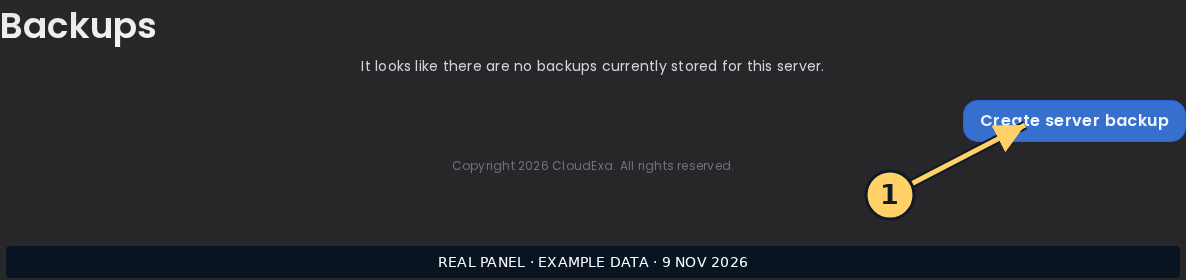
- Schedule a quiet maintenance window, stop new transactions and create a completed game backup before copying the relevant EssentialsX data.
- Preserve the matching configuration, user identity records and plugin build; record a sample of balances for later reconciliation.
- Restore the checkpoint to a disconnected test server and compare the same UUIDs, then exercise a low-value debit and credit.
What to compare
Preserve player UUID mapping alongside the money data when changing authentication or proxy arrangements. A technically valid restore under different identities can make existing balances appear missing without actually deleting their records.
Confirm the result
The restored copy should show the recorded accounts and amounts before any live players or automated rewards connect to it.
If the result differs
If the copy produces new accounts, check authentication and UUID handling before continuing. Avoid connecting the test copy to live reward webhooks or a shared writable provider database.
Recover safely
Keep the original consistent checkpoint until the migration passes its account checks. If the new copy fails, reopen the original service with its matching data rather than importing partial balances.
Documentation and related help
Check the EssentialsX Economy maintainer documentation and EssentialsX Economy maintainer reference against your installed release before applying changes.