# EconomyShopGUI tasks
Task guides and troubleshooting for EconomyShopGUI. Check the installed release before changing configuration or data.
# Find why one EconomyShopGUI item is missing for a player
A missing item can be a permission or availability decision rather than a broken inventory. Compare the same section with a normal test account before rebuilding the menu or replacing its configuration.
## Before you start
EconomyShopGUI distinguishes shop items, sections and permissions. Free and Premium releases expose different options, so check the documentation for your installed edition. Test ordinary players and a single section before sharing a change across the shop.
## Work through the check
1. Record the section and item identifiers from the active shops file, plus the player group that cannot see the listing.
2. Check the item and section permission settings against the documentation for your edition; inherited groups can grant or deny a different result than the primary group suggests.
3. Compare the listing with an account in the same group and another in the intended allowed group, without operator status.
4. After changing one relevant permission, reopen the menu and test an inexpensive purchase so visibility and transaction access are checked separately.
## Confirm the result
The intended group should see the listing and buy it, while a group excluded by the shop policy remains excluded. Neighboring listings should retain their previous behavior.
## If the result differs
Premium availability and hiding options may not exist in the free edition. If the listing disappears for everyone, check configuration parsing and item requirements before changing player permissions.
## Recover safely
Restore the specific permission or item entry from your saved copy if access broadens unexpectedly. Do not grant wildcard shop permissions to make a single item reappear.
## Documentation and related help
Check the [EconomyShopGUI maintainer documentation](https://wiki.gpplugins.com/economyshopgui/file-configuration/shops.yml) and [EconomyShopGUI maintainer reference](https://wiki.gpplugins.com/economyshopgui/basics/permission) against your installed release before applying changes.
Related CloudExa help: [Configure and test an EconomyShopGUI server shop](https://help.cloudexa-hosting.com/books/minecraft-plugins/page/configure-and-test-an-economyshopgui-server-shop) and [Find Minecraft logs and send useful troubleshooting details](https://help.cloudexa-hosting.com/books/game-hosting/page/find-minecraft-logs-and-send-useful-troubleshooting-details).
# Check EconomyShopGUI item currency against its section currency
A server shop can use a different currency for one item than for the surrounding section. Trace the documented fallback order before treating an unexpected balance as lost money.
## Before you start
EconomyShopGUI distinguishes shop items, sections and permissions. Free and Premium releases expose different options, so check the documentation for your installed edition. Test ordinary players and a single section before sharing a change across the shop.
## Work through the check
1. Choose one inexpensive listing and record the player’s balances in the expected economy and any configured alternative currency.
2. Read the item’s economy selection, the section economy and the configured default; identify which level supplies the effective choice.
3. Verify that the selected currency integration is installed and enabled before changing the listing. Keep the item price unchanged during this check.
4. Buy one unit as a normal customer, then compare every recorded balance and the item quantity received. Repeat a sale only if the listing permits selling.
## Confirm the result
Only the currency selected by the effective item configuration should change, by the documented price and quantity. The menu label should identify that currency clearly.
## If the result differs
A placeholder balance can display another provider even when the transaction is correct. If the integration fails at startup, resolve that dependency before changing prices to compensate for the wrong display.
## Recover safely
Restore the recorded currency selection if the trial affects the wrong account. Reconcile the single test transaction from your notes; do not convert all customer balances during a display investigation.
## Documentation and related help
Check the [EconomyShopGUI maintainer documentation](https://wiki.gpplugins.com/economyshopgui/file-configuration/shops.yml) and [EconomyShopGUI maintainer reference](https://wiki.gpplugins.com/economyshopgui/basics/permission) against your installed release before applying changes.
Related CloudExa help: [Configure and test an EconomyShopGUI server shop](https://help.cloudexa-hosting.com/books/minecraft-plugins/page/configure-and-test-an-economyshopgui-server-shop) and [Find Minecraft logs and send useful troubleshooting details](https://help.cloudexa-hosting.com/books/game-hosting/page/find-minecraft-logs-and-send-useful-troubleshooting-details).
# Audit EconomyShopGUI buy and sell prices for an accidental profit loop
A buy price below the matching sell return lets players repeatedly generate money. Check exact item identity, quantity and applicable discounts before publishing a price change.
## Before you start
EconomyShopGUI distinguishes shop items, sections and permissions. Free and Premium releases expose different options, so check the documentation for your installed edition. Test ordinary players and a single section before sharing a change across the shop.
## Work through the check
1. Export the affected shop entries and record the edition and any premium price modifiers currently enabled.
2. For the target item, list the actual purchase cost and sale return for the same number of units, including group discounts and configured taxes where applicable.
3. Test the smallest quantity as an ordinary player, recording the balance before purchase, after purchase and after selling the identical item back.
4. Repeat the comparison for any second section that accepts the same item, and for a group eligible for discounts, before reopening the listing publicly.
## Confirm the result
A complete buy-and-sell cycle should follow your intended economy policy. Where arbitrage is not intended, the return must not exceed the total cost paid for identical stock.
## If the result differs
An apparent difference may come from a stack amount, dynamic pricing or item metadata. Do not compare the label of one listing with a different material or premium pricing state.
## Recover safely
Restore the previous listing prices or make the affected trade unavailable through supported shop controls while calculating corrected values. Preserve transaction evidence before issuing any customer refunds.
## Documentation and related help
Check the [EconomyShopGUI maintainer documentation](https://wiki.gpplugins.com/economyshopgui/file-configuration/shops.yml) and [EconomyShopGUI maintainer reference](https://wiki.gpplugins.com/economyshopgui/basics/permission) against your installed release before applying changes.
Related CloudExa help: [Configure and test an EconomyShopGUI server shop](https://help.cloudexa-hosting.com/books/minecraft-plugins/page/configure-and-test-an-economyshopgui-server-shop) and [Find Minecraft logs and send useful troubleshooting details](https://help.cloudexa-hosting.com/books/game-hosting/page/find-minecraft-logs-and-send-useful-troubleshooting-details).
# Diagnose an EconomyShopGUI sell command that skips an item
An item can be purchasable in the menu but unavailable to a selling command. Check the particular selling feature and the listing’s item rules without broadening access to unrelated shop functions.
## Before you start
EconomyShopGUI distinguishes shop items, sections and permissions. Free and Premium releases expose different options, so check the documentation for your installed edition. Test ordinary players and a single section before sharing a change across the shop.
## Work through the check
1. Record which command or menu action was used, the material and any name, lore or enchantments on one sample item.
2. Find the matching listing and confirm that selling is configured for it; a buy-only entry is not evidence that every selling route must accept the item.
3. Compare the permission for the specific command with the item and section access using the current permissions reference.
4. Test a plain sample and the affected sample separately, keeping only those items in the test inventory to avoid selling unrelated valuables.
## Confirm the result
The supported selling route should accept an eligible item and leave an ineligible variant untouched, with a balance change matching the configured quantity and sell value.
## If the result differs
Item similarity rules and available selling commands differ by edition and release. If a plain item sells but the named one does not, investigate matching requirements instead of granting broad sell permissions.
## Recover safely
Revert the single eligibility or permission change if it admits unintended items. Keep original sample items in a secure test container rather than destroying them during repeated sell tests.
## Documentation and related help
Check the [EconomyShopGUI maintainer documentation](https://wiki.gpplugins.com/economyshopgui/file-configuration/shops.yml) and [EconomyShopGUI maintainer reference](https://wiki.gpplugins.com/economyshopgui/basics/permission) against your installed release before applying changes.
Related CloudExa help: [Configure and test an EconomyShopGUI server shop](https://help.cloudexa-hosting.com/books/minecraft-plugins/page/configure-and-test-an-economyshopgui-server-shop) and [Find Minecraft logs and send useful troubleshooting details](https://help.cloudexa-hosting.com/books/game-hosting/page/find-minecraft-logs-and-send-useful-troubleshooting-details).
# Check an EconomyShopGUI section edit before reloading it
A malformed shop section can stop a menu from loading. Validate one saved edit with the installed release’s schema before sending another reload request or replacing the entire shop directory.
## Before you start
EconomyShopGUI distinguishes shop items, sections and permissions. Free and Premium releases expose different options, so check the documentation for your installed edition. Test ordinary players and a single section before sharing a change across the shop.
## Work through the check
1. Take a copy of the active section and note which file the installed release uses; configuration layouts can differ across editions.
2. Edit one listing at a time, preserving indentation and documented field types. Use the supplied example for the same release rather than a random older shop file.
3. Check the edited YAML with a parser, then apply it on an isolated test server using the plugin’s documented reload or restart procedure.
4. Open the section with a normal account, navigate back to its parent and complete one inexpensive trade to check both structure and effective prices.
## Confirm the result
The server should parse the edited file without an exception and show the intended section. Other sections should remain accessible with their previous item order and prices.
## If the result differs
A YAML parser only checks syntax, not whether a material or setting exists in EconomyShopGUI. Read the first plugin error for an unknown field or item rather than repeatedly retrying a broken reload.
## Recover safely
Restore the saved section file and use the same supported apply procedure if the menu fails. Avoid replacing all shop files, which can erase unrelated price and permission changes.
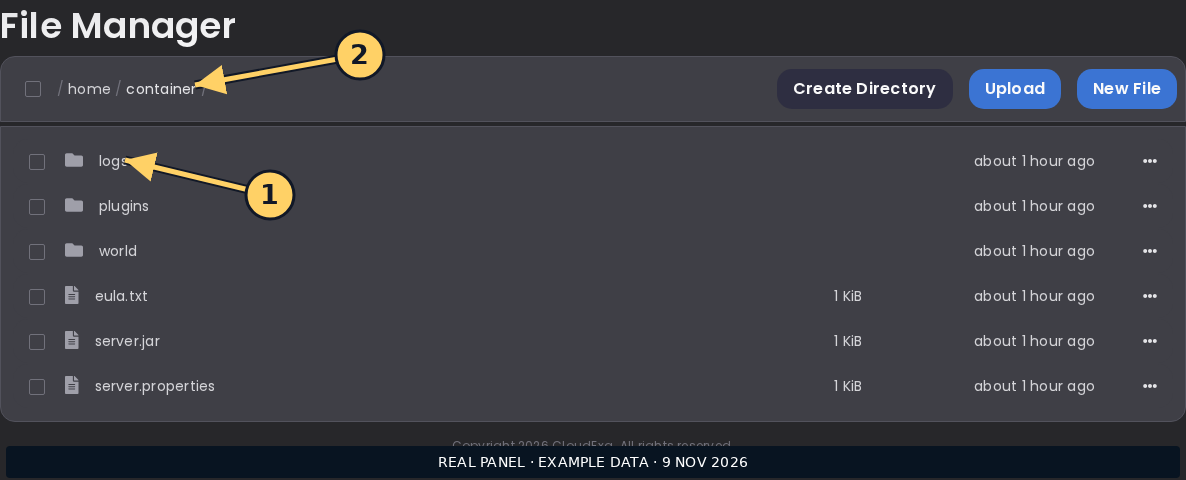The CloudExa console provides the log view used in this check. This is a general panel screenshot, not plugin-specific output.## Documentation and related help
Check the [EconomyShopGUI maintainer documentation](https://wiki.gpplugins.com/economyshopgui/file-configuration/shops.yml) and [EconomyShopGUI maintainer reference](https://wiki.gpplugins.com/economyshopgui/basics/permission) against your installed release before applying changes.
Related CloudExa help: [Configure and test an EconomyShopGUI server shop](https://help.cloudexa-hosting.com/books/minecraft-plugins/page/configure-and-test-an-economyshopgui-server-shop) and [Find Minecraft logs and send useful troubleshooting details](https://help.cloudexa-hosting.com/books/game-hosting/page/find-minecraft-logs-and-send-useful-troubleshooting-details).
# Compare EconomyShopGUI stack prices with a single-item purchase
A menu’s displayed stack size and the number delivered need to be interpreted together. Use a controlled quantity test before telling a customer they were charged for missing stock.
## Before you start
EconomyShopGUI distinguishes shop items, sections and permissions. Free and Premium releases expose different options, so check the documentation for your installed edition. Test ordinary players and a single section before sharing a change across the shop.
## Work through the check
1. Choose a low-value item with room in the test inventory and record the configured listing amount, buy price and any active modifier.
2. Read the shop’s quantity controls in the running edition, then select the smallest supported purchase rather than assuming every click buys one item.
3. Record inventory count and balance, complete that purchase, and calculate the actual number delivered against the debit.
4. Repeat with a larger supported quantity and compare the unit rate, accounting for documented dynamic pricing if your edition uses it.
## Confirm the result
The delivered count and charged amount should agree with the listing’s configured units and the quantity selected by the customer. A larger order should not silently use a different currency.
## If the result differs
Full inventory handling, premium dynamic prices or another plugin replacing items can change the observation. Repeat with a clean test inventory before editing the shop amount or multiplying its price.
## Recover safely
Restore the original amount and price if the edit changes units unexpectedly. Reconcile a disputed transaction from the tested quantity and relevant logs rather than refunding an assumed stack size.
## Documentation and related help
Check the [EconomyShopGUI maintainer documentation](https://wiki.gpplugins.com/economyshopgui/file-configuration/shops.yml) and [EconomyShopGUI maintainer reference](https://wiki.gpplugins.com/economyshopgui/basics/permission) against your installed release before applying changes.
Related CloudExa help: [Configure and test an EconomyShopGUI server shop](https://help.cloudexa-hosting.com/books/minecraft-plugins/page/configure-and-test-an-economyshopgui-server-shop) and [Find Minecraft logs and send useful troubleshooting details](https://help.cloudexa-hosting.com/books/game-hosting/page/find-minecraft-logs-and-send-useful-troubleshooting-details).
# Separate EconomyShopGUI menu access from bulk-selling permission
Players may need to browse a shop without access to a bulk sell command. Treat command access and item access as separate permissions so one convenience feature does not expose every selling route.
## Before you start
EconomyShopGUI distinguishes shop items, sections and permissions. Free and Premium releases expose different options, so check the documentation for your installed edition. Test ordinary players and a single section before sharing a change across the shop.
## Work through the check
1. Decide which player group may browse, purchase and use each selling command, then record the currently inherited permissions.
2. Consult the current permissions page for your edition and identify the specific command nodes and default grants. Absence of an explicit grant may not mean access is denied.
3. Change one documented command permission for a test group and keep section and item permissions unchanged.
4. Log in as a normal member of that group, test the menu and try the restricted selling feature with a single inexpensive item.
## Confirm the result
The group should retain the intended menu access while the restricted command is refused. Allowed purchases and sales should still obey each listing’s existing restrictions.
## If the result differs
An inherited permission, operator status or a different plugin owning the same alias can explain an unexpected result. Check command ownership and effective permissions before editing more groups.
## Recover safely
Restore the previous group setting if normal shop use is blocked. Apply a narrow documented permission change; do not solve a command conflict with a wildcard grant across every shop feature.
## Documentation and related help
Check the [EconomyShopGUI maintainer documentation](https://wiki.gpplugins.com/economyshopgui/file-configuration/shops.yml) and [EconomyShopGUI maintainer reference](https://wiki.gpplugins.com/economyshopgui/basics/permission) against your installed release before applying changes.
Related CloudExa help: [Configure and test an EconomyShopGUI server shop](https://help.cloudexa-hosting.com/books/minecraft-plugins/page/configure-and-test-an-economyshopgui-server-shop) and [Find Minecraft logs and send useful troubleshooting details](https://help.cloudexa-hosting.com/books/game-hosting/page/find-minecraft-logs-and-send-useful-troubleshooting-details).
# Preserve EconomyShopGUI custom prices through a plugin update
A plugin update can introduce new configuration examples without making them a safe replacement for your live prices. Compare the release changes on a copy before applying them to a public economy.
## Before you start
EconomyShopGUI distinguishes shop items, sections and permissions. Free and Premium releases expose different options, so check the documentation for your installed edition. Test ordinary players and a single section before sharing a change across the shop.
## Work through the check
1. Back up the plugin jar and its complete data directory, recording the edition, version and active economy integration.
2. Read the maintainer’s release notes for configuration changes, then create a test server with a matching copy of your shop files and independent storage.
3. Compare generated examples with your custom files, carrying forward only documented required changes while preserving item identifiers, prices and permission rules.
4. Test representative purchases, sales and a restricted listing as normal players, then inspect startup logs for deprecated or rejected settings.
## Confirm the result
The updated copy should retain custom prices and access rules while loading without configuration errors. Premium-only features should be tested only when the matching edition is present.
## If the result differs
A clean default shop working does not prove that custom item matching or a third-party currency still works. Keep the affected file and first exception when reporting a migration issue.
## Recover safely
If compatibility fails, restore the previous matching jar and data snapshot together. Do not copy a freshly generated default shop over production just to silence a configuration warning.
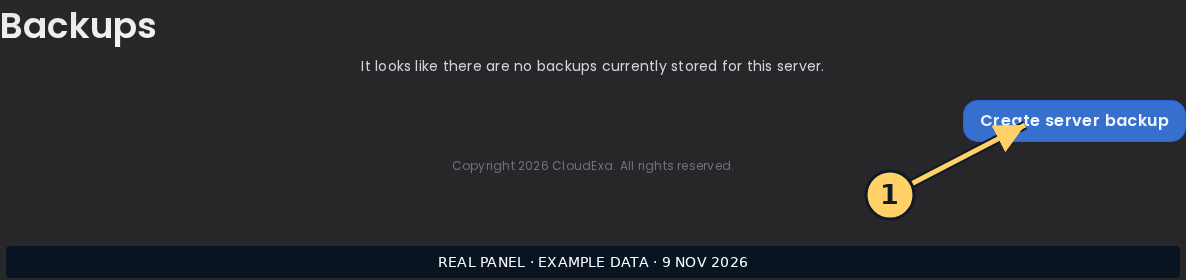The game-panel backup controls. Confirm separately whether the chosen backup includes an external plugin database; this screenshot does not show a plugin-specific backup tool.## Documentation and related help
Check the [EconomyShopGUI maintainer documentation](https://wiki.gpplugins.com/economyshopgui/file-configuration/shops.yml) and [EconomyShopGUI maintainer reference](https://wiki.gpplugins.com/economyshopgui/basics/permission) against your installed release before applying changes.
Related CloudExa help: [Configure and test an EconomyShopGUI server shop](https://help.cloudexa-hosting.com/books/minecraft-plugins/page/configure-and-test-an-economyshopgui-server-shop) and [Back up game files before making changes](https://help.cloudexa-hosting.com/books/game-hosting/page/back-up-game-files-before-making-changes).