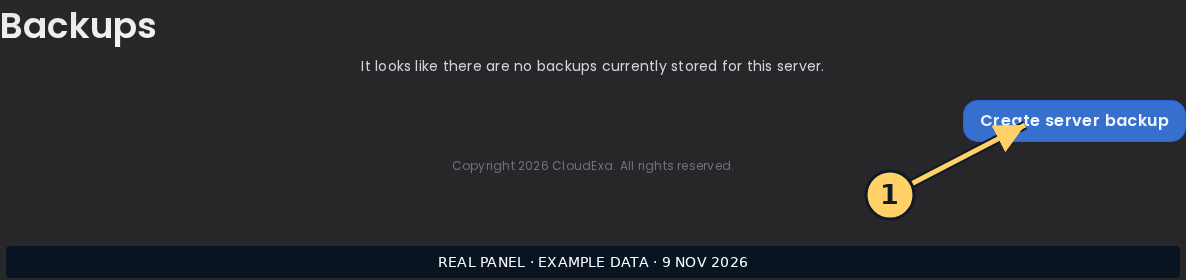
DriveBackupV2 tasks
Task guides and troubleshooting for DriveBackupV2. Check the installed release before changing configuration or data.
- Prevent old archives from being included in a new DriveBackupV2 backup
- Separate local and remote DriveBackupV2 retention counts
- Reconnect a revoked cloud account used by DriveBackupV2
- Investigate overlapping backup jobs and temporary disk pressure
- Plan a consistent external SQL backup with DriveBackupV2
- Verify a remote DriveBackupV2 archive without restoring over production
Prevent old archives from being included in a new DriveBackupV2 backup
An archive stored inside a selected source directory can be included in the next backup. Repeating that selection can make backups grow rapidly without a matching increase in live game data. Review the actual selected paths before buying more storage or deleting worlds.
Record the starting point
Record where DriveBackupV2 writes local archives and which paths its installed configuration selects. Compare the size of live data with recent archives. Keep the existing configuration and one verified recovery copy before changing selection rules.
Work through the change
- Read the maintainer's file-selection documentation for the installed release. Identify whether the backup output directory or a parent containing it falls inside the selected sources.
- Inspect a recent archive without extracting over the live server. Look for older archive filenames nested inside it and distinguish those files from genuine plugin or world data.
- Adjust the documented selection or exclusion rules so generated backups are outside the new archive's source set. Preserve required world and plugin data rather than excluding an entire directory blindly.
- Run one controlled backup and inspect its file list and size. Verify a small restored sample in a separate location before relying on the revised selection.
Check the result
The new archive should contain the intended live files without a chain of previous backups. Its size should be explainable by those files rather than merely smaller. Keep the verified older copy until the revised archive has passed inspection.
If the result differs
If growth continues, compare source file sizes and check for another plugin's archives, database dumps or temporary exports. An exclusion pattern that misses the actual relative path may have no effect. Read the generated configuration's pattern rules before broadening it.
Restore the previous selection if required files disappear from the test archive, then correct the narrow rule. Do not delete the only known good backup to create space for an unverified replacement. Ask support about temporary capacity when a safe test cannot fit.
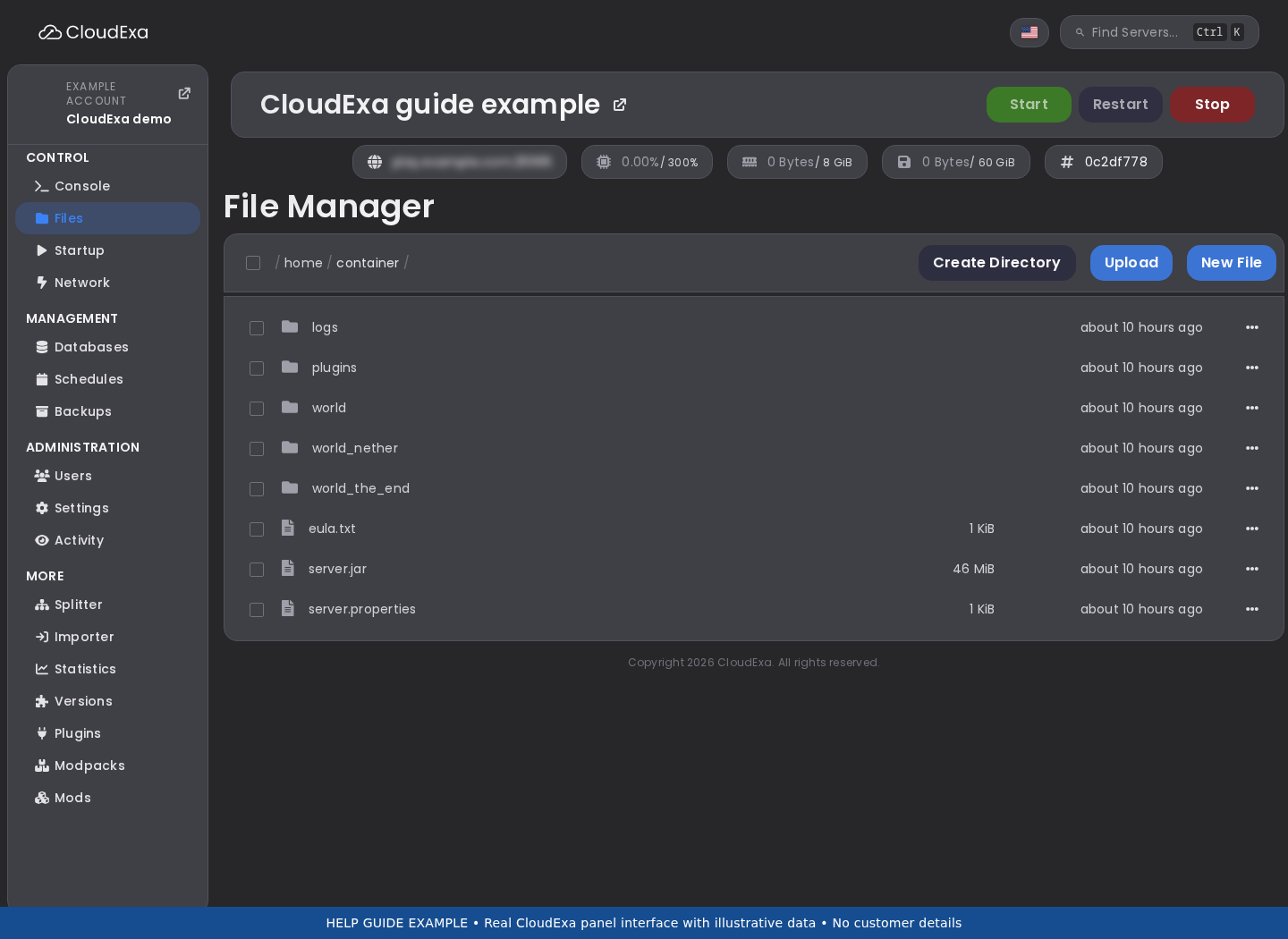
References and related help
- DriveBackupV2 maintainer reference 1
- DriveBackupV2 maintainer reference 2
- Configure DriveBackupV2 and verify an off-server recovery copy
- Back up game files before making changes
Separate local and remote DriveBackupV2 retention counts
Keeping fewer remote backups does not necessarily reduce local archive storage, and the reverse is also true. DriveBackupV2 documents separate remote and local retention controls. Decide how many recovery points belong in each place before changing a count.
Record the starting point
List recent local archives and the corresponding remote copies. Record their dates, sizes and whether uploads completed. Keep the current configuration and identify the oldest recovery point the community still needs before applying a policy that may remove copies.
Work through the change
- Read the installed release's storage documentation and locate the remote keep-count and local-keep-count controls. Confirm the documented meaning of each value, including any special values.
- Choose counts based on the actual schedule and recovery need. Three hourly copies provide a different history from three daily copies, even though the count is identical.
- Apply the intended policy and observe one normal backup cycle. Check the log and both destinations to see which archive was created, uploaded and retained.
- Download a retained remote copy and inspect a small restore sample in a separate folder. A remote filename alone does not establish that the archive is usable.
Check the result
Local usage should stay within the chosen capacity while remote storage retains the intended history. Document the schedule beside the counts. Confirm the newest successful remote copy before considering removal of any older local recovery point.
If the result differs
If local usage remains high, inspect whether archives were produced under an older naming or destination arrangement. If remote history differs, check upload success and provider listing behaviour. Do not assume a retention setting has cleaned every historical file outside its managed set.
Restore the previous counts if the new policy is too aggressive, while recognising that deleted copies are not recreated by changing a number back. Preserve remaining good copies and repair the policy before the next cycle. Do not delete live game files to satisfy archive retention.
References and related help
- DriveBackupV2 maintainer reference 1
- Configure DriveBackupV2 and verify an off-server recovery copy
- Back up game files before making changes
Reconnect a revoked cloud account used by DriveBackupV2
A cloud upload can fail after account access is revoked, an organisation changes policy or stored authorisation expires. A successful local archive does not mean a remote recovery copy exists. Check the upload result separately before assuming the backup is protected off-server.
Record the starting point
Keep the relevant upload error, plugin version and last confirmed remote backup time. Verify that the cloud account is still available and has capacity. Do not paste access tokens, refresh tokens or linking URLs into a public ticket or chat.
Work through the change
- Distinguish an authorisation failure from a full quota, provider outage or local archive error. Use the log's first relevant message rather than only the final failed status.
- Follow the maintainer's linking instructions for the selected provider. The documented linkaccount flow includes Google Drive and OneDrive; use the command and provider name supported by the installed release.
- Complete authorisation with the intended backup account and review the requested access. Keep any returned secret in the plugin's private configuration rather than a public note.
- Run a controlled backup and check that the expected archive appears in the intended remote folder. Download and inspect it separately from the local copy.
Check the result
The new upload should complete and the remote archive should be usable. Record the relinking date and last verified recovery point without storing credentials in the change note. Check the next scheduled cycle too, because an interactive test alone does not prove the normal schedule works.
If the result differs
Keep local recovery archives while cloud access is repaired. If the wrong account was authorised, revoke that access and relink deliberately. Do not delete the only recent backup or switch to a public file share to bypass an account problem.
References and related help
- DriveBackupV2 maintainer reference 1
- DriveBackupV2 maintainer reference 2
- Configure DriveBackupV2 and verify an off-server recovery copy
- Find Minecraft logs and send useful troubleshooting details
Investigate overlapping backup jobs and temporary disk pressure
A backup may require space for the source, a new local archive and retained copies while an upload runs. If a scheduled interval is shorter than the complete job, repeated work or waiting can make the service look stuck. Measure the full cycle before increasing frequency.
Record the starting point
Record the configured schedule, recent start and finish times, free disk space and archive sizes. Check whether another panel or plugin backup runs at the same time. Keep the current schedule and identify the last successful remote recovery copy.
Work through the change
- Read a complete DriveBackupV2 cycle from archive creation through upload and retention. Separate time spent compressing from time spent transferring.
- Compare the duration with the next scheduled start and inspect the installed release's handling of an already-running job. Do not repeatedly trigger manual backups while the state is uncertain.
- Choose a schedule that leaves room for the observed workload and other maintenance. Reduce unnecessary source files through reviewed selection rules rather than deleting live data.
- Observe one revised cycle, checking free space before and after. Confirm the remote archive and retention result rather than relying only on a task-start message.
Check the result
The complete cycle should finish before the next intended run under representative conditions, with adequate working space. Keep the measured duration and source size with the schedule. A quieter test can be faster than a busy-world backup, so leave practical margin.
If the result differs
If compression is slow, inspect source size and nested archives. If transfer dominates, collect provider and upload evidence instead of changing Java memory blindly. If disk usage never falls, review local retention separately from scheduling.
Restore the previous schedule if the revised one misses the required recovery window, then arrange capacity or source changes deliberately. Preserve the last verified copies. Do not kill unknown transfer processes or remove an in-progress archive without first understanding which task owns it.
References and related help
- DriveBackupV2 maintainer reference 1
- DriveBackupV2 maintainer reference 2
- Configure DriveBackupV2 and verify an off-server recovery copy
- Find Minecraft logs and send useful troubleshooting details
Plan a consistent external SQL backup with DriveBackupV2
A plugin using MySQL or another external SQL service may keep its important records outside the game files. Copying the plugins directory is not a database backup. DriveBackupV2 documents external backup features, but consistency still depends on how the application writes its data.
Record the starting point
List plugins that store data externally and identify the database owner, schema and supported backup method. Keep credentials private. Decide which files and SQL records must represent the same recovery point, particularly for inventories, currency or cross-server state.
Work through the change
- Read the installed DriveBackupV2 external SQL documentation and the database-dependent plugin's recovery instructions. Confirm supported database types and the service account's required privileges.
- Configure only the intended database source using the documented fields. Keep secrets out of screenshots and do not grant a broad administrator account merely to make a test connect.
- Plan a quiet or controlled write window where required by the application. Capture related game files and SQL data in a sequence that the plugin's recovery procedure supports.
- Inspect the resulting backup and trial a restore into an isolated database and service copy. Confirm representative records without pointing a test server at the live database.
Check the result
The recovery set should include the required SQL data and related files with a documented consistency window. Record which application versions produced it. A successful export message is useful evidence, but a separate restore test is stronger evidence that the data can be recovered.
If the result differs
If connection succeeds but export fails, inspect database privileges, tool requirements and the first error. If restored records disagree with files, revisit write coordination rather than treating the newest filename as automatically correct. Avoid public sharing of SQL dumps.
Restore the previous backup configuration if the trial affects normal jobs, preserving existing verified copies. Keep test databases clearly isolated and remove them only through the agreed test cleanup. Do not overwrite live SQL data during a backup validation.
References and related help
- DriveBackupV2 maintainer reference 1
- DriveBackupV2 maintainer reference 2
- Configure DriveBackupV2 and verify an off-server recovery copy
- Back up game files before making changes
Verify a remote DriveBackupV2 archive without restoring over production
An upload status proves that a transfer reported success; it does not prove the archive contains every required file or can restore a working service. A small recovery trial checks the actual remote object without replacing the live server.
Record the starting point
Select one completed remote archive and record its timestamp, provider location and expected source set. Prepare a separate test folder or isolated service copy with enough space. Keep the live server's data path out of the extraction destination.
Work through the change
- Download the archive from the remote destination rather than reusing the original local file. Compare its reported size and any checksum information available through the documented workflow.
- List the archive contents and check required world, plugin and configuration paths. Watch for an archive containing only an error file or another nested archive.
- Extract into the isolated destination and inspect representative files. If starting a service copy, isolate ports, scheduled tasks and external database connections first.
- Record what the test proved: readable archive, expected file set, or a complete isolated startup. Keep the original archive unchanged while deciding whether the recovery set is sufficient.
Check the result
The downloaded copy should open without errors and contain the intended data. A full startup test should use the matching software and a safe environment. Label a partial inspection honestly rather than describing it as a complete disaster-recovery test.
If the result differs
If the archive is truncated, compare transfer logs and provider storage before deleting the local original. If files are missing, review selection rules and excluded paths. If external database data is required, a complete game-files archive alone is not sufficient.
Leave production untouched if validation fails and preserve the last known good remote copy. Correct the backup selection or transfer issue, then test a new archive. Remove only disposable test extractions after confirming they are not the sole copy of recovered data.