# DiscordSRV tasks
Task guides and troubleshooting for DiscordSRV. Check the installed release before changing configuration or data.
# Choose the authority direction for one DiscordSRV rank mapping
Rank synchronisation can undo a manual change when the wrong side is authoritative. Test one ordinary group and one disposable Discord role before enabling a mapping for staff or paying members.
## Prepare the test
Use a private test channel and two test identities before changing the public bridge. Keep bot tokens, linking codes and staff console output out of screenshots and public support messages.
## Make the change
1. Write down the intended rule in plain language: a Minecraft group grants a Discord role, or a Discord role grants a Minecraft group. Decide what should happen when that membership is removed, not only when it is added.
2. Open `synchronization.yml` and compare the installed comments with the official configuration reference. Check the authority direction, one-way behaviour and whether only the primary Minecraft group participates before editing the mapping.
3. Confirm the exact group name visible to DiscordSRV and the Discord role ID. Case, display names and role IDs matter; a similarly named role is not a reliable substitute for the intended object.
4. Apply the single mapping using the release-supported reload or a planned restart. Link two disposable identities and test adding then removing the authoritative membership while observing the other side.
## Check the result
Both promotion and removal should follow the written rule. Reconnect the test account and trigger the documented resynchronisation if needed, then confirm the relationship remains stable rather than flipping after the next sync.
## If the test fails
Disable the trial mapping and restore its saved configuration if permissions spread unexpectedly. Remove only the test membership changes you recorded; do not clear all linked accounts or reset your permission database.
Keep staff and owner roles outside the first trial. Synchronising a cosmetic member role proves the direction without giving the test account administrative access.
## References and related help
Check the [official DiscordSRV documentation](https://docs.discordsrv.com/synchronization/) against your installed release before using a command or setting from another version.
- [Connect Minecraft chat to Discord with DiscordSRV](https://help.cloudexa-hosting.com/books/game-hosting/page/connect-minecraft-chat-to-discord-with-discordsrv)
- [Create Minecraft ranks and inheritance with LuckPerms](https://help.cloudexa-hosting.com/books/game-hosting/page/create-minecraft-ranks-and-inheritance-with-luckperms)
# Fix DiscordSRV role hierarchy without granting Administrator
A bot can send chat successfully while failing to update roles. Discord channel permissions and role-management rules are separate, so a working chat bridge does not prove rank synchronisation has sufficient access.
## Prepare the test
Use a private test channel and two test identities before changing the public bridge. Keep bot tokens, linking codes and staff console output out of screenshots and public support messages.
## Make the change
1. Identify one failing mapping and copy its target role ID into a private note. Confirm the linked Minecraft and Discord test accounts are correct before changing the bot’s permissions or your rank configuration.
2. In Discord server settings, inspect the bot’s effective permissions and its role position relative to the target role. Follow DiscordSRV’s setup guidance for the permissions needed by the feature you actually use.
3. Move the bot role above the intended manageable member role where appropriate. Keep owner and protected staff roles outside this test, and avoid granting Administrator to bypass an unknown hierarchy problem.
4. Run a controlled membership change for the test account. Read the corresponding DiscordSRV log entry and compare the role ID, direction and result with your recorded mapping, then test removal as well as assignment.
## Check the result
The selected role should appear and disappear as the mapping requires, while the bot still cannot manage roles you intended to protect. Verify that public chat continues to work after the permission change.
## If the test fails
Restore the previous role position if unrelated roles become manageable. If the target remains unchanged, inspect the mapping’s authority and linked identity rather than repeatedly expanding bot privileges until the warning disappears.
An integration-managed Discord role may have separate restrictions. Use an ordinary disposable role for the first test so those restrictions do not obscure whether the bot’s normal hierarchy is correct.
## References and related help
Check the [official DiscordSRV documentation](https://docs.discordsrv.com/installation/sync-setup/) against your installed release before using a command or setting from another version.
- [Connect Minecraft chat to Discord with DiscordSRV](https://help.cloudexa-hosting.com/books/game-hosting/page/connect-minecraft-chat-to-discord-with-discordsrv)
- [Create Minecraft ranks and inheritance with LuckPerms](https://help.cloudexa-hosting.com/books/game-hosting/page/create-minecraft-ranks-and-inheritance-with-luckperms)
# Move one DiscordSRV chat route to a replacement channel
Renaming a Discord channel does not create a new channel ID, but deleting and recreating one does. When moving a bridge, record the intended destination and test both directions before announcing the change.
## Prepare the test
Use a private test channel and two test identities before changing the public bridge. Keep bot tokens, linking codes and staff console output out of screenshots and public support messages.
## Make the change
1. Create a private replacement text channel and grant the bot only the channel permissions required for your bridge. Confirm ordinary members can read or send there according to the communication policy you intend.
2. Use Discord developer mode to copy the replacement channel’s ID. Preserve the existing `Channels` mapping from DiscordSRV `config.yml`, including its Minecraft-side channel key, so you change only the destination of one route.
3. Update that one mapping using the installed configuration format. Apply it with the documented supported method and watch the console for a rejected channel, missing access warning or configuration parsing error.
4. Send a unique harmless test message from Minecraft and a different one from Discord. Confirm each appears once in the intended destination and neither arrives in the previous public channel.
## Check the result
The new channel should carry both directions with the correct author context and no duplicate bridge posts. Check a second normal player because administrator channel access can conceal permission problems affecting ordinary members.
## If the test fails
Restore the recorded channel mapping if delivery fails, keeping the new channel private while investigating. Do not delete message history or regenerate the bot token to repair a wrong destination ID.
If multiple Minecraft chat channels are configured, test only the chosen route first. A global replacement can accidentally send staff chat and public chat to the same Discord destination.
## References and related help
Check the [official DiscordSRV documentation](https://docs.discordsrv.com/config/) against your installed release before using a command or setting from another version.
- [Connect Minecraft chat to Discord with DiscordSRV](https://help.cloudexa-hosting.com/books/game-hosting/page/connect-minecraft-chat-to-discord-with-discordsrv)
- [Create Minecraft ranks and inheritance with LuckPerms](https://help.cloudexa-hosting.com/books/game-hosting/page/create-minecraft-ranks-and-inheritance-with-luckperms)
# Keep a DiscordSRV console channel read-only for observers
A Discord console channel can expose logs and permit command input. Decide who needs each capability before inviting observers; read access should not silently become the ability to operate your Minecraft server.
## Prepare the test
Use a private test channel and two test identities before changing the public bridge. Keep bot tokens, linking codes and staff console output out of screenshots and public support messages.
## Make the change
1. Review whether you actually need Discord console forwarding. Identify its configured channel ID and compare the installed DiscordSRV console options with the official reference before changing any public chat mapping.
2. Keep the channel private to the smallest staff audience. Check its history for player addresses, private chat or plugin output before adding new readers, since restricting future messages does not remove old sensitive content.
3. Deny message sending to the observer role while preserving the bot’s required access. Review other roles and individual overrides on the same observer account; a second allow rule can defeat your intended restriction.
4. Test with a separate observer identity and a separate authorised operator. The observer should be able to inspect permitted output without submitting console commands; use only a harmless status command for the operator’s test.
## Check the result
The observer should have the intended read access and no writable command path. Confirm the normal player chat bridge still routes separately and that console output has not appeared in a public channel.
## If the test fails
Remove the observer’s channel access if the policy cannot be proven, then inspect effective Discord permissions and DiscordSRV’s console command restrictions. Do not test protection by executing destructive commands or by exposing the console channel publicly.
Console output can include secrets from other plugins. Keep the audience limited even when command execution is blocked, and redact captured lines before sharing a screenshot or support report.
## References and related help
Check the [official DiscordSRV documentation](https://docs.discordsrv.com/config/) against your installed release before using a command or setting from another version.
- [Connect Minecraft chat to Discord with DiscordSRV](https://help.cloudexa-hosting.com/books/game-hosting/page/connect-minecraft-chat-to-discord-with-discordsrv)
- [Create Minecraft ranks and inheritance with LuckPerms](https://help.cloudexa-hosting.com/books/game-hosting/page/create-minecraft-ranks-and-inheritance-with-luckperms)
# Rotate a DiscordSRV bot token after an accidental disclosure
A bot token is a credential, not a channel identifier. If it appeared in a public paste or screenshot, replacing the message alone does not invalidate it; rotate the token in Discord’s developer portal.
## Prepare the test
Use a private test channel and two test identities before changing the public bridge. Keep bot tokens, linking codes and staff console output out of screenshots and public support messages.
## Make the change
1. Identify the correct bot application and the Minecraft instance that uses it. Record the configured channel IDs and working bridge behaviour without copying the old token into notes or a diagnostic screenshot.
2. Use the application’s official token-reset control in Discord’s developer portal. Store the replacement privately and avoid including it in chat, an issue report, a shared configuration example or a shell command that others can read.
3. Update `BotToken` in the correct DiscordSRV `config.yml` using the game panel file editor or another authorised private method. Follow the installed release’s restart requirements so a previous in-memory connection is not mistaken for success.
4. Watch startup for the bot connection result, then send harmless test chat in both directions. If group synchronisation is enabled, verify one existing non-staff linked account without rebuilding its link.
## Check the result
The bot should reconnect using the replacement credential and resume the intended bridge. The retired token must stay invalid; remove it from shared drafts and review who could have accessed the original disclosure.
## If the test fails
If authentication fails, check for whitespace, quoting errors and the wrong application before resetting the token repeatedly. Keep the bot offline while resolving a known disclosure rather than restoring the exposed token as a workaround.
Review channel permissions separately after rotation. Replacing a token does not correct a bot role that was given unnecessary privileges, and a successful login does not prove every bridge route is appropriate.
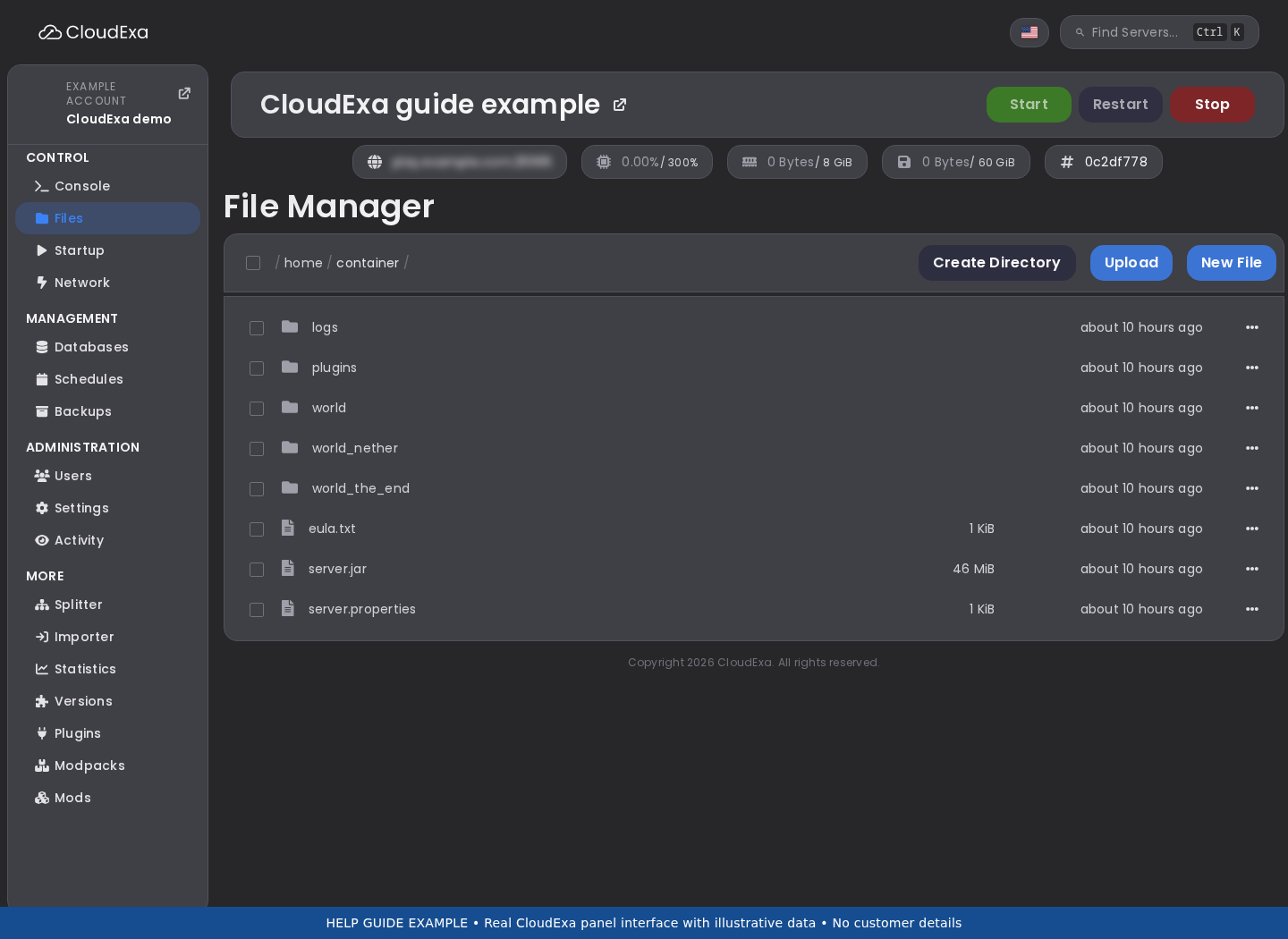Use Files to locate your installed plugin’s own configuration. This panel example does not show the plugin-specific settings.## References and related help
Check the [official DiscordSRV documentation](https://docs.discordsrv.com/installation/initial-setup/) against your installed release before using a command or setting from another version.
- [Connect Minecraft chat to Discord with DiscordSRV](https://help.cloudexa-hosting.com/books/game-hosting/page/connect-minecraft-chat-to-discord-with-discordsrv)
- [Find Minecraft logs and send useful troubleshooting details](https://help.cloudexa-hosting.com/books/game-hosting/page/find-minecraft-logs-and-send-useful-troubleshooting-details)
# Correct a DiscordSRV link made to the wrong Discord account
A player can accidentally link Minecraft to a secondary Discord account. Correct that one relationship using the documented unlink flow instead of deleting DiscordSRV’s whole linking database or manually editing unrelated records.
## Prepare the test
Use a private test channel and two test identities before changing the public bridge. Keep bot tokens, linking codes and staff console output out of screenshots and public support messages.
## Make the change
1. Confirm ownership through your normal private support process. Ask the player to identify the intended Minecraft account and Discord account without requesting their Discord password, bot token or a public copy of a live linking code.
2. Record which non-sensitive role changes the existing mapping produced. Check the installed commands and permissions for unlinking an account; use the supported self-service route where available rather than granting administrative permissions to the player.
3. Unlink the incorrect identity and follow the documented linking process with the intended Discord account. Complete the exchange privately and treat the code as temporary proof rather than something to keep in a public screenshot.
4. Trigger or wait for the normal role synchronisation and compare both Discord accounts. Check removal from the old account as well as assignment to the new account, especially if membership affects Minecraft access.
## Check the result
Only the intended Discord identity should be linked, and the recorded membership policy should apply after reconnecting. Ask the player to verify the account shown in Discord rather than accepting a successful code response alone.
## If the test fails
If the replacement cannot be verified, leave the affected relationship unlinked and gather the specific error privately. Do not clear everyone’s links or manually duplicate a role assignment to conceal the unresolved account mismatch.
When link-to-join is enabled, schedule the repair while staff can help the player reconnect. An unlink operation can intentionally interrupt admission until the new relationship is complete.
## References and related help
Check the [official DiscordSRV documentation](https://docs.discordsrv.com/commands/) against your installed release before using a command or setting from another version.
- [Connect Minecraft chat to Discord with DiscordSRV](https://help.cloudexa-hosting.com/books/game-hosting/page/connect-minecraft-chat-to-discord-with-discordsrv)
- [Find Minecraft logs and send useful troubleshooting details](https://help.cloudexa-hosting.com/books/game-hosting/page/find-minecraft-logs-and-send-useful-troubleshooting-details)
# Diagnose DiscordSRV chat that works in only one direction
One-way chat is a useful clue. It shows that at least part of the connection works, but the remaining failure may concern message visibility, channel access or the Minecraft chat integration rather than a dead bot.
## Prepare the test
Use a private test channel and two test identities before changing the public bridge. Keep bot tokens, linking codes and staff console output out of screenshots and public support messages.
## Make the change
1. Write down the working direction and test with an ordinary Minecraft player and ordinary Discord member. Use different unique messages on each side and note whether attachments, bot messages or commands behave differently.
2. Confirm the configured channel ID matches the channel you are reading. Inspect the bot’s effective permissions for that channel, including category and individual overrides, instead of checking only its general role permissions.
3. Compare the bot application’s enabled intents with DiscordSRV’s official setup requirements for your release. Apply required intent changes through the developer portal and restart the connection as documented before retesting message delivery.
4. If Discord-to-Minecraft alone fails, inspect the Minecraft chat plugin integration and channel mapping. If Minecraft-to-Discord alone fails, inspect capture and filtering behaviour without disabling all moderation across the live server.
## Check the result
Each unique test message should reach the other platform once with a clear author label. Repeat after a normal player reconnects to ensure an administrator-only bypass was not responsible for the apparent repair.
## If the test fails
Restore any trial filter or mapping change that did not improve the named direction. Capture the relevant connection and message-handling warning with tokens and private content removed before escalating the integration fault.
A bot appearing online in Discord is only a connection check. It does not prove the application has the required message access or permission to send in the selected channel.
## References and related help
Check the [official DiscordSRV documentation](https://docs.discordsrv.com/installation/initial-setup/) against your installed release before using a command or setting from another version.
- [Connect Minecraft chat to Discord with DiscordSRV](https://help.cloudexa-hosting.com/books/game-hosting/page/connect-minecraft-chat-to-discord-with-discordsrv)
- [Create Minecraft ranks and inheritance with LuckPerms](https://help.cloudexa-hosting.com/books/game-hosting/page/create-minecraft-ranks-and-inheritance-with-luckperms)
# Stop duplicate DiscordSRV bridge posts without losing chat history
Duplicate bridge posts can come from multiple senders rather than a retry fault. Identify which instance publishes each copy before deleting channels, replacing the bot or changing unrelated chat formatting.
## Prepare the test
Use a private test channel and two test identities before changing the public bridge. Keep bot tokens, linking codes and staff console output out of screenshots and public support messages.
## Make the change
1. Send one unique harmless message and compare both Discord posts. Record their timestamps, bot identities and destinations; two different bot senders point to a different investigation from two posts by one integration.
2. Inventory the Minecraft instances that have DiscordSRV or another chat bridge installed. On a network, establish whether the public message is processed on a backend, proxy integration or another automation as it crosses servers.
3. Preserve the current mappings, then disable one overlapping test route using that integration’s documented configuration method. Keep one known working publisher available and avoid removing player chat or Discord history during diagnosis.
4. Retest from two backend locations and from Discord. Check normal chat, reconnect announcements and any relay feature separately because eliminating a duplicate chat route may leave duplicate join notifications from another source.
## Check the result
A single test message should produce one intended Discord post and one intended Minecraft delivery. Move the test player across the network and confirm that the chosen ownership rule still holds on the destination.
## If the test fails
Restore the disabled route if messages disappear entirely, then trace where the remaining publisher receives its input. Do not create another bot or add a new channel as a shortcut while the duplicate sender remains unidentified.
Keep a short record of the chosen bridge owner for each route. That note helps prevent a later plugin installation from reconnecting a second publisher to the same public chat stream.
## References and related help
Check the [official DiscordSRV documentation](https://docs.discordsrv.com/config/) against your installed release before using a command or setting from another version.
- [Connect Minecraft chat to Discord with DiscordSRV](https://help.cloudexa-hosting.com/books/game-hosting/page/connect-minecraft-chat-to-discord-with-discordsrv)
- [Find Minecraft logs and send useful troubleshooting details](https://help.cloudexa-hosting.com/books/game-hosting/page/find-minecraft-logs-and-send-useful-troubleshooting-details)
# Prepare a redacted DiscordSRV debug report for a bridge fault
A useful bridge report explains one failed operation and includes the corresponding evidence. Uploading every file immediately can expose more information than necessary and makes the actual failing route harder to locate.
## Prepare the test
Use a private test channel and two test identities before changing the public bridge. Keep bot tokens, linking codes and staff console output out of screenshots and public support messages.
## Make the change
1. Reproduce one harmless failing message and record the timestamp, direction and channel role involved. Note the DiscordSRV, Minecraft and chat-plugin versions and whether the failure affects all users or one permission group.
2. Inspect the console around that timestamp and the relevant mapping locally. Remove tokens, webhook URLs, linking codes, player addresses and private message text from anything you intend to paste into a support ticket.
3. If maintainers request the documented debugger upload command, understand that it sends diagnostic material outside the server. Review the tool’s current output and sharing behaviour before publishing the resulting link.
4. Attach a small reproduction description, the sanitised mapping and the difference between expected and actual delivery. Tell support about recent token, intent, role or channel changes so they can avoid repeating irrelevant setup advice.
## Check the result
A reviewer should be able to identify which direction failed and compare it with the exact integration state. Keep the report private when it contains service-specific identifiers that do not belong in a public issue.
## If the test fails
If an upload includes a credential, rotate that credential through its owner’s official control and remove the shared copy. A deleted report link is not proof that a bot token or webhook remained confidential.
Provide text logs where possible so errors can be searched. A panel console screenshot is useful for context but should not replace the small redacted error sequence and version information.
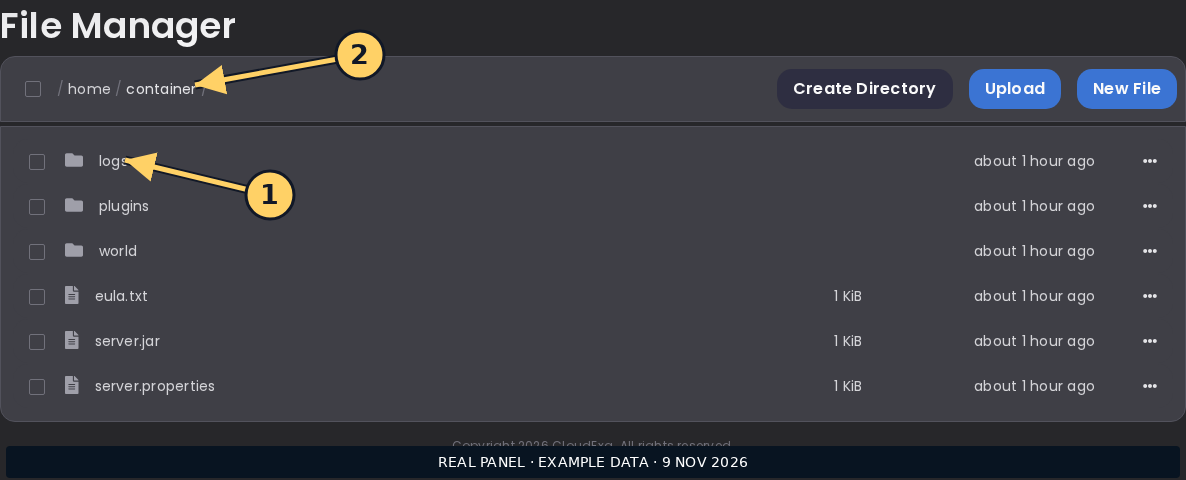Collect the relevant timestamped log text in the panel, then remove private data before sharing it with support.## References and related help
Check the [official DiscordSRV documentation](https://docs.discordsrv.com/commands/) against your installed release before using a command or setting from another version.
- [Connect Minecraft chat to Discord with DiscordSRV](https://help.cloudexa-hosting.com/books/game-hosting/page/connect-minecraft-chat-to-discord-with-discordsrv)
- [Find Minecraft logs and send useful troubleshooting details](https://help.cloudexa-hosting.com/books/game-hosting/page/find-minecraft-logs-and-send-useful-troubleshooting-details)
# Test DiscordSRV link-to-join before enforcing it for players
Link-required admission changes who can join Minecraft. Validate the linking instructions and failure behaviour in a controlled window before enforcing the rule on a community that may not yet have Discord accounts linked.
## Prepare the test
Use a private test channel and two test identities before changing the public bridge. Keep bot tokens, linking codes and staff console output out of screenshots and public support messages.
## Make the change
1. Read the installed `linking.yml` comments and official reference. Distinguish a linked account, membership of the required Discord server and possession of any required subscriber role; those are different admission conditions.
2. Prepare one linked ordinary test account and one unlinked test account. Keep authorised panel console access available so a mistaken admission rule can be reverted without depending on an in-game administrator reconnecting.
3. Enable only the intended test condition and customise the rejection instructions with the correct bot identity and joining route. Avoid adding subscriber-role requirements unless that is part of the access policy you actually mean to enforce.
4. Test fresh joins for both accounts, then complete the legitimate linking flow and retry the unlinked account. If a role is required, separately test missing-role and correct-role states without changing unrelated whitelist or ban rules.
## Check the result
The unlinked account should receive understandable instructions, and an eligible linked account should join normally. Verify behaviour during bot startup as well, since a delayed integration must not look like a mysterious Minecraft connection failure.
## If the test fails
Revert the trial requirement from the panel if legitimate players are unexpectedly blocked. Inspect the specific linked, guild-membership or role condition that failed instead of bypassing every restriction or deleting existing account links.
Announce the admission change only after the test passes. Give existing players a clear preparation period and a support route for a mistaken link or a Discord account they no longer control.
## References and related help
Check the [official DiscordSRV documentation](https://docs.discordsrv.com/linking/) against your installed release before using a command or setting from another version.
- [Connect Minecraft chat to Discord with DiscordSRV](https://help.cloudexa-hosting.com/books/game-hosting/page/connect-minecraft-chat-to-discord-with-discordsrv)
- [Find Minecraft logs and send useful troubleshooting details](https://help.cloudexa-hosting.com/books/game-hosting/page/find-minecraft-logs-and-send-useful-troubleshooting-details)