# Schedule game server backups and check retention
Use Schedules in the CloudExa game panel to request backups at chosen times. A schedule saves you a repeated task, but you still need to check its results and keep an off-server copy of important recovery points.
## Check your allowance and recovery needs
Open **Backups** and confirm your available slots. Your account needs schedule permissions and permission to create backups. A plan with no backup allowance cannot create scheduled backups. Read [the backup and restore guide](https://help.cloudexa-hosting.com/books/game-hosting/page/back-up-game-files-before-making-changes) before choosing exclusions.
File backups do not include an external MySQL database. Arrange matching database exports for plugins that store data elsewhere. For a consistent recovery point, stop the game server and wait for its save to finish before taking a backup. Live backups can capture files at different moments.
## Create the schedule
[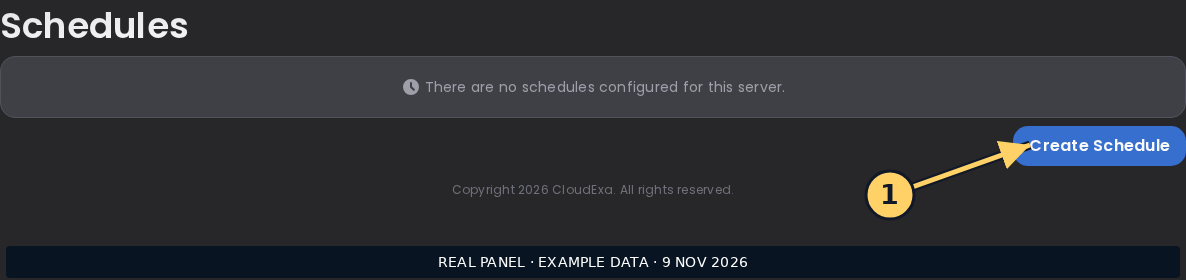](https://help.cloudexa-hosting.com/cloudexa/guides/20261109-wave10/schedule-create.png)CloudExa game panel, captured 9 November 2026. Browser-only example data; not a live customer server. 1: Create Schedule opens the schedule form; no task has been created in this example. Select the image to view it full size.
1. Open your server at [game.cloudexa-hosting.com](https://game.cloudexa-hosting.com/), then select **Schedules**.
2. Choose the create-schedule action and enter a name such as `Daily file backup`.
3. Set **Minute** to `0`, **Hour** to `4`, and **Day of month**, **Month** and **Day of week** to `*` for a daily 04:00 example.
4. Check the schedule or server timezone if the panel displays it. If none is shown, ask support to confirm it before relying on 04:00; it may differ from your computer. Review daylight-saving changes for a local timezone.
5. Review **Only When Server Is Online**. Leave it enabled for a schedule intended only for running servers; turn it off if you need backups while the server is stopped.
6. Keep **Schedule Enabled** on, then choose **Create schedule**.
[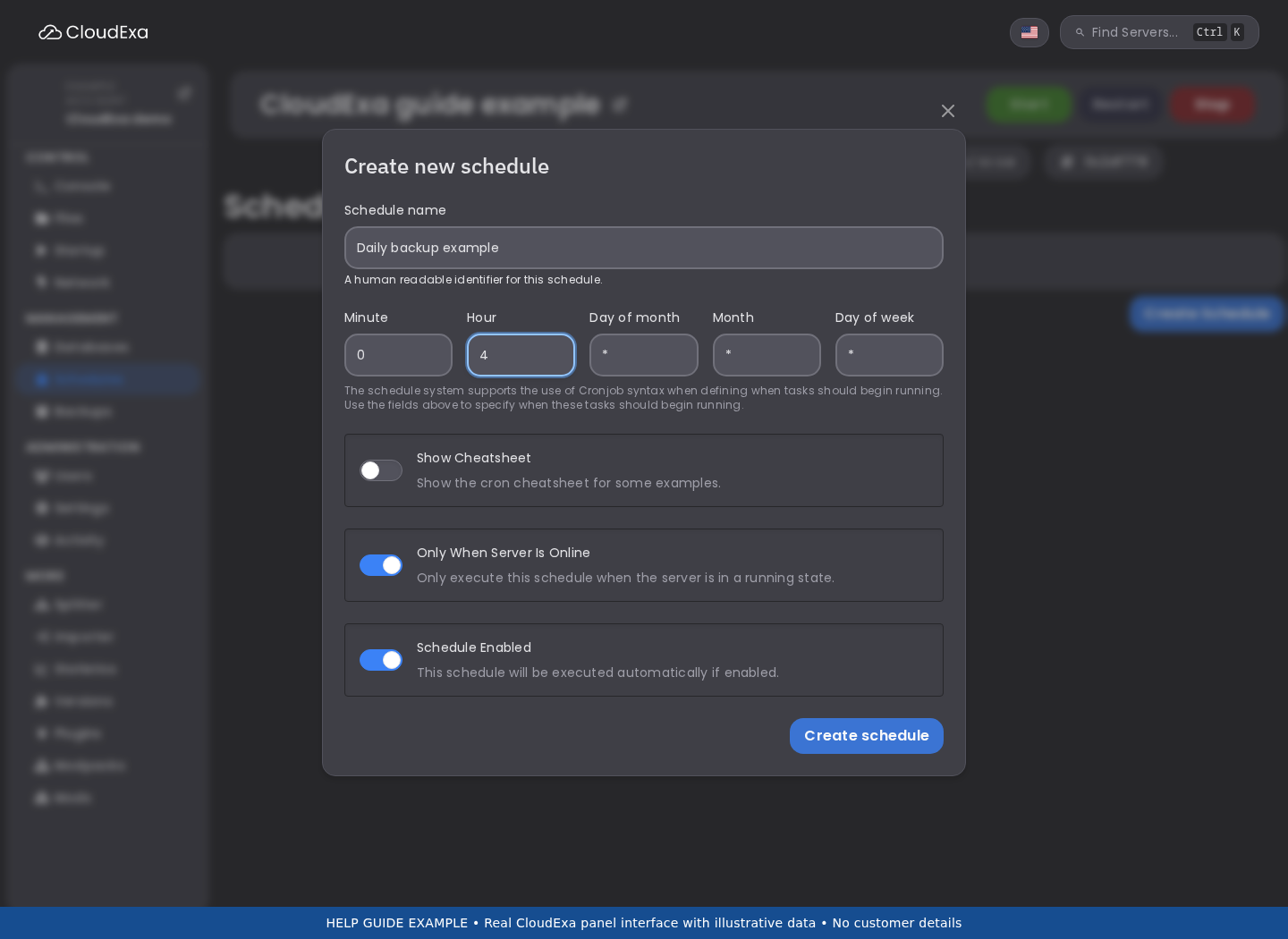](https://help.cloudexa-hosting.com/cloudexa/guides/20261108-wave2/game-schedules.png)Example daily 04:00 form, not a saved schedule. Confirm the timezone before using it. Select the image to enlarge it.## Add a backup task
1. Open the schedule and add a task.
2. Under **Action**, select **Create backup**. Leave **Ignored Files** empty unless you intend exclusions. The server's `.pteroignore` can still exclude files.
3. Use a zero time offset for a single backup task. Save with **Create Task**.
4. Check the next-run time. Run one manual test during a suitable maintenance window, then inspect the resulting entry under Backups.
A task offset delays the next task; it does not prove that a large backup has finished. Avoid chaining an automatic start immediately after a backup request when you need an offline, consistent copy. Ask support to help design that workflow.
## Understand rotation
Current scheduled backups can rotate the oldest eligible unlocked successful backup when the slot allowance is full. The panel waits for the replacement to report success before removing the old copy. Locked backups are not rotation candidates; filling all slots with locked entries can block scheduled backups.
Slots count recovery points, not days. Two slots used by an hourly schedule do not provide a week of history. Download and verify any copy you need to keep before it becomes eligible for rotation.
## Verify completion
Check the schedule's last-run time and the backup's completed status. A task that started is not proof of a usable archive. Check size and download a copy when practical; test recovery on a separate test server before depending on it. If a run fails or remains pending, send support the server ID, schedule name, timestamp, backup name and request ID. Do not start repeated backups to clear a stuck entry.